❓ Help PATULONG SA TEXT EDITOR MGA BOSSING

D O U B L E M I N T

Eternal Poster
asd.webp
 
about text editor
Text editors are software applications designed for creating, editing, and formatting text-based documents. They are commonly used for coding, writing, note-taking, and various other text-related tasks. Depending on the specific text editor you are using, there may be different features and functionalities available.

Common features found in text editors include:
1. Basic text formatting options like bold, italics, underline, and font styles.
2. Undo and redo functionality to easily revert any changes.
3. Find and replace tools for searching and replacing specific words or phrases.
4. Line numbering and syntax highlighting for programming languages.
5. Spell checking to catch any spelling errors.
6. Autosave functionality to prevent data loss.
7. Customizable themes and layouts for a personalized user experience.
8. Collaboration features to work on documents with others in real-time.

Some popular text editors include Notepad++, Sublime Text, Atom, Visual Studio Code, and Vim. Each of these text editors has its own set of features, customizability, and learning curve. It's a good idea to explore different options and choose the one that suits your needs and preferences.

If you have any specific questions or need assistance with a particular aspect of a text editor, please let me know and I'll be happy to provide more guidance.
 
Text editors are software applications designed for creating, editing, and formatting text-based documents. They are commonly used for coding, writing, note-taking, and various other text-related tasks. Depending on the specific text editor you are using, there may be different features and functionalities available.

Common features found in text editors include:
1. Basic text formatting options like bold, italics, underline, and font styles.
2. Undo and redo functionality to easily revert any changes.
3. Find and replace tools for searching and replacing specific words or phrases.
4. Line numbering and syntax highlighting for programming languages.
5. Spell checking to catch any spelling errors.
6. Autosave functionality to prevent data loss.
7. Customizable themes and layouts for a personalized user experience.
8. Collaboration features to work on documents with others in real-time.

Some popular text editors include Notepad++, Sublime Text, Atom, Visual Studio Code, and Vim. Each of these text editors has its own set of features, customizability, and learning curve. It's a good idea to explore different options and choose the one that suits your needs and preferences.

If you have any specific questions or need assistance with a particular aspect of a text editor, please let me know and I'll be happy to provide more guidance.
what are some text editor apps that i can use for free in c++
 
what are some text editor apps that i can use for free in c++
There are several text editors that you can use for free when programming in C++. Here are a few popular ones:

1. Visual Studio Code (VS Code): A highly popular and versatile source code editor that supports many programming languages, including C++. It offers a wide range of features such as syntax highlighting, code completion, debugging, and Git integration. You can customize it with extensions to enhance functionality specific to C++ development.

2. Sublime Text: A lightweight and customizable text editor that is loved by many developers. It has a smooth and efficient user interface and provides features like syntax highlighting, code snippets, and multiple selections. Sublime Text has a large user community, and you can extend its functionality through plugins.

3. Atom: Another popular text editor developed by GitHub. Atom is highly customizable and offers various features like smart autocompletion, file browsing, and Git integration. It supports C++ syntax highlighting and has a vast library of community-created packages to enhance its capabilities.

4. Code::Blocks: An open-source integrated development environment (IDE) specifically designed for C++ development. It provides a comprehensive set of features, including a code editor, compiler, debugger, and project management tools. Code::Blocks is a good option if you prefer a dedicated IDE for C++ development.

5. Notepad++: This is a lightweight and feature-rich text editor for Windows. It supports various programming languages, including C++. Notepad++ offers syntax highlighting, auto-completion, and has a user-friendly interface. It also has an active user community that creates plugins to extend its functionality.

These are just a few examples of free text editors that you can use for C++ development. Each has its own set of features and user experience, so it's worth trying a few to see which one fits your needs the best.
 
There are several text editors that you can use for free when programming in C++. Here are a few popular ones:

1. Visual Studio Code (VS Code): A highly popular and versatile source code editor that supports many programming languages, including C++. It offers a wide range of features such as syntax highlighting, code completion, debugging, and Git integration. You can customize it with extensions to enhance functionality specific to C++ development.

2. Sublime Text: A lightweight and customizable text editor that is loved by many developers. It has a smooth and efficient user interface and provides features like syntax highlighting, code snippets, and multiple selections. Sublime Text has a large user community, and you can extend its functionality through plugins.

3. Atom: Another popular text editor developed by GitHub. Atom is highly customizable and offers various features like smart autocompletion, file browsing, and Git integration. It supports C++ syntax highlighting and has a vast library of community-created packages to enhance its capabilities.

4. Code::Blocks: An open-source integrated development environment (IDE) specifically designed for C++ development. It provides a comprehensive set of features, including a code editor, compiler, debugger, and project management tools. Code::Blocks is a good option if you prefer a dedicated IDE for C++ development.

5. Notepad++: This is a lightweight and feature-rich text editor for Windows. It supports various programming languages, including C++. Notepad++ offers syntax highlighting, auto-completion, and has a user-friendly interface. It also has an active user community that creates plugins to extend its functionality.

These are just a few examples of free text editors that you can use for C++ development. Each has its own set of features and user experience, so it's worth trying a few to see which one fits your needs the best.
how to open , edit and save file text implement word count line numbers find and replace text in notepad++
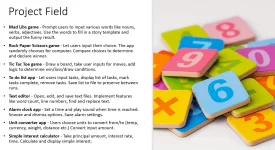
 
how to open , edit and save file text implement word count line numbers find and replace text in notepad++
To open, edit, and save a text file in Notepad++ and implement word count, line numbers, and find/replace text, you can follow these steps:

1. Open a file: Launch Notepad++ and go to "File" in the menu bar. Click on "Open" and select the text file you want to edit. Alternatively, you can use the shortcut Ctrl+O.

2. Edit the file: Once the file is open, you can make any changes or edits you want to the text. Simply click on the desired location and start typing. You can use the various editing features of Notepad++ such as selecting, copying, cutting, and pasting text.

3. Save the file: To save your changes, go to "File" in the menu bar and click on "Save" or "Save As" if you want to save the file with a different name or location. Alternatively, use the shortcut Ctrl+S.

4. Implement word count: Notepad++ does not have a built-in word count feature, but you can use a plugin called "TextFX Characters" to count words. To install the plugin, go to "Plugins" in the menu bar, click on "Plugin Manager," and then select "Show Plugin Manager." Look for "TextFX Characters" in the available plugins list and install it. Once installed, go to "Plugins" again, navigate to "TextFX" and select "TextFX Tools." From there, you can choose "Word Count" to get the word count of your text.

5. Display line numbers: To display line numbers in Notepad++, go to "Settings" in the menu bar and select "Preferences." In the Preferences window, choose the "Editing" tab and check the "Display line number" option. Click on "OK" to save the changes, and you will see line numbers on the left side of the text editor.

6. Find and replace text: Notepad++ provides a powerful find and replace functionality. To find text, go to "Search" in the menu bar and select "Find" or use the shortcut Ctrl+F. Enter the text you want to find in the search box and click "Find Next" to locate the first occurrence of the text. If you want to replace text, go to "Search" again and choose "Replace" or use the shortcut Ctrl+H. Enter the text you want to find and the replacement text, then click "Replace" or "Replace All" to perform the replacement.

Remember to save your changes regularly to keep your work up to date. Let me know if you have any further questions!
 

About this Thread

  • 7
    Replies
  • 270
    Views
  • 1
    Participants
Last reply from:
Unknown user

Trending Topics

Online now

Members online
1,115
Guests online
950
Total visitors
2,065

Forum statistics

Threads
2,273,741
Posts
28,951,230
Members
1,234,939
Latest member
bloody666
Back
Top