 PH
PH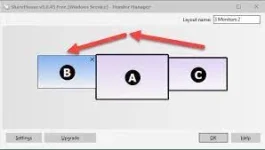
Year/Date of Release : Update: 03-08-2021
Version : 5.0.45 Pro
Developer : Bartels Media GmbH
Developer website : You do not have permission to view the full content of this post. Log in or register now.
Bit depth : 32bit, 64bit
Interface language : English
Tablet : present
System requirements : Win7 - Win10
A program for using one keyboard and mouse on multiple computers. An ideal solution when there are several monitors from different computers in the workplace.
● Computers must be connected to the same network.
● Does not require special switching, the mouse simply moves from one monitor to another. The keyboard follows the mouse.
● Supports Drag-and-drop and shared clipboard. Files are simply dragged with the mouse from one monitor to another. The shared clipboard is enabled by a assignable key.
● Supports entering passwords on connected computers. Supports waking connected computers from sleep mode and screensaver mode.
● The program automatically detects computers connected to the same network with installed copies of ShareMouse, and displays them in the "Monitor Manager" window.
● Allows you to change master and slave computers.
Important : Specific drivers and specific software for manipulators on slave computers work with limitations. The settings for buttons and mouse functions will work on all computers as they were configured on the host computer, but if you are on a slave computer, you will not be able to reassign them, even if you install a similar driver and software on the slave computer. The reason is clear - the software and driver simply will not detect this device, since it is physically connected to another (main) machine.
Same thing with the keyboard. Standard functions work without restrictions. Additional keys (for example, on the G-105, assigned through special software Logitech Gaming Software) will retain their assigned functions, but it will be impossible to change them even if special software and drivers are installed on the slave computer.
How to use the shared clipboard
To transfer data from one computer to another using the Share Mouse buffer, copy the necessary data to a regular buffer (ctrl+C). On the computer where you want to paste the data, press the key combination assigned in the Share Mouse program to paste from the shared clipboard.
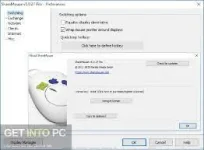
The combination is assigned as follows: in the Share Mouse program settings (setting), go to the “exchange” section, check the “drag and drop” (for dragging with the mouse) and “insert remote clipboard with hotkey” checkboxes, then assign any free key combination , which will paste onto our computer everything that was copied to the standard clipboard on another machine.
Move the mouse to the monitor of the computer you wish to control and the pointer magically jumps to that computer. Any mouse and keyboard input is transmitted to the corresponding computer.
Similar to a network KVM, ShareMouse transmits mouse movements and clicks through the local LAN. All traffic can be password-protected and AES encrypted.
To switch between computers, there is no additional hardware or press of a button required.
Similar to a keyboard switch, you can seamlessly operate multiple computers on your desk from any mouse and keyboard.
...but never trust the marketing blurb - Let actual users speak
INSTALLATION:
● Install the program.
● Let's launch.
● Go to the "About" section and press the "copy clipboard" button
● Open notepad and paste what you copied there.
● From what was inserted, we only need the “hardware ID” value. Let's copy it.
Other options for extracting this value from the “About” window are acceptable - memorizing it, or, if there is no memory, you can copy it onto a piece of paper, but “copy-paste” personally seems to me the most reliable.
● Close notepad and ShareMouse.
● Launch the keygen, insert the hard-earned hardware ID value into the top line and click “Activation”
● Close the keygen
● Launch the program. Checking the result in the "About" window
● Leave the program running.
● Install the program on a second computer. If they are on the same network (and they must be on the same network), then the program on the second computer picks up the activation from the first. In the screenshot of the "About" window attached to the distribution, you can see that the license was picked up from another computer.
● If it doesn’t catch it, close ShareMouse on the first computer and perform the same treatment on the second computer in the same way as the first computer.
Voila. We dance a jig and use it.
Download Link: You do not have permission to view the full content of this post. Log in or register now.
Enoy Mga Lodi pa Like and comment lang po salamat

