PH
PH
T
tweez
Requirements:
Step 1:
Go to You do not have permission to view the full content of this post. Log in or register now. and click the blue button saying “Join now”.
Step 2:
Create your account as you would normally or use your personal Microsoft account, I’d suggest you use your real Infos, or not, do whatever you want.
Step 3:
Select your country, give them a fake company name, accept conditions, whatever.
Step 4:
They will ask you why you want to integrate the program, and say that you want to use this account for personal projects.
Step 5:
They will ask you what apps you want to use, just put whatever you want, you will have access to everything still.
Step 6:
Now they will ask you what sandbox you want, I’d suggest you take the Instant sandbox, but you won’t be able to customize the domain name. Just read and choose what you want.
Step 7:
Now they will ask you to create an admin account and input your country, the name you want, and your password.
Step 8:
Input your phone number, it will be used to send a verification code. (You will also have to use an authenticator to connect to the account.)
Step 9:
Your account is created.
Again, IT WILL AUTO RENEW!
Step 10:
Scroll down and enable OneDrive here, then click apply:
Step 11:
Go to You do not have permission to view the full content of this post. Log in or register now. and connect with your given mail and the password you choose:
Step 12:
You can now download the office installer and everything like that.
Then go to one drive and connect again with the mail they gave you and your password. This way, you will activate your OneDrive.
You now have 1TB of storage on your account, so you will probably tell me, “You said we had access to 5TB of storage,” and you are right.
You have to do a few more manipulations now!
Step 13:
Go back to You do not have permission to view the full content of this post. Log in or register now. and click on the Admin app right there:
Step 14:
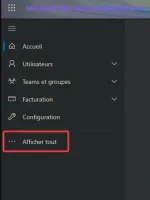
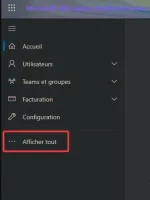
Now that you’re on the Admin page, click on “show everything”, then “Show all application centers,” and then go to the Sharepoint one:
Step 15:
You will then be redirected to the SharePoint page.
Now you have to go to the settings tab, select the “Onedrive - Storage Limit,” and put the max amount of storage:
Step 16:
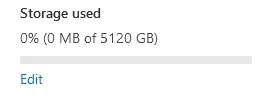
Go back to the admin app page and go to users, active users, click the user you want to give 5TB (The user needs to have opened OneDrive at least once) and go to the OneDrive tab of the popup that appeared and click “Modify” under the Allowed stockage thing, then modify the thing and save:
Congrats! You are done, Enjoy everything now!
If you are out of space with this 5 TB, you can ask the support to upgrade to 25TB for free.
- Phone number
- At least 2 brain cells
Step 1:
Go to You do not have permission to view the full content of this post. Log in or register now. and click the blue button saying “Join now”.
Step 2:
Create your account as you would normally or use your personal Microsoft account, I’d suggest you use your real Infos, or not, do whatever you want.
Step 3:
Select your country, give them a fake company name, accept conditions, whatever.
Step 4:
They will ask you why you want to integrate the program, and say that you want to use this account for personal projects.
Step 5:
They will ask you what apps you want to use, just put whatever you want, you will have access to everything still.
Step 6:
Now they will ask you what sandbox you want, I’d suggest you take the Instant sandbox, but you won’t be able to customize the domain name. Just read and choose what you want.
Step 7:
Now they will ask you to create an admin account and input your country, the name you want, and your password.
Step 8:
Input your phone number, it will be used to send a verification code. (You will also have to use an authenticator to connect to the account.)
Step 9:
Your account is created.
Again, IT WILL AUTO RENEW!
Step 10:
Scroll down and enable OneDrive here, then click apply:
Step 11:
Go to You do not have permission to view the full content of this post. Log in or register now. and connect with your given mail and the password you choose:
Step 12:
You can now download the office installer and everything like that.
Then go to one drive and connect again with the mail they gave you and your password. This way, you will activate your OneDrive.
You now have 1TB of storage on your account, so you will probably tell me, “You said we had access to 5TB of storage,” and you are right.
You have to do a few more manipulations now!
Step 13:
Go back to You do not have permission to view the full content of this post. Log in or register now. and click on the Admin app right there:
Step 14:
Now that you’re on the Admin page, click on “show everything”, then “Show all application centers,” and then go to the Sharepoint one:
Step 15:
You will then be redirected to the SharePoint page.
Now you have to go to the settings tab, select the “Onedrive - Storage Limit,” and put the max amount of storage:
Step 16:
Go back to the admin app page and go to users, active users, click the user you want to give 5TB (The user needs to have opened OneDrive at least once) and go to the OneDrive tab of the popup that appeared and click “Modify” under the Allowed stockage thing, then modify the thing and save:
Congrats! You are done, Enjoy everything now!
If you are out of space with this 5 TB, you can ask the support to upgrade to 25TB for free.