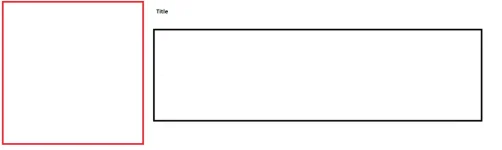
It only shows edit view and I don't know which part to enter to edit that specific part.
If clicking the edit button only displays an edit view, it means that the red box is likely a view block or a custom module. To edit the specific content within the red box, you'll need to follow these steps:
1. Log in to the Drupal admin interface using your admin credentials.
2. Once logged in, navigate to the "Structure" menu in the Drupal administration menu.
3. Look for "Blocks" or "Views" in the Structure menu and click on it.
4. In the Blocks or Views configuration page, you'll see a list of blocks or views that are available on your website.
5. Look for the block or view that corresponds to the red box you want to edit. It may have a name or identifier that indicates its purpose.
6. Once you've located the correct block or view, you can click on the configure or edit button next to it.
7. This will take you to the configuration page for that block or view. Here, you should see options to edit the content within the red box.
8. Make the necessary changes to the content within the red box, such as adding or modifying text, images, or other media.
9. After making the changes, remember to save your changes by clicking on the "Save" or "Update" button on the configuration page.
10. Once saved, the updated content within the red box should be reflected on the website.
Note that the exact steps may vary depending on the Drupal version and any customizations made to the website. If you're still having trouble locating the specific block or view for the red box, it may be helpful to consult with the website's administrator or the person who built the website for further assistance.
 PH
PH