 PH
PHPHC - plokplok
┌∩∩∩┐(◣_◢)┌∩∩∩┐
I used Youtube as an Example but this tutorial will work for other apps as long as its listed in Revanced Patches.
Other Thread: Revanced Youtube Tools and Guides
YøùTùbé Revanced File Sizes
Universal ~100 MB
Specific Arch ~70 MB
Specific Arch and DPI ~50 MB
Method 1: Create Youtube Revanced Universal
Pre-Requisites: You do not have permission to view the full content of this post. Log in or register now.
• Phone (Arm64-V8a) + (Internet)
• Revanced Manager
• Apk Signer
• Youtube Apk from Apkmirror (Not Bundled)
* v18.16.37 , v18.15.40, or 18.14.41
Steps:
1) With Wifi or Mobile Data open Vanced Manager.
2) Import Youtube Apk
3) Select Patches
Recommended Patches:
# For Rooted Phones leave "MicroG Support" unchecked.
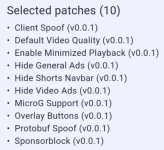
4) Tap "Done" and "Apply Patches" then Wait to finish.
5) Click the 3-Dots at the Upper-Right then Export Apk.
6) Open Apk Signer, Click "Sign Apk" and select Youtube Revanced.
7) You can now use/share the Universal Youtube Revanced app.
Method 2: Create Youtube Revanced Specific Architecture
Pre-Requisites: You do not have permission to view the full content of this post. Log in or register now.
• Youtube Revanced Universal (Refer to Method 1)
• ApkTool M
Steps:
1) Open ApkTool M and Find Youtube Revanced Universal Apk.
2) Click on the File and Select "Split by Architecture".
3) Select what Architecture you want to get, you can select all if you want to share it.
4) In Signature Tab select "Don't Sign" then Proceed and Wait.
5) Onced Finished you can now install the app for your specific Architecture or you can share it to others.
Method 3: Create Youtube Revanced Specific Architecture and DPI
Pre-Requisites: You do not have permission to view the full content of this post. Log in or register now.
• Revanced Manager
• Zarchiver (PlayStore)
• AntiSplit G2
• Apk Signer
• Youtube Apkm from Apkmirror (Split Apk/Bundled)
* v18.16.37 , v18.15.40, or 18.14.41
• Optional: If you don't know the Arch and DPI of your Phone Download Device Info HW in PlayStore.
Steps:
1) Open Zarchiver, Find and Open the Apkm.
2) Multi-Select these files and extract.
• base.apk
• split_config.(language).apk
# en for English
• split_config.(arch).apk
# Arch of your device
• split_config.(DPI).apk
# DPI of your device
# If your DPI doesn't exist:
1st Choice) Use the lower DPI or
2nd Choice) Use the higher DPI
3) After Extracting, Compress the 4 files into Zip (Fast or Normal Compression)
4) Open AntiSplit then go to settings, Change Language Code from "ru" to "en"
5) Select the Zip file from Step 3 and Merge. Onced Finished it should create an apk file in the same folder.
6) Open Revanced Manager and Select the Apk produced in Step 5.
7) Select Patches: For Rooted Device leave the "MicroG Support" unchecked.
Recommended Patches:
8) After selecting patches, Apply Patches and Wait.
9) Onced Finished, Click the 3-Dots and Export Apk.
10) Open Apk Signer and Sign the Exported apk from step 9.
11) Onced Finished you can now install the signed apk.
Other Thread: Revanced Youtube Tools and Guides
YøùTùbé Revanced File Sizes
Universal ~100 MB
Specific Arch ~70 MB
Specific Arch and DPI ~50 MB
Method 1: Create Youtube Revanced Universal
Pre-Requisites: You do not have permission to view the full content of this post. Log in or register now.
• Phone (Arm64-V8a) + (Internet)
• Revanced Manager
• Apk Signer
• Youtube Apk from Apkmirror (Not Bundled)
* v18.16.37 , v18.15.40, or 18.14.41
Steps:
1) With Wifi or Mobile Data open Vanced Manager.
2) Import Youtube Apk
3) Select Patches
Recommended Patches:
# For Rooted Phones leave "MicroG Support" unchecked.
4) Tap "Done" and "Apply Patches" then Wait to finish.
5) Click the 3-Dots at the Upper-Right then Export Apk.
6) Open Apk Signer, Click "Sign Apk" and select Youtube Revanced.
7) You can now use/share the Universal Youtube Revanced app.
Method 2: Create Youtube Revanced Specific Architecture
Pre-Requisites: You do not have permission to view the full content of this post. Log in or register now.
• Youtube Revanced Universal (Refer to Method 1)
• ApkTool M
Steps:
1) Open ApkTool M and Find Youtube Revanced Universal Apk.
2) Click on the File and Select "Split by Architecture".
3) Select what Architecture you want to get, you can select all if you want to share it.
4) In Signature Tab select "Don't Sign" then Proceed and Wait.
5) Onced Finished you can now install the app for your specific Architecture or you can share it to others.
Method 3: Create Youtube Revanced Specific Architecture and DPI
Pre-Requisites: You do not have permission to view the full content of this post. Log in or register now.
• Revanced Manager
• Zarchiver (PlayStore)
• AntiSplit G2
• Apk Signer
• Youtube Apkm from Apkmirror (Split Apk/Bundled)
* v18.16.37 , v18.15.40, or 18.14.41
• Optional: If you don't know the Arch and DPI of your Phone Download Device Info HW in PlayStore.
Steps:
1) Open Zarchiver, Find and Open the Apkm.
2) Multi-Select these files and extract.
• base.apk
• split_config.(language).apk
# en for English
• split_config.(arch).apk
# Arch of your device
• split_config.(DPI).apk
# DPI of your device
# If your DPI doesn't exist:
1st Choice) Use the lower DPI or
2nd Choice) Use the higher DPI
3) After Extracting, Compress the 4 files into Zip (Fast or Normal Compression)
4) Open AntiSplit then go to settings, Change Language Code from "ru" to "en"
5) Select the Zip file from Step 3 and Merge. Onced Finished it should create an apk file in the same folder.
6) Open Revanced Manager and Select the Apk produced in Step 5.
7) Select Patches: For Rooted Device leave the "MicroG Support" unchecked.
Recommended Patches:
8) After selecting patches, Apply Patches and Wait.
9) Onced Finished, Click the 3-Dots and Export Apk.
10) Open Apk Signer and Sign the Exported apk from step 9.
11) Onced Finished you can now install the signed apk.