 PH
PHjamesiswizard_1
Elite
Credits To NørdVPN
This tutorial shows how to set up HTTP proxy on Opera Browser. Just follow these steps:You Can Use Other Free VPN Available
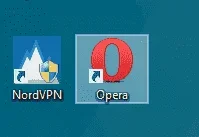
1. Open your Opera Browser.
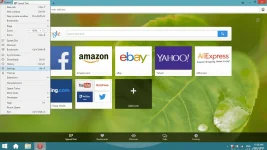
2. Click on the Opera Menu, which is in the top-left corner of the browser window and then press Settings.
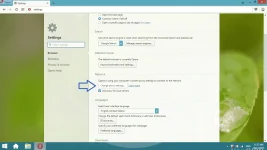
3. When Settings open, scroll down to find Network section. Click on the button Change proxy settings…
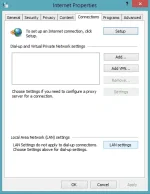
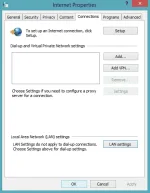
4. A new window pops up. Choose Connections tab and click on LAN settings.
5. On another new window check the following box Use a proxy server for your LAN (These settings will not apply to dial-up or VPN connections).
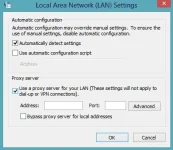
6. For Address enter one of NørdVPN’s servers addresses. You can freely choose any server you like from this list: NørdVPN Server List.
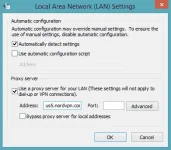
7. For Port enter 80. Note: To ensure a full privacy do NOT check the box Bypass proxy server for local addresses.
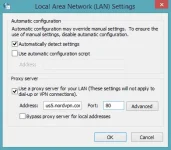
8. Press OK.
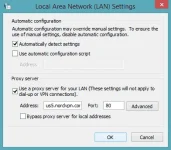
9. Click on OK on the previous window as well.
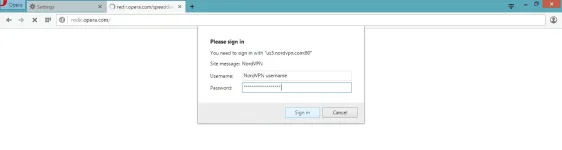
10. Once you try to access a site you will be prompted for the username and password. Enter your NørdVPN Username and Password and press Sign in.
Congratulations! The configuration is completed.
If you want to check whether it really works, go to You do not have permission to view the full content of this post. Log in or register now. website, where you will see the IP address of your chosen server.
Cheers!
This tutorial shows how to set up HTTP proxy on Opera Browser. Just follow these steps:You Can Use Other Free VPN Available
1. Open your Opera Browser.
2. Click on the Opera Menu, which is in the top-left corner of the browser window and then press Settings.
3. When Settings open, scroll down to find Network section. Click on the button Change proxy settings…
4. A new window pops up. Choose Connections tab and click on LAN settings.
5. On another new window check the following box Use a proxy server for your LAN (These settings will not apply to dial-up or VPN connections).
6. For Address enter one of NørdVPN’s servers addresses. You can freely choose any server you like from this list: NørdVPN Server List.
7. For Port enter 80. Note: To ensure a full privacy do NOT check the box Bypass proxy server for local addresses.
8. Press OK.
9. Click on OK on the previous window as well.
10. Once you try to access a site you will be prompted for the username and password. Enter your NørdVPN Username and Password and press Sign in.
Congratulations! The configuration is completed.
If you want to check whether it really works, go to You do not have permission to view the full content of this post. Log in or register now. website, where you will see the IP address of your chosen server.
Cheers!