PH
PHWhat is Capture2Text?
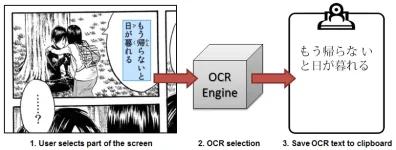
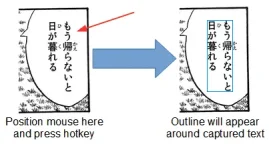
Capture2Text enables users to quickly OCR a portion of the screen using a keyboard shortcut. The resulting text will be saved to the clipboard by default.Conceptual illustration:
Capture2Text is free and licensed under the terms of the You do not have permission to view the full content of this post. Log in or register now..
Download
The latest version can be found on theYou do not have permission to view the full content of this post. Log in or register now.
hosted by SourceForge.
System Requirements
Supported operating systems:- Windows 7
- Windows 8/8.1
- Windows 10
Note: Windows XP support has been dropped as of Capture2Text v4.0.
How to Launch Capture2Text (no installation required)
- Unzip the contents of the zip file.
- Double-click on Capture2Text.exe. You should see the Capture2Text icon on the bottom-right of your screen (though it might be hidden in which case you will have to click on the "Show hidden icons" arrow).
How to Perform a Standard OCR Capture
Follow these steps to perform a standard OCR capture using the capture box:- Position your mouse pointer at the top-left corner of the text that you want to OCR.
- Press the OCR hotkey (Windows Key + Q) to begin an OCR capture.
- Move your mouse to resize the blue capture box over the text that you want to OCR. You may hold down the right mouse button and drag to move the entire capture box.
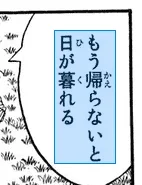
- Press the OCR hotkey again (or left-click or press ENTER) to complete the OCR capture. The OCR'd text will be placed in the clipboard and a popup showing the captured text will appear (the popup may be disabled in the settings).
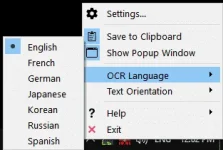
To change the OCR language, right-click the Capture2Text tray icon, select the OCR Language option and then select the desired language.
To quickly switch between 3 languages, use the OCR language quick access keys: Windows Key + 1, Windows Key + 2, and Windows Key + 3. The quick access languages may be specified in the settings.
When Chinese or Japanese is selected, you should specify the text direction (vertical/horizontal/auto) using the text direction hotkey: Windows Key + O. If auto is selected, horizontal will be used when the capture width is more than twice the height, otherwise vertical will be used. The text direction also affects how furigana is stripped from Japanese text.
(For Japanese) Capture2Text will attempt to automatically strip out furigana.
How to Perform a Text Line OCR Capture
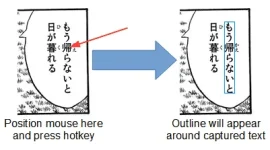
Capture2Text can automatically capture the line of text that is closest to the mouse pointer.Follow these steps to perform a Text Line OCR Capture:
- Position your mouse pointer on or near the line of text to capture.
- Press the Text Line OCR Capture hotkey (Windows Key + E).
- Capture2Text will outline the captured text and save the OCR result to the clipboard.
How to Perform a Bubble OCR Capture
Capture2Text can automatically capture text contained within a comic book speech/thought bubble as long as the bubble is completely enclosed.Follow these steps to perform a Bubble OCR Capture:
- Position your mouse pointer in the empty part of the bubble (not on the text).
- Press the bubble OCR Capture hotkey (Windows Key + S).
- Capture2Text will outline the captured text and save the OCR result to the clipboard.
How to Specify the Active OCR Language
To specify the active OCR language, right-click the tray icon, click on OCR Language, and select an OCR languages from the list: