 PH
PH
Y
Yours
You do not have permission to view the full content of this post.
Log in or register now.
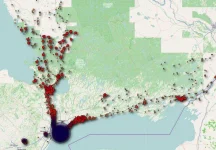
Location Services and Privacy settings on your iPhone, iPod touch and iPad certainly provide a very detailed breakdown of the apps and system services that have requested access to your location, or are motoring your location in the background.
Options in Location Services are incredibly complex so average users may be tempted to not bother and simply leave everything on. Others may disable Location Services altogether, which isn’t a very good idea either (from a usability standpoint).
Suppose you want to stop an iOS device from tracking your whereabouts, but without disrupting essential features or sacrificing much of the device’s functionality.
But how precisely does one accomplish that?
There’s no master switch in iOS that’d tell the device to stop monitoring your location. Plus, things get more complex if you don’t know exactly which switches in Settings need flipping and which ones must be left intact.
This easy to follow step-by-step tutorial will lay out exactly the features on your device that you must disable in order to limit or prevent unwanted location tracking.
About preventing iPhone location tracking
Location settings are configurable via Settings → Privacy → Location Services.
While it’s easy to opt for the nuclear option and simply slide each and every toggle there to the OFF position, doing so could severely cripple apps and features.
RELATED: You do not have permission to view the full content of this post. Log in or register now.
What we want to do is put a stop to unwanted location tracking in a way that’ll allow critical Location Services to function and without changing location settings for your favorite apps. Stopping your iPhone from tracking your whereabouts entails flipping a few switches to disable the following items:
How to stop iPhone, iPod touch or iPad from tracking your location
Stopping Apple, apps and your iPhone from knowing where you’ve been, where you are currently, where you’re going next or any combination of the above can be accomplished on three basic levels.
First, you can restrict location access for iOS’s system services, without sacrificing user experience. Second, you can then disable location for your favorite apps, on a per-app basis. And third, you could go nuclear and turn Location Services off entirely, which will have some negative effects on your app experience.
1. Disable location access for System Services
Go to Settings → Privacy → Location Services and tap System Services at the bottom. It’s best to avoid disabling location access entirely for each and every iOS system service listed there.
That being said, many of these services can do without location tracking, such as Wi-Fi Calling, Motion Calibration & Fitness, Compass Calibration and more.
Slide all or some of the following toggles to the OFF position:
In Settings → Privacy → Location Services → System Services, tap Frequent Locations and on then slide the Frequent Locations toggle to the OFF position.
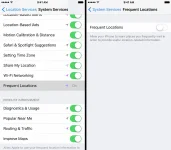
Doing so prompts your iPhone to stop recording where you are going next.
As an example, here are system services I don’t allow location tracking for.
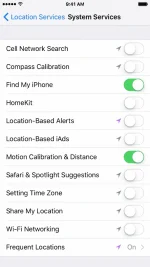
Your mileage may vary depending on the features you need on a daily basis.
For example, if you own HomeKit devices and need geofencing in order to have the garage door automatically open when you arrive home, then you’d leave this switch on. Or, maybe you prefer seeing geographically relevant information in Safari and Spotlight, in which case you’d leave Safari & Spotlight Suggestions turned on, etc.
Tip: If you don’t use location sharing in Messages and Find My Friends, go to Settings → Privacy → Location Services, tap Share My Location near the top of the screen and on the next screen slide the Share My Location toggle to the OFF position.
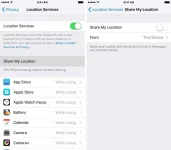
Doing so prevents friends and family from following you in the Find My Friends app and you won’t be able share your location with contacts via Messages. This particular feature can also be managed in the Settings → iCloud → Share My Location.
Next on our list: Apple’s product improvement services.
First, go to Settings → Privacy → Location Services and then disable one or more switches underneath the Product Improvement heading:
What I prefer to do is selectively decide about allowing location tracking on a per-item basis, depending on my use cases. Here’s how I typically have these options set up.
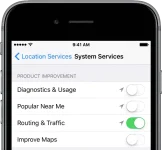
Tip: In order to prevent websites you visit in Safari from requesting or accessing your location, go to Settings → Location Services → Safari Websites and tap Never.
Tip: If you own an Apple Watch and Location Services is enabled on an iPhone, the watch will use your location for some features such as certain watch faces.
2. Disable location for apps
Make a habit of venturing into Settings → Privacy → Location Services on a regular basis, especially after installing apps that have requested your location. iOS makes it easy to configure location services for individual applications there. You would typically choose from the following options:
If you don’t need location access in some of your favorite apps, set them to “Never”. If I were you, I’d also turn on the the iOS status bar icon so that I can tell when my location is being retrieved or accessed.
3. Completely disable Location Services
This is a master switch that disables Location Services entirely on the device.
Go to Settings → Privacy → Location Services and slide the Location Services toggle at the very top to the OFF position. No app or feature on your iOS device will be able to access and use your location until you re-enable Location Services.
In Camera, for example, photos you take won’t have location you took them at embedded in them. Find My iPhone and Find My Friends will become useless and you won’t be able to share your location with contacts in Messages.
Mapping applications such as Apple Maps and Google Maps won’t be able to locate your position on the map and provide navigation services. Certain third-party apps that depend on Location Services will be severely crippled, like Foursquare, Swarm and many other social and location-based apps.
You get the idea: if you disable Location Services, you’ll be rewarded with a longer battery life and utmost privacy at the expense of the user experience.
Wrapping it up
And with that, boys and girls, we conclude our journey through iOS’s Location Services. Congratulations—your iPhone, iPod touch or iPad is now a bit more anonymous. Assuming you’ve disabled every single switch mentioned, location tracking will be limited to essential features.
idownloadblog
Location Services and Privacy settings on your iPhone, iPod touch and iPad certainly provide a very detailed breakdown of the apps and system services that have requested access to your location, or are motoring your location in the background.
Options in Location Services are incredibly complex so average users may be tempted to not bother and simply leave everything on. Others may disable Location Services altogether, which isn’t a very good idea either (from a usability standpoint).
Suppose you want to stop an iOS device from tracking your whereabouts, but without disrupting essential features or sacrificing much of the device’s functionality.
But how precisely does one accomplish that?
There’s no master switch in iOS that’d tell the device to stop monitoring your location. Plus, things get more complex if you don’t know exactly which switches in Settings need flipping and which ones must be left intact.
This easy to follow step-by-step tutorial will lay out exactly the features on your device that you must disable in order to limit or prevent unwanted location tracking.
About preventing iPhone location tracking
Location settings are configurable via Settings → Privacy → Location Services.
While it’s easy to opt for the nuclear option and simply slide each and every toggle there to the OFF position, doing so could severely cripple apps and features.
RELATED: You do not have permission to view the full content of this post. Log in or register now.
What we want to do is put a stop to unwanted location tracking in a way that’ll allow critical Location Services to function and without changing location settings for your favorite apps. Stopping your iPhone from tracking your whereabouts entails flipping a few switches to disable the following items:
- You do not have permission to view the full content of this post. Log in or register now.
- You do not have permission to view the full content of this post. Log in or register now., like You do not have permission to view the full content of this post. Log in or register now. and alerts
- You do not have permission to view the full content of this post. Log in or register now.
- You do not have permission to view the full content of this post. Log in or register now. and other product improvement features
How to stop iPhone, iPod touch or iPad from tracking your location
Stopping Apple, apps and your iPhone from knowing where you’ve been, where you are currently, where you’re going next or any combination of the above can be accomplished on three basic levels.
First, you can restrict location access for iOS’s system services, without sacrificing user experience. Second, you can then disable location for your favorite apps, on a per-app basis. And third, you could go nuclear and turn Location Services off entirely, which will have some negative effects on your app experience.
1. Disable location access for System Services
Go to Settings → Privacy → Location Services and tap System Services at the bottom. It’s best to avoid disabling location access entirely for each and every iOS system service listed there.
That being said, many of these services can do without location tracking, such as Wi-Fi Calling, Motion Calibration & Fitness, Compass Calibration and more.
Slide all or some of the following toggles to the OFF position:
- Cell Network Search—Apple uses this to measure cellular reception.
- Compass Calibration—The stock Compass app will refresh slower.
- HomeKit—If you’re not using any HomeKit devices, disable this.
- Location-Based Alerts—Disable if you don’t use location-based alerts in Reminders.
- Location-Based iAds—Ads in apps won’t be tailored to your location.
- Motion Calibration & Distance—Disable if you don’t use fitness and activity apps.
- Safari & Spotlight Suggestions—Web suggestions won’t be location-specific.
- Setting Time Zone—Definitely disable unless you travel time zones often.
- Share My Location—Disables location tracking for Messages and Find My Friends.
- Wi-Fi Calling—Turn off if you don’t use Wi-Fi Calling.
- Wi-Fi Networking—Disabling this stops Apple from collecting data on nearby Wi-Fi networks.
In Settings → Privacy → Location Services → System Services, tap Frequent Locations and on then slide the Frequent Locations toggle to the OFF position.
Doing so prompts your iPhone to stop recording where you are going next.
As an example, here are system services I don’t allow location tracking for.
Your mileage may vary depending on the features you need on a daily basis.
For example, if you own HomeKit devices and need geofencing in order to have the garage door automatically open when you arrive home, then you’d leave this switch on. Or, maybe you prefer seeing geographically relevant information in Safari and Spotlight, in which case you’d leave Safari & Spotlight Suggestions turned on, etc.
Tip: If you don’t use location sharing in Messages and Find My Friends, go to Settings → Privacy → Location Services, tap Share My Location near the top of the screen and on the next screen slide the Share My Location toggle to the OFF position.
Doing so prevents friends and family from following you in the Find My Friends app and you won’t be able share your location with contacts via Messages. This particular feature can also be managed in the Settings → iCloud → Share My Location.
Next on our list: Apple’s product improvement services.
First, go to Settings → Privacy → Location Services and then disable one or more switches underneath the Product Improvement heading:
- Diagnostics & Usage—Strips your location from crash logs sent to Apple.
- Popular Near Me—Sends information to Apple based on what apps you use in specific locations. You can disable this feature without a whole lot of recourse.
- Routing & Traffic—Monitors your speed in real time based off of your location in Apple Maps. Disabling location access for this will make it more harder for Apple to improve traffic data.
- Improve Maps—Disabling this disallows Apple to obtain a list of your Frequent Locations and use it to improve Maps. You can safely turn this off.
What I prefer to do is selectively decide about allowing location tracking on a per-item basis, depending on my use cases. Here’s how I typically have these options set up.
Tip: In order to prevent websites you visit in Safari from requesting or accessing your location, go to Settings → Location Services → Safari Websites and tap Never.
Tip: If you own an Apple Watch and Location Services is enabled on an iPhone, the watch will use your location for some features such as certain watch faces.
2. Disable location for apps
Make a habit of venturing into Settings → Privacy → Location Services on a regular basis, especially after installing apps that have requested your location. iOS makes it easy to configure location services for individual applications there. You would typically choose from the following options:
- Never: This feature makes it so the application in question can never access your location for any reason at all.
- While Using: This feature makes it so the application in question can only ever access your location when it’s open and in the foreground.
- Always: This feature makes it so the application in question will always have access to your location whenever it wants to, whether the application is open in the background or not.
If you don’t need location access in some of your favorite apps, set them to “Never”. If I were you, I’d also turn on the the iOS status bar icon so that I can tell when my location is being retrieved or accessed.
3. Completely disable Location Services
This is a master switch that disables Location Services entirely on the device.
Go to Settings → Privacy → Location Services and slide the Location Services toggle at the very top to the OFF position. No app or feature on your iOS device will be able to access and use your location until you re-enable Location Services.
In Camera, for example, photos you take won’t have location you took them at embedded in them. Find My iPhone and Find My Friends will become useless and you won’t be able to share your location with contacts in Messages.
Mapping applications such as Apple Maps and Google Maps won’t be able to locate your position on the map and provide navigation services. Certain third-party apps that depend on Location Services will be severely crippled, like Foursquare, Swarm and many other social and location-based apps.
You get the idea: if you disable Location Services, you’ll be rewarded with a longer battery life and utmost privacy at the expense of the user experience.
Wrapping it up
And with that, boys and girls, we conclude our journey through iOS’s Location Services. Congratulations—your iPhone, iPod touch or iPad is now a bit more anonymous. Assuming you’ve disabled every single switch mentioned, location tracking will be limited to essential features.
idownloadblog