 PH
PHWeasleyyyyy
Eternal Poster
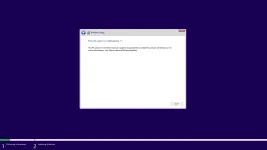
Lagi ng ganto mga priiii, ano bang kleqangan kong gawin fito. Halos lahat ng mga post dito nagamit ko na pero eto at eto pa tin nalabas.
You do not have permission to view the full content of this post. Log in or register now.
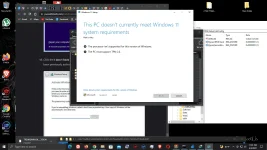
Salaamat ng maramii iiidoloooooo
- Open Start.
- Search for regedit and click the top result to open the Registry Editor.
- Navigate to the following path. HKEY_LOCAL_MACHINE\SYSTEM\Setup\MoSetup
- Right-click the MoSetup (folder) key, select the New submenu and choose the DWORD (32-bit) Value option.
- Name the key AllowUpgradesWithUnsupportedTPMOrCPU and press Enter.
- Double-click the newly created key and set its value from 0 to 1.
- AllowUpgradesWithUnsupportedTPMOrCPU
- Click the OK button. After you complete the steps, you will be able to install Windows 11 on a device that does not have a supported processor or TPM 2.0 (TPM 1.2 will still be required).
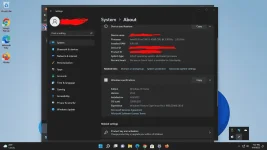
You're welcome boss. Yan din yung instructions na sinunod ko.

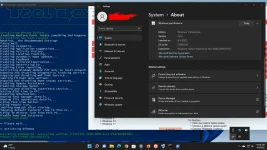
Lods dito po kaya bakit ganun ang basa ng ac†ïvâ†ør na to dito sa OS ko? Windows 10 pa rin ang basaYou're welcome boss. Yan din yung instructions na sinunod ko.
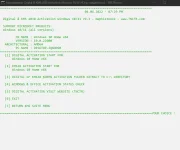
Gamit ka ng ibang ac†ïvâ†ørLods dito po kaya bakit ganun ang basa ng ac†ïvâ†ør na to dito sa OS ko? Windows 10 pa rin ang basa
View attachment 1885294
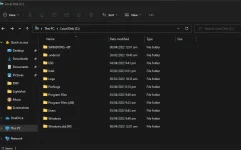
idolo pahelp naman ako, yung mga windows old parang nandun pa yung mga files ko last window 10 pa. kaya nafufull storage ko tas di ko namaan madelete. kung cp lang to pinormat ko na to eh HAHAHA full na yung storage ko eh dahil dun.Gamit ka ng ibang ac†ïvâ†ør
Ito gamitin mo You do not have permission to view the full content of this post. Log in or register now.
pasend ulit ng image lods, labo eh hehemag ghost spectre windows 11 ka nalang lods smooth pa

smooth lods
pasend ulit ng image lods, labo eh hehe
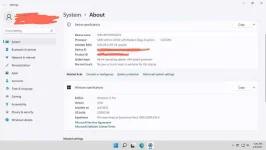
oks na lods. pano yung ghost spectre? Paturo ako lods, pati yung link nun
oks na lods. pano yung ghost spectre? Paturo ako lods, pati yung link nun
Send sa dm di Maka send link
https://phcorner.org/threads/window...mpact-by-ghost-spectre.1315284/#post-22501396Send sa dm di Maka send link
Search mo sa settings yung storage, pwede mo i delete dun yan.idolo pahelp naman ako, yung mga windows old parang nandun pa yung mga files ko last window 10 pa. kaya nafufull storage ko tas di ko namaan madelete. kung cp lang to pinormat ko na to eh HAHAHA full na yung storage ko eh dahil dun.View attachment 1885879
ghost spectre din ginamit ko, gumana naman at hindi na naghanap ng system requirements.
basta pag nag install ka, much better kung hindi pa naka saksak yung lan cable mo sa pc, kasi may nabasa ako na nagkakaroon din daw ng problem pag nag iinstall ng may connection agad sa internet.
Nakaka receive ba ng updates yung ghost spectre version ?mag ghost spectre windows 11 ka nalang lods smooth pa
smooth lods
