PH
PHPHC-Griffin
Forum Expert
Block Aggressive Ads on your Favorite websites, including those for Mature Sites to protect your child(no app, no vpn and no root needed)
Simple method for blocking aggressive Internet adverts that does not necessitate the installation of any software. Free to use, and simple to set up on any device. Includes only the bare minimum of features to block advertisements, counters, harmful websites, and ãdül† content. There are no limitations on the devices that can be used with it.
Whitelist Phcorner Here's How
 Android
Instructions for Android version 9 and above
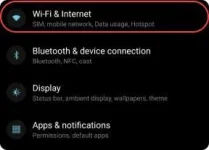
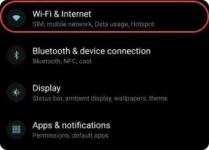
1. Go to Settings → Network & internet ( or Wi-Fi & Internet)
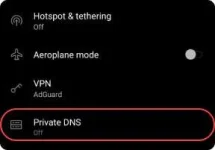
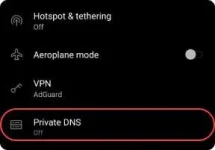
2 Advanced → Private DNS.
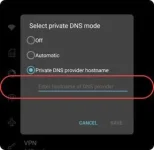
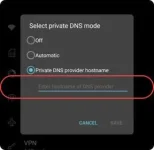
3. Select "Private DNS provider hostname" option and enter one of the following addresses:
Default server
If you want to block ads and trackers.
dns.adguard.com
Non-filtering server
If you don't want AdGuard DNS to block ads and trackers, or any other DNS requests.
dns-unfiltered.adguard.com
Family protection server
If you want to block ãdül† content, enable safe search and safe mode options wherever possible, and also block ads and trackers.
dns-family.adguard.com
Tap "Save"
Restart all open apps.
Instructions for older Android versions
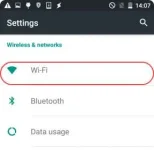
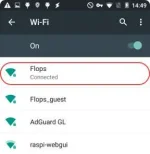
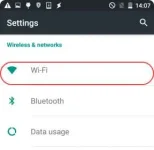
1. Go to Settings → Wi-Fi
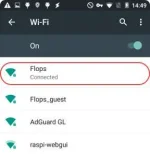
2. Tap and hold the name of the Wi-Fi network you are currently connected to
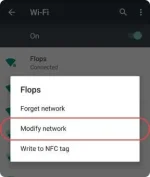
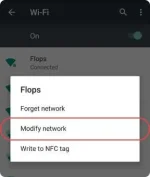
3. Tap "Modify Network"
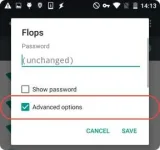
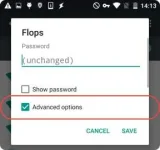
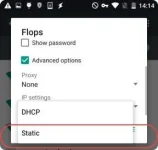
4. Tick the "Advanced options" checkbox
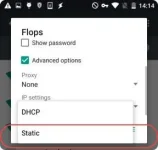
5. Change the IP Settings to "Static"
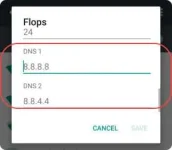
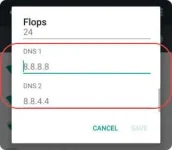
6. Remove all the DNS addresses that may be already listed and enter one of the following addresses in their place:
Default server
If you want to block ads and trackers.
94.140.14.14
94.140.15.15
*Use family protection server as an alternative
Non-filtering server
If you don't want AdGuard DNS to block ads and trackers, or any other DNS requests.
94.140.14.140
94.140.14.141
Family protection server
If you want to block ãdül† content, enable safe search and safe mode options wherever possible, and also block ads and trackers.
94.140.14.15
94.140.15.16
7. Tap "Save"
Note that if the Save button is grayed out, manually reenter the current values into the "IP address", "Gateway", and "Network prefix length" text fields. Then Tap "Save" which should become active by this point.
8. Restart all open apps.
 Your favorite Browser
Video Tutorial
1. Open your browser
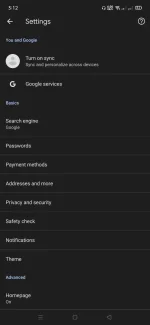
2. Go to settings
3. Go to Privacy and Security
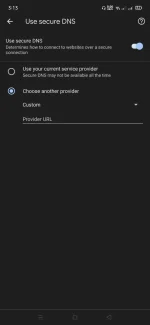
4. Click "Use secure DNS" Enable it
5. Input Default server or Family protection server to block ads
Default server
If you want to block ads and trackers.
https://dns.adguard.com/dns-query
Non-filtering server
If you don't want AdGuard DNS to block ads and trackers, or any other DNS requests.
https://dns-unfiltered.adguard.com/dns-query
Family protection server
If you want to block ãdül† content, enable safe search and safe mode options wherever possible, and also block ads and trackers.
https://dns-family.adguard.com/dns-query
6 Restart all open apps.
 Windows
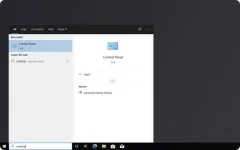
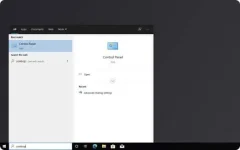
1. Click on the Start menu → Control Panel
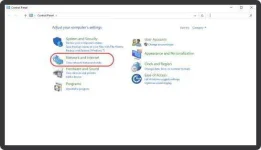
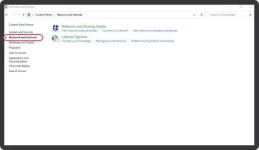
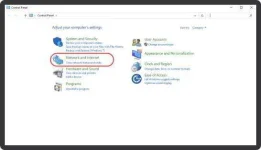
2. Click on "Network and Internet".
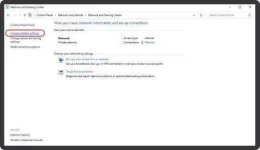
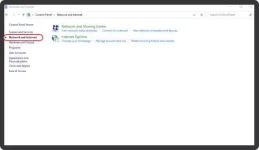
3. Click on "Network and Sharing Center"
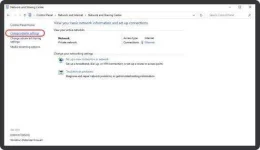
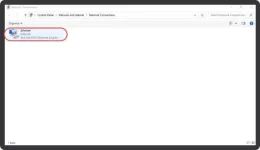
4. Select "Change Adapter Settings" from the menu on the left.
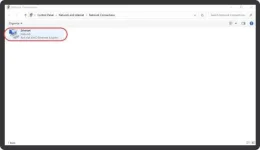
5. Click on the Wi-Fi network you are currently connected to.
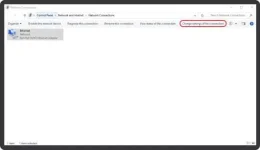
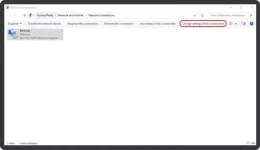
6. On the bar above the connection icon find and select the "Change settings of this connection" option.
Note that this option may be hidden in the drop-down menu, accessible by clicking the icon with two small arrows on the same menu bar.
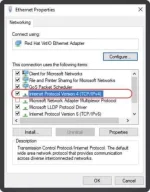
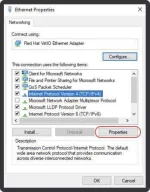
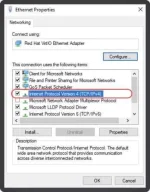
7. Select "Internet Protocol Version 4".
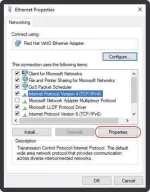
8. Click on "Properties".
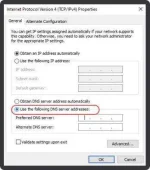
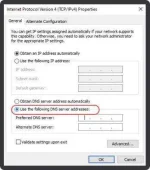
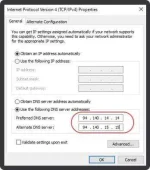
9. Click on "Use the following DNS server addresses".
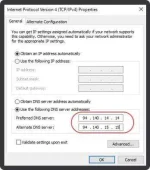
10. Choose one of the following servers and enter the respective addresses to the "Preferred DNS server" and "Alternate DNS server" text fields.
Default servers
If you want to block ads and trackers.
94.140.14.14
94.140.15.15
*Use family protection server as an alternative
Non-filtering servers
If you don't want AdGuard DNS to block ads and trackers, or any other DNS requests.
94.140.14.140
94.140.14.141
Family protection servers
If you want to block ãdül† content, enable safe search and safe mode options wherever possible, and also block ads and trackers.
94.140.14.15
94.140.15.16
11. Click "OK".
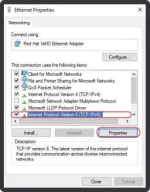
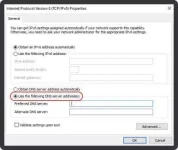
12. Now go to "Internet Protocol Version 6" → "Properties".
View attachment 2133081
13. Click "Use the following DNS server addresses".
View attachment 2133082
14. Choose one of the following servers and enter the respective addresses to the
"Preferred DNS server" and "Alternate DNS server" text fields.
Default servers
If you want to block ads and trackers.
2a10:50c0::ad1:ff
2a10:50c0::ad2:ff
Non-filtering servers
If you don't want AdGuard DNS to block ads and trackers, or any other DNS requests.
2a10:50c0::1:ff
2a10:50c0::2:ff
Family protection servers
If you want to block ãdül† content, enable safe search and safe mode options wherever possible, and also block ads and trackers.
2a10:50c0::bad1:ff
2a10:50c0::bad2:ff
15. Click "OK".
16. Click "Close".
17. Restart all open apps.
 Routers
1. Open the preferences for your router. Usually you can access them from your browser. Depending on the model of your router, try entering one the following addresses:
Linksys and Asus routers typically use You do not have permission to view the full content of this post. Log in or register now.
Netgear routers typically use You do not have permission to view the full content of this post. Log in or register now. or You do not have permission to view the full content of this post. Log in or register now.
D-Link routers typically use You do not have permission to view the full content of this post. Log in or register now.
Ubiquiti routers typically use You do not have permission to view the full content of this post. Log in or register now.
PLDT
You do not have permission to view the full content of this post. Log in or register now.
You do not have permission to view the full content of this post. Log in or register now.
GLobe
You do not have permission to view the full content of this post. Log in or register now.
You do not have permission to view the full content of this post. Log in or register now.
2.Enter the router login and password (Often the default values are admin / admin). Makikita rin sa sticker ng modem
Note that if you don't remember the password from your router, you can often reset it by pressing the button on the router itself. Some models have a specific application to manage them, in that case the application should be already installed on your computer.
3. Find where DNS settings are located in the router's admin console. Choose one of the following AdGuard DNS servers and replace the current addresses with the addresses of the chosen server:
Default servers
If you want to block ads and trackers.
IPv4:
94.140.14.14
94.140.15.15
*Use family protection server as an alternative
IPv6:
2a10:50c0::ad1:ff
2a10:50c0::ad2:ff
Non-filtering servers
If you don't want AdGuard DNS to block ads and trackers, or any other DNS requests.
IPv4:
94.140.14.140
94.140.14.141
IPv6:
2a10:50c0::1:ff
2a10:50c0::2:ff
Family protection servers
If you want to block ãdül† content, enable safe search and safe mode options wherever possible, and also block ads and trackers.
IPv4:
94.140.14.15
94.140.15.16
IPv6:
2a10:50c0::bad1:ff
2a10:50c0::bad2:ff
5. Save the changes.
6. Restart all open apps.