 PH
PHtoymachine8
Honorary Poster
credits to MÊK na gumawa ng tutorial..
napulot ko lang to sa tabi tabi so if you have any question about this post hindi ko kayo masasagot
Ever Wished To Have Own Cloud Storage Server ?? Then Today You Can Create Your Cloud Storage Server With No Storage Limits Like Dropbox Or Any Other Services.
We will Use OwnCloud To Create Our Personal Cloud Server.
Requirements :
Step - 1: Log In To ROOT Account.
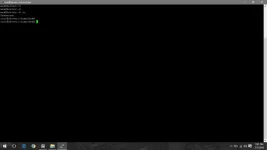
Step - 2: Type Following Command.
sh -c "echo 'deb You do not have permission to view the full content of this post. Log in or register now. /' >> /etc/apt/sources.list.d/owncloud.list"
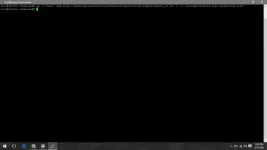
Step - 3: Then Following Command.
wget -nv You do not have permission to view the full content of this post. Log in or register now. -O Release.key
This Will Get Repository Key For OwnCloud.
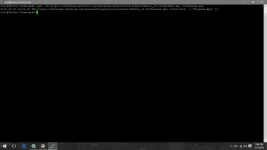
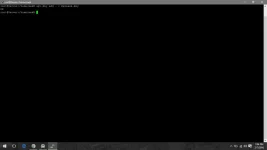
Step - 4: Now Add Downloaded Repository Key By Executing Following Command.
apt-key add - < Release.key
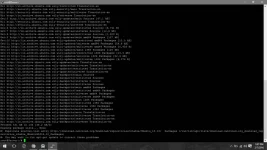
Step - 5: Now Update Server To Refresh Added Repository.
apt-get update
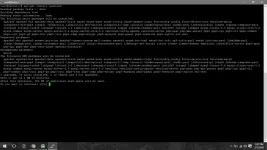
Step - 6: Now We Are Ready To Install OwnCloud By Executing Following Command.
apt-get install owncloud
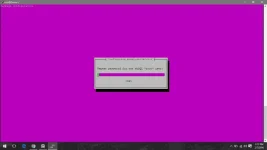
Step - 7: It Will Ask To Enter Password Of MySQL Root Account.
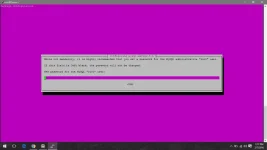
- Type Confirm Password.
- After Completing Installation, You Need To Go To Web browser of Network PC.
Step - 8:
Now Enter URL in following manner.
You do not have permission to view the full content of this post. Log in or register now.
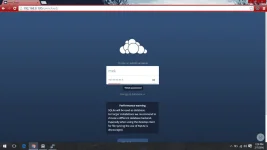
It Will Show Window Like Below.
- Enter Username And Password For Admin Account.
Step -9:
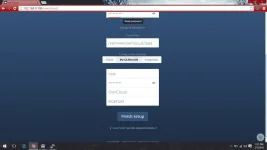
- Now Select 'Storage& Database'.
- Then Select MySQL/MariaDB Tab.
- Enter username root and it's password. Then give database name.
- Click On Finish Setup.
Done!! You have Successfully Created Cloud Storage Server.
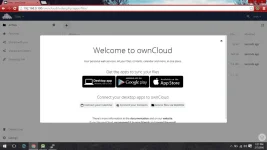
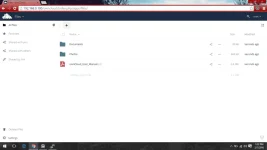
- Following Window Shows That How You Can Access Your Cloud Server.
Now You Are Ready To Use Your Cloud Storage Server.
You Can Enable Port Forwarding To Use Your Server Publicly.
napulot ko lang to sa tabi tabi
so if you have any question about this post hindi ko kayo masasagot Ever Wished To Have Own Cloud Storage Server ?? Then Today You Can Create Your Cloud Storage Server With No Storage Limits Like Dropbox Or Any Other Services.
We will Use OwnCloud To Create Our Personal Cloud Server.
Requirements :
- Ubuntu Server (You do not have permission to view the full content of this post. Log in or register now.)
- PC with Good HDD Space (If You Want To Build Cloud With Large Capacity)
- Good Internet Connection (You Can Also Make It Publicly Accessible)
Step - 1: Log In To ROOT Account.
Step - 2: Type Following Command.
sh -c "echo 'deb You do not have permission to view the full content of this post. Log in or register now. /' >> /etc/apt/sources.list.d/owncloud.list"
Step - 3: Then Following Command.
wget -nv You do not have permission to view the full content of this post. Log in or register now. -O Release.key
This Will Get Repository Key For OwnCloud.
Step - 4: Now Add Downloaded Repository Key By Executing Following Command.
apt-key add - < Release.key
Step - 5: Now Update Server To Refresh Added Repository.
apt-get update
Step - 6: Now We Are Ready To Install OwnCloud By Executing Following Command.
apt-get install owncloud
Step - 7: It Will Ask To Enter Password Of MySQL Root Account.
- Type Confirm Password.
- After Completing Installation, You Need To Go To Web browser of Network PC.
Step - 8:
Now Enter URL in following manner.
You do not have permission to view the full content of this post. Log in or register now.
It Will Show Window Like Below.
- Enter Username And Password For Admin Account.
Step -9:
- Now Select 'Storage& Database'.
- Then Select MySQL/MariaDB Tab.
- Enter username root and it's password. Then give database name.
- Click On Finish Setup.
Done!! You have Successfully Created Cloud Storage Server.
- Following Window Shows That How You Can Access Your Cloud Server.
Now You Are Ready To Use Your Cloud Storage Server.
You Can Enable Port Forwarding To Use Your Server Publicly.