 PH
PHkuya_andy02
Eternal Poster
Adding a Photo
Clicking the Photo option on the main screen lets you upload an image from your device. After uploading a photo, you can leave it in the default 1:1 orientation – which may have blurring on either side – or you can click the arrows directly underneath the image on the left to expand it to fill in the space.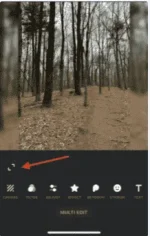
Adding a Video
You can only import a video to the InShot app; you can’t actually film the video using the app. Once you select the video from your device, you can trim it before fully importing it by clicking the scissors icon, which brings you to this page: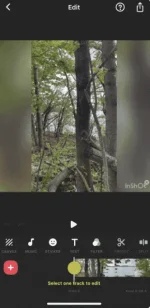
Canvas
The Canvas option gives you more orientation options, including ones specifically for Facebook and Twitter. You can also zoom or change the background. Background options include different blur levels, colors, gradients and patterns.Crop, Rotate, Freeze and Reverse
In the Crop menu, you can either crop your image or video manually or choose from common orientations. In the Rotate menu, you can rotate or flip the image or video. There are also options to change the angle or zoom. With videos, you can freeze or reverse a section.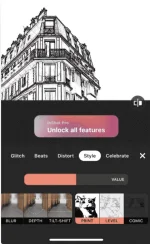
 PRO features unlocked!
You do not have permission to view the full content of this post. Log in or register now.