 PH
PHIf your android phone is not supported with long screenshot, and you want to capture full webpage, here's how to do it without installing any application.
First, Open the Chrome app on your Android device to get started.Type chrome://flags in the address bar and hit Enter.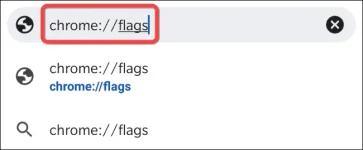
In the search bar on the "Experiments" page, type "long screenshots"

Under the “Chrome Share Long Screenshots” flag, tap the drop-down menu and Select “Enabled”.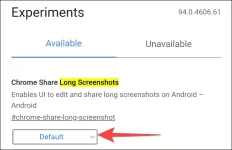
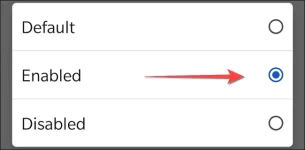
Next, relaunch the browser.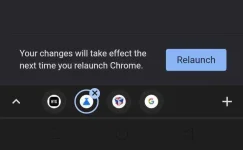
After that, open the page you want to capture. Once the page loads, tap the three vertical dots in the top-right corner to open the Chrome menu.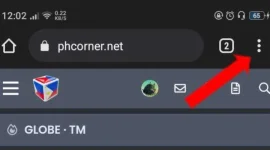
Select “Share” in the Chrome menu.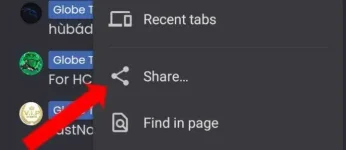
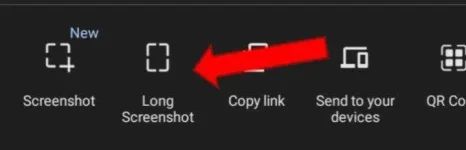
Chrome’s Share menu will open at the bottom. Select “Long Screenshot.”
Other Cool Tricks Here
Save webpages as PDF files
Android Chrome Switch tabs with a swipe!
First, Open the Chrome app on your Android device to get started.Type chrome://flags in the address bar and hit Enter.
In the search bar on the "Experiments" page, type "long screenshots"
Under the “Chrome Share Long Screenshots” flag, tap the drop-down menu and Select “Enabled”.
Next, relaunch the browser.
After that, open the page you want to capture. Once the page loads, tap the three vertical dots in the top-right corner to open the Chrome menu.
Select “Share” in the Chrome menu.
Chrome’s Share menu will open at the bottom. Select “Long Screenshot.”
Other Cool Tricks Here
Save webpages as PDF files
Android Chrome Switch tabs with a swipe!
