PH
PH
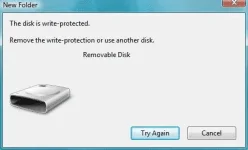
In most of the USB based flash/pen drives, write protection is provided via the small notch. First of all look for it in sides of your drive. It’s even marked with lock/unlock symbol. Move/slide the notch to unlock position (means releasing write protection) before you perform any file operations in your drive such as copy/paste/format etc. After that you can slide back the notch to lock position safely.
But many of the pen drives don’t provide hardware lock/notch for write protection. Instead they back it up by means of some software/tool. From there you can change the write protection lock/unlock option. Refer to your pen drive’s manual for more details in this regard as different pendrive have diferent ways to to unlock them or otherwise you can also take help of some tools to unlock them.
Best Methods To Remove Write Protection From Your Memory Sticks / Pen Drives Goes here (ENJOY AND POST FEEDBACKS TOO)
METHOD #1
1.Open Registry editor of your PC
2. For this you should type command “regedit” on run.
3.Successively navigate to following linkHKEY_LOCAL_MACHINE\SYSTEM\Currentcontrolset\control\storatedevicepolicies( Note: if you can’t find ” storatedevicepolicies ” after “control” folder then you need to create it. For that follow instructions mentioned below )
oOpen a new note pad file.
oCopy this
cd\reg add “HKLM\System\CurrentControlSet\Control\StorageDevicePolicies” /t Reg_dword /v
WriteProtect /f /d 0
osave it as DISABLEWP.BAT
oThen copy it to start up folder.
4. In right side u will be getting writeprotect option, just right click that and modify the hexadecimal value from 1 to 0
5.Restart your PC and enjoy!!!!
( Still having problem??? Don’t worry try other methods below )
================================
METHOD #2
If you have transcend pen drive infected by 9u.exe which is a write protect virus then the following works like a charm:
1) Download JetFlash online recovery from:
You do not have permission to view the full content of this post. Log in or register now.
2) Run the program
3) Specify the capacity of your drive eg.512 MB, 1 GB …..etc
4) Choose “repair and erase all data” OR ” repair and keep existing data”
5) Progress bar starts…….completes
6) Notification appears —” format complete”
7) Unplug and plug your drive
enjoy!!!!
( Still having problem ? Don’t worry try other methods below )
===========================
Method #3
1. Start > Run -> type “CMD” and press enter
2. type< diskpart
3. type< list volume
4. type< select volume # (# is the number of the USB HDD you’ve pluged in)
5. type< attributes disk clear readonly
(If you need help while typing commands then type “HELP FORMAT” on command prompt)
========================
METHOD #4
There are a series of options in the Group Policy Object Editor that deal with read/write permissions on hard drives and removable media. I basically changed their individual settings from “Not configured” to “Disabled”.
Start -> Run… -> gpedit.msc -> OK
Computer Configuration -> Administrative Templates -> System -> Removable Storage Access
In here I disabled all of the “Deny read access/write access” options; you may only want to disable the ones relating directly to the type of media that you want to access.
Here are the ones I changed:
Removable Disks: Deny execute access
Removable Disks: Deny read access
Removable Disks: Deny write access
Double-click each one and select the ‘Disabled‘ radio button.
Do the same as above, except the first step is “User Configuration” instead of “Computer Configuration“
(Best result if you try both method #1 and method #4 together)
Enjoy!!!
All the methods mentioned are tested and they works well in my PC.
Please don’t forget to leave your feedbacks below as comment and lets discuss if more tricks are needed…
source:google