 PH
PHIn this tutorial we show you how to install Windows 8, The best way to install Windows 8 is to do a clean install. It is not difficult to perform a clean installation; we show you how to do it.
Note 1 – Check Windows 8 Compatibility List to ensure that your hardware is supported by Windows 8. If your hardware is not compatible you can check your hardware manufactures website to download the drivers for Windows 8. Save all the necessary drivers into your Hard disks, flash drive or in a CD before you start.
Note 2 – All Windows disc are bootable, if you are installing Windows from a disc. In order to boot from disc you need to set the boot sequence. You do not have permission to view the full content of this post. Log in or register now.
Note 3 – if you are trying to install Windows from USB drive you have to make your USB drive bootable first. You do not have permission to view the full content of this post. Log in or register now.
Note 4 -if your OS got corrupted and you want to recover your data before windows installation then check our this tutorial to >>> You do not have permission to view the full content of this post. Log in or register now.
Before you’re starting installation, there are two things you have to know –
Now let’s get start
Step 1 – Start your Computer and *********** Windows 7 CD in your CD/DVD-ROM drive.
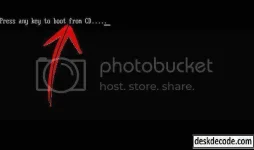
Step 2 – Your PC should automatically detect the Bootable CD and you will get a message saying “Press any key to boot from CD”. So, press any key to continue. After that your windows setup get starts to load.
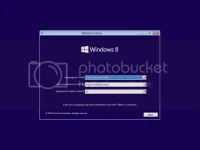
Step 3 – Now you’ll reach to the installation menu. In this menu you’ll have to choose your language and the keyboard.
Step 4 – Click on “Install now “.
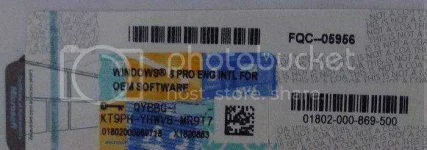
Step 5 – Enter your Product key and the setup will automatically activate your windows when your computer is connected to internet.
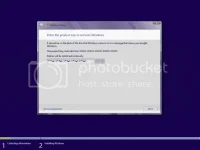
Step 6 – Accept the license agreement page by ticking it and Click on next.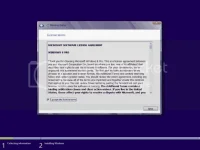
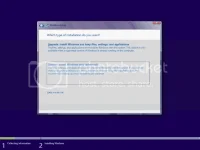
Step 7 – After that you’ll have to decide whether you going to Upgrade your previous windows or perform a Custom (advanced) installation.
Step 8 – Creating partition.
We have 1TB of Hard Disk. So, let’s create a partition for windows. The minimum recommended space for a partition to install Windows 8 is 20GB.but I recommend you to create above 20 something like 50 GB’s partition.
8.1 – Click on “Drive Options (Advance)” to get the partition menu.
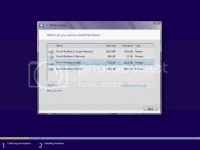
8.2 -Drive Options (Advance) In this menu you can create, delete or format a drive easily. I going to delete all my previous data because I want to full format my drive. I have just only click on delete option to delete my drive and that’s it, all gone.
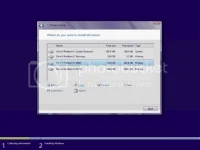
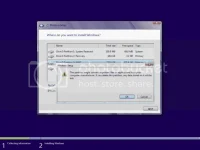
Now I have free unallocated space in my hard drive is also called a raw space too. You can create as many drive with it. I have about 931 GB of raw space so, I can able to create 2 , 3 or 4 drives with my free space. But in this tutorial I’m creating just one.
8.3 – Click on new to create a drive.
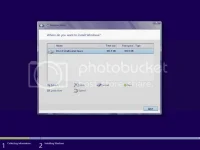
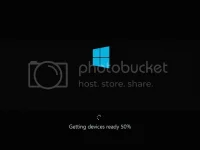
Step 9 – Select the partition and click on next. Now the installation is begins. During the installation your computer may restart several times, let it be. This will take around 30-40 min to finish but it’s depends on computer speed. Just watch the show you’ll have nothing to do.
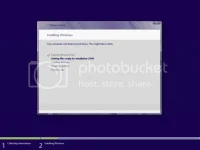
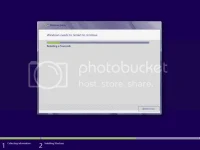
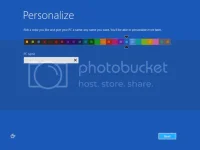
Step 10 – User settings Now, your installation is complete and you will ask to choose a color scheme for Windows 8 and a PC name. I chose blue, I can also change it later.
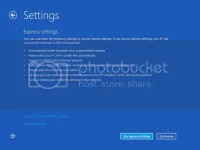
Step 10.2 – Now you will ask to choose setting type. You have two setting to choose.
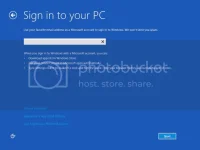
Step 10.3 – Sign in to your windows with your Microsoft account.
Just sign in with with your Hotmail.com or a Live.com account and click on next. You can also create a new account by clicking below if you don’t have any. The advantage of using an existing Microsoft account is you can easily access the windows store or you can sync setting between another windows 8 computers. I already have one, so I entered it here.
Congratulations!
Congratulations, you have successfully installed Windows 8 on your computer. After the installation completes, install your motherboard’s driver to use full performance of your computer. Signs that your drivers aren’t installed include: 1. System’s instability 2. Malfunctioning of hardware 3. Unresponsive hardware 4. Computer errors
Note 1 – Check Windows 8 Compatibility List to ensure that your hardware is supported by Windows 8. If your hardware is not compatible you can check your hardware manufactures website to download the drivers for Windows 8. Save all the necessary drivers into your Hard disks, flash drive or in a CD before you start.
Note 2 – All Windows disc are bootable, if you are installing Windows from a disc. In order to boot from disc you need to set the boot sequence. You do not have permission to view the full content of this post. Log in or register now.
Note 3 – if you are trying to install Windows from USB drive you have to make your USB drive bootable first. You do not have permission to view the full content of this post. Log in or register now.
Note 4 -if your OS got corrupted and you want to recover your data before windows installation then check our this tutorial to >>> You do not have permission to view the full content of this post. Log in or register now.
Before you’re starting installation, there are two things you have to know –
- You’ll have to make sure that your computer can able to run Windows 8:
- Processor: 1 gigahertz (GHz) or faster with support for PAE, NX, and SSE2 (more info)
- RAM: 1 gigabyte (GB) (32-bit) or 2 GB (64-bit)
- Hard disk space: 16 GB (32-bit) or 20 GB (64-bit)
- Graphics card: Microsoft DirectX 9 graphics device with WDDM driver.
- Finding Product Key of your Windows 8
Now let’s get start
Step 1 – Start your Computer and *********** Windows 7 CD in your CD/DVD-ROM drive.
Step 2 – Your PC should automatically detect the Bootable CD and you will get a message saying “Press any key to boot from CD”. So, press any key to continue. After that your windows setup get starts to load.
Step 3 – Now you’ll reach to the installation menu. In this menu you’ll have to choose your language and the keyboard.
Step 4 – Click on “Install now “.
Step 5 – Enter your Product key and the setup will automatically activate your windows when your computer is connected to internet.
Step 6 – Accept the license agreement page by ticking it and Click on next.
Step 7 – After that you’ll have to decide whether you going to Upgrade your previous windows or perform a Custom (advanced) installation.
- Upgrade – In up-gradation, windows setup will install the windows without taking harm to your data and software. Setup will automatically install your previously installed software and save all of your documents and user’s data.
- Custom (advanced) – Basically creating a new copy of Windows.
Step 8 – Creating partition.
We have 1TB of Hard Disk. So, let’s create a partition for windows. The minimum recommended space for a partition to install Windows 8 is 20GB.but I recommend you to create above 20 something like 50 GB’s partition.
8.1 – Click on “Drive Options (Advance)” to get the partition menu.
8.2 -Drive Options (Advance) In this menu you can create, delete or format a drive easily. I going to delete all my previous data because I want to full format my drive. I have just only click on delete option to delete my drive and that’s it, all gone.
Now I have free unallocated space in my hard drive is also called a raw space too. You can create as many drive with it. I have about 931 GB of raw space so, I can able to create 2 , 3 or 4 drives with my free space. But in this tutorial I’m creating just one.
8.3 – Click on new to create a drive.
Step 9 – Select the partition and click on next. Now the installation is begins. During the installation your computer may restart several times, let it be. This will take around 30-40 min to finish but it’s depends on computer speed. Just watch the show you’ll have nothing to do.
- Now your Windows Setup will get all installed devices ready to work with Windows 8.
Step 10 – User settings Now, your installation is complete and you will ask to choose a color scheme for Windows 8 and a PC name. I chose blue, I can also change it later.
Step 10.2 – Now you will ask to choose setting type. You have two setting to choose.
- E×ρréšš setting – E×ρréšš setting contains all the windows features what Microsoft provides you to give’s our best performance.
- Customize setting – in customize you can choose setting by our own its like what to starts or what’s not.
Step 10.3 – Sign in to your windows with your Microsoft account.
Just sign in with with your Hotmail.com or a Live.com account and click on next. You can also create a new account by clicking below if you don’t have any. The advantage of using an existing Microsoft account is you can easily access the windows store or you can sync setting between another windows 8 computers. I already have one, so I entered it here.
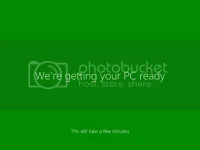
- After this the Setup is getting your PC ready.
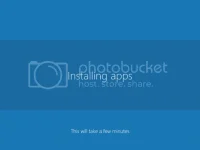
- As the last step in the installation, Windows 8 installs its set of native apps.
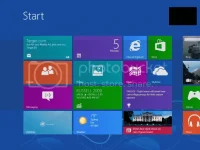
- Once the installing is done, you’ll see the Start screen of Windows 8.
Congratulations!
Congratulations, you have successfully installed Windows 8 on your computer. After the installation completes, install your motherboard’s driver to use full performance of your computer. Signs that your drivers aren’t installed include: 1. System’s instability 2. Malfunctioning of hardware 3. Unresponsive hardware 4. Computer errors

