 PH
PHQuestion asked –
How to make windows XP and windows 7 installation combine bootable pendrive?
How to make multi bootable windows 8, Hirens boot & other bootable software single usb drive?
Usb is a great thing for installing windows or to use utility software’s because it will make thing more quickly than DVD or CD Reader (DVD-RW) and as a professional you can make a multi bootable pendrive which will contains all of your bootable OS and software at the same pen drive. By creating a multi bootable pendrive you can save your other flash drive for other stuffs and you’ll just need a single pendrive to use for all the multiple installation.
We are using software named yumi, because it will allow you contain verity of multiple software in your usb device. Yumi will give you a selection menu to choose what software or OS you want to store in your drive. So, the first thing you can do is to download the software by give link below.
Yumi download link >>>>>>>>You do not have permission to view the full content of this post. Log in or register now.
Direct download link >>>> You do not have permission to view the full content of this post. Log in or register now.
So let’s see
Step 1 – Open Yumi
The best thing about this software is it doesn’t need to get install on your computer to run. You can open it by just double clicking on it and it’s ready to perform.
Step 2 – Selecting Usb Drive
Select your pendrive in the “Select the drive letter of your usb” menu. If you didn’t find your drive then you can tick the show all drives and that will show you all attaches drive on your computer and after that you can select your drive to create it for multiple booting.
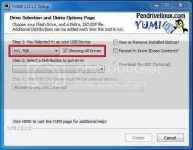
Step 3 – Formatting
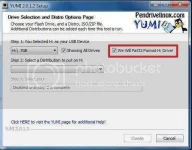
Take a back of your data from the pendrive because we will need to format it first time before transferring any bootable files on it. Its only one time formatting and after that you can add whatever software as much as your pendrive storage supports. Just tick on Format on the right side and that will automatically erase your pendrive before making your drive bootable.
Step 4 – First Software/OS Selection
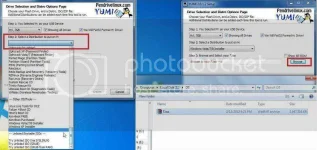
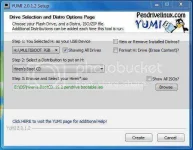
Now open the selection menu and select what type of Software/OS you want to make bootable in your pendrive. I’m selecting windows 7 just for an example.
After that browse for the Software/OS iso file on your computer and open it in yumi just like below
Step 5 – Add First Boot
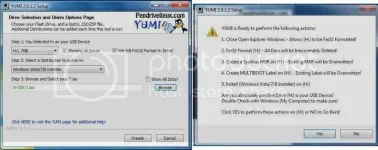
Click on “Create” to move on to the next step. Now the yumi will asks you to erase all the data so, click on yes to format all the data and after that just watch until the file transfer completes.
Step 6 – First Boot Finalization
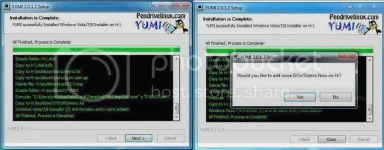
After step 5 until now your file transfer is completed and the software is asking you to click on finish so, click on it. By clicking finish, it will ask you to add more iso, click on yes to add more.
Step 7 – Adding Second Software/OS
By clicking on yes, this software will take to the main menu and now you’ll have to repeat the steps what we shows you above beside “Step 3 – Formatting”. This time you don’t need to format your drive again if you do then you will lost your first bootable data what you’ve created it in a while. Now I’m selecting “Hirens boot cd” for my second boot software for an example. After selecting the file you’ll just need to click on create to make it your second bootable software on your USB.
Now you can add as many bootable image as your pendrive supports and the one thing you’ll need to remember is you can only add one windows image at a time in “windows vista/7/8 installer” selection menu. I mean your possibilities of bootable selection is –
Windows XP + Windows Vista = Work
Windows XP + Windows 7 = Work
Windows XP + Windows 8 = Work
Windows XP + Windows Vista + Windows 7 = Doesn’t Work
Windows 7 + Windows Vista + Windows 8 = Doesn’t Work
After creating your pendrive bootable change the boot setting in bios or quick boot your pendrive from boot menu and you will see the pendrive boot screen looks like the screenshot below

How to make windows XP and windows 7 installation combine bootable pendrive?
How to make multi bootable windows 8, Hirens boot & other bootable software single usb drive?
Usb is a great thing for installing windows or to use utility software’s because it will make thing more quickly than DVD or CD Reader (DVD-RW) and as a professional you can make a multi bootable pendrive which will contains all of your bootable OS and software at the same pen drive. By creating a multi bootable pendrive you can save your other flash drive for other stuffs and you’ll just need a single pendrive to use for all the multiple installation.
We are using software named yumi, because it will allow you contain verity of multiple software in your usb device. Yumi will give you a selection menu to choose what software or OS you want to store in your drive. So, the first thing you can do is to download the software by give link below.
Yumi download link >>>>>>>>You do not have permission to view the full content of this post. Log in or register now.
Direct download link >>>> You do not have permission to view the full content of this post. Log in or register now.
So let’s see
Step 1 – Open Yumi
The best thing about this software is it doesn’t need to get install on your computer to run. You can open it by just double clicking on it and it’s ready to perform.
Step 2 – Selecting Usb Drive
Select your pendrive in the “Select the drive letter of your usb” menu. If you didn’t find your drive then you can tick the show all drives and that will show you all attaches drive on your computer and after that you can select your drive to create it for multiple booting.
Step 3 – Formatting
Take a back of your data from the pendrive because we will need to format it first time before transferring any bootable files on it. Its only one time formatting and after that you can add whatever software as much as your pendrive storage supports. Just tick on Format on the right side and that will automatically erase your pendrive before making your drive bootable.
Step 4 – First Software/OS Selection
Now open the selection menu and select what type of Software/OS you want to make bootable in your pendrive. I’m selecting windows 7 just for an example.
After that browse for the Software/OS iso file on your computer and open it in yumi just like below
Step 5 – Add First Boot
Click on “Create” to move on to the next step. Now the yumi will asks you to erase all the data so, click on yes to format all the data and after that just watch until the file transfer completes.
Step 6 – First Boot Finalization
After step 5 until now your file transfer is completed and the software is asking you to click on finish so, click on it. By clicking finish, it will ask you to add more iso, click on yes to add more.
Step 7 – Adding Second Software/OS
By clicking on yes, this software will take to the main menu and now you’ll have to repeat the steps what we shows you above beside “Step 3 – Formatting”. This time you don’t need to format your drive again if you do then you will lost your first bootable data what you’ve created it in a while. Now I’m selecting “Hirens boot cd” for my second boot software for an example. After selecting the file you’ll just need to click on create to make it your second bootable software on your USB.
Now you can add as many bootable image as your pendrive supports and the one thing you’ll need to remember is you can only add one windows image at a time in “windows vista/7/8 installer” selection menu. I mean your possibilities of bootable selection is –
Windows XP + Windows Vista = Work
Windows XP + Windows 7 = Work
Windows XP + Windows 8 = Work
Windows XP + Windows Vista + Windows 7 = Doesn’t Work
Windows 7 + Windows Vista + Windows 8 = Doesn’t Work
After creating your pendrive bootable change the boot setting in bios or quick boot your pendrive from boot menu and you will see the pendrive boot screen looks like the screenshot below
- You do not have permission to view the full content of this post. Log in or register now.
- You do not have permission to view the full content of this post. Log in or register now.

