 PH
PHHaving no sound from computer’s or laptop’s speaker is a common issue and most of this issue came from a faulty audio cable or a misconfigured windows driver setting. Actually solving a sound problem isn’t that hard how it looks like and by this tutorial I make it more easier for you.
Normally there are three possible reasons why your computer pc won’t able to give you the output sound and those are –
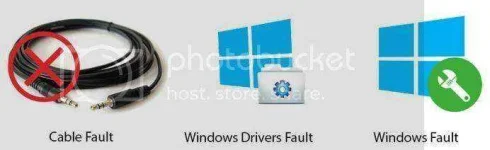
Now you see there are numbers of possible reasons for this problem and as I know there are also numbers of possible solutions in order to fix this “NO Sound” problem. So, you’ll just need to follow the given step by step troubleshooting guide below until you’ve fix your problem.
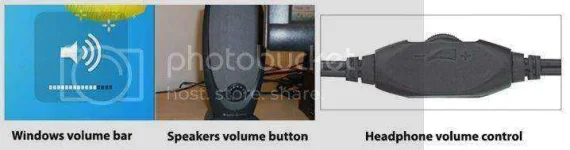
1.2 Cable Properly Attached – Make sure your speaker’s or headphone cable is attached properly because a broken connection can cause “no sound” problem. So, check your cable is connected properly and also connected in a proper audio output jack.
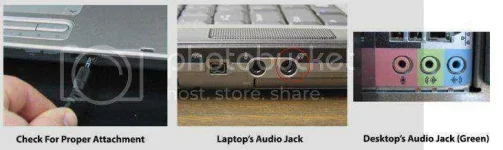
1.3 Cable fault – If your speaker’s wire got faulty it’s fully possible you won’t able to hear anything from your speaker or headphone until you’ve replace your speakers wire. Its normal a cable got faulty by stretching, wire age or overtime use of audio wire so, it’s better to confirm it is a cable’s problem or not by attaching a new cable to computer from speakers.
To open windows sound troubleshooter you’ll just need to go to this control panel directory given below and after that click on “Troubleshoot Audio Playback”
Control Panel >> All Control Panel Items >> Troubleshooting
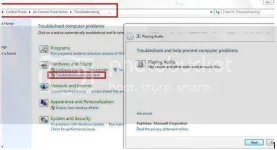
After when the troubleshooter opens up, just click on “Next” and follow the instruction given on your computers screen. If this step works for you that’s great if not or did your troubleshooter gives you drivers or hardware related problem then move on to our next step.
2.2 Windows Drivers Got Disable – Sometimes windows audio drivers got disable automatically by some viruses or malwares software and starts to creating this sound problem. To identify does your sound drivers is really got disabled you’ll need to open your “Windows Device Manager” and check for your audio sound drivers configuration.
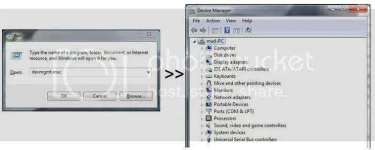
To open windows device manager you’ll need to type this “devmgmt.msc” run command on run commander and that will open your device manager for you.
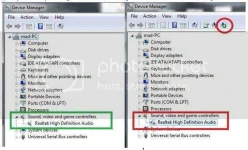
After when the device manger opens up, Expand the “Sound, video and game controllers” tab to see does your sound drivers is really got disabled previously. If you find your sound drivers is disabled then quickly enable it by selecting the drivers and click on given enable button on device manager.
If you find your sound drivers is already enabled or you so see a yellow sign on your sound drivers or maybe you can’t find any audio drivers then it’s possible your drivers might get faulty and need to get update.
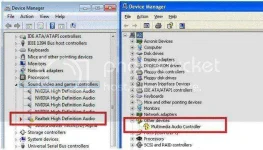
2.3 Drivers got faulty – If you can’t find your audio drivers in the device manager list or maybe your sound driver’s looks corrupted ‘cos of yellow warning sign stick beside your driver’s name like a given picture below then it’s time to reinstall or update your sound drivers in order to fix this problem.
To update or reinstall your sound drivers you’ll need to download the supported audio driver’s from internet first and after that just run the program and install the supported drivers. If you don’t know how to find and download the drivers then the given link below will helps you.
You do not have permission to view the full content of this post. Log in or register now.
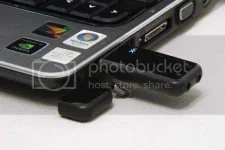
USB Sound Card Test To Prevent Windows Installation – USB sound card is an usb device normally used for alternate jack when an audio jack got broke or faulty. If you use usb sound card for testing purpose that’s great and after buying that card just connect it and install that card drivers and after that plug a speaker or headphone wire into it and test does audio is working or not.
Normally there are three possible reasons why your computer pc won’t able to give you the output sound and those are –
- Cable Fault
- Windows Sound Drivers fault
- Windows fault
Now you see there are numbers of possible reasons for this problem and as I know there are also numbers of possible solutions in order to fix this “NO Sound” problem. So, you’ll just need to follow the given step by step troubleshooting guide below until you’ve fix your problem.
- If Speakers Cable Got Faulty
1.2 Cable Properly Attached – Make sure your speaker’s or headphone cable is attached properly because a broken connection can cause “no sound” problem. So, check your cable is connected properly and also connected in a proper audio output jack.
1.3 Cable fault – If your speaker’s wire got faulty it’s fully possible you won’t able to hear anything from your speaker or headphone until you’ve replace your speakers wire. Its normal a cable got faulty by stretching, wire age or overtime use of audio wire so, it’s better to confirm it is a cable’s problem or not by attaching a new cable to computer from speakers.
- If Windows Sound Drivers got faulty
To open windows sound troubleshooter you’ll just need to go to this control panel directory given below and after that click on “Troubleshoot Audio Playback”
Control Panel >> All Control Panel Items >> Troubleshooting
After when the troubleshooter opens up, just click on “Next” and follow the instruction given on your computers screen. If this step works for you that’s great if not or did your troubleshooter gives you drivers or hardware related problem then move on to our next step.
2.2 Windows Drivers Got Disable – Sometimes windows audio drivers got disable automatically by some viruses or malwares software and starts to creating this sound problem. To identify does your sound drivers is really got disabled you’ll need to open your “Windows Device Manager” and check for your audio sound drivers configuration.
To open windows device manager you’ll need to type this “devmgmt.msc” run command on run commander and that will open your device manager for you.
After when the device manger opens up, Expand the “Sound, video and game controllers” tab to see does your sound drivers is really got disabled previously. If you find your sound drivers is disabled then quickly enable it by selecting the drivers and click on given enable button on device manager.
If you find your sound drivers is already enabled or you so see a yellow sign on your sound drivers or maybe you can’t find any audio drivers then it’s possible your drivers might get faulty and need to get update.
2.3 Drivers got faulty – If you can’t find your audio drivers in the device manager list or maybe your sound driver’s looks corrupted ‘cos of yellow warning sign stick beside your driver’s name like a given picture below then it’s time to reinstall or update your sound drivers in order to fix this problem.
To update or reinstall your sound drivers you’ll need to download the supported audio driver’s from internet first and after that just run the program and install the supported drivers. If you don’t know how to find and download the drivers then the given link below will helps you.
You do not have permission to view the full content of this post. Log in or register now.
- If Your Windows Got Faulty
- Restore windows to earlier time by system restore.
- Reinstall windows and install latest updated audio drivers
USB Sound Card Test To Prevent Windows Installation – USB sound card is an usb device normally used for alternate jack when an audio jack got broke or faulty. If you use usb sound card for testing purpose that’s great and after buying that card just connect it and install that card drivers and after that plug a speaker or headphone wire into it and test does audio is working or not.
- If audio works that mean your jack is fault and you’ll don’t need to reinstall your windows.
- If your audio wont works either that means maybe you should try to reinstall windows

