PH
PHOption 1
Use mobile broadband to connect to the Internet
To configure your mobile broadband settings, follow these steps:
To set up a mobile broadband connection for the first time
- Open Connect to a Network by clicking the network icon (
or
 ) in the notification area.
- Right-click your mobile broadband network, and then click Connect.
- If prompted, type the access point name (APN = http.globe.com.ph)
- Change any auto connect settings that you want to change, and then click Continue.
- Open Connect to a Network by clicking the network icon (or
) in the notification area.
- Right-click your mobile broadband network, click Properties, and then click the Profile tab.
Note- If the Profile tab isn't available, see "To set up a mobile broadband connection for the first time," above.
- Type the access point name (APN = http.globe.com.ph)
- Under Autoconnect, select one of the following options:
- Always connect automatically
- Connect automatically except when roaming
- Never connect automatically
- If your computer is already connected to the Internet through a local area network (LAN) connection and you want to prevent Windows from automatically establishing a connection, select the Autoconnect only if no other alternate Internet connection is available check box.
- Click OK.
- Open Connect to a Network by clicking the network icon (or
) in the notification area.
- Right-click your mobile broadband network, click Properties, and then click the Roaming tab. (The Roaming tab is only available when you are roaming.)
- To allow Windows to automatically select a network, select Autoselect (recommended). Or, to specify a network, select the network name from the list, and then click Register.
Note- If the mobile broadband connection manager can't connect to a network you specified, it will automatically revert toAutoselect.
- Open Connect to a Network by clicking the network icon (or
) in the notification area.
- Click the name of your mobile broadband network, and then click Connect.
- Type your mobile broadband PIN, if necessary, and then press Enter.
- Open Connect to a Network by clicking the network icon (or
) in the notification area.
- Click the name of the mobile broadband network, and then click Disconnect.
Option 2
Kinuha ku pala ang screenshot sa Windows 7, kaya kung windows XP kayu ay medyu may kaibahan po.
Windows 8 and Vista ay similar lang.
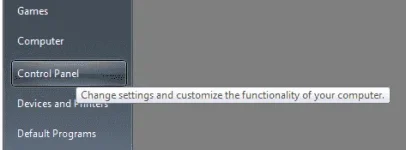
1st - Open "Control Panel"
2nd - Open "Network and Internet"
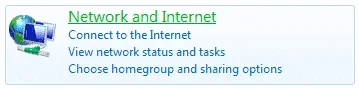
3rd - Click "Connect to the Internet"

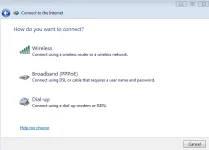
4th - Choose "No, create a new connection"

5th - Choose "Dial-Up"
6th - On "Dial-up phone number" field, input = *99***1#
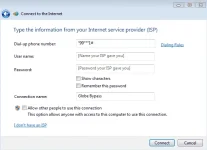
7th - Connect! After that, makikita mu successfully connected na

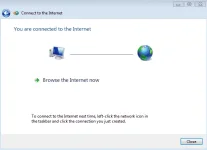
8th - Next time na mag connect ka, ay gamitin mu nalang ulit yang gnawa mu.
Makikita mu yan sa system tray.
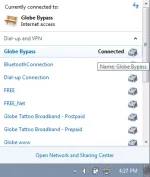
Pwede mu ng eh connect dyan or dis connect.