 PH
PHI found this method somewhere so Inenhance ko nalang explanation at dinagdagan ng slightly very kunti base sa kung paano ako gumawa haha since gantong klase ng method ang gamit ko for creating Gmail Without Verification Number.
Instructions
(For iOS. On Android, simply replace "Safari" with your phone's default browser.)
Step 1: Preparation
Follow either Option A or Option B to get to the account creation screen.
Option A: App-Based Method
Once you are on the "Create account" screen, follow these exact instructions:
(For iOS. On Android, simply replace "Safari" with your phone's default browser.)
Step 1: Preparation
- Use your mobile phone on cellular data (not Wi-Fi).
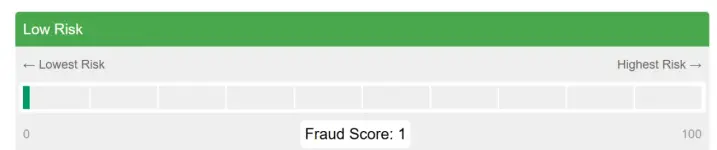
- Make sure your IP address is "clean." A score of less than 10 on scamalytics.com will be fine. (Pero kahit di nyo na i-check haha naka ilang gawa na ako eh)
Follow either Option A or Option B to get to the account creation screen.
Option A: App-Based Method
- On your phone's default browser (Safari on iOS, Chrome on Android), clear all saved data, cookies, and cache.
- On your YouTube app (or any other Google app), remove all existing Google accounts from the device.
- Open the YouTube app and go to the 'You' page.
- Tap 'Sign In'.
- When the window pops up, scroll down and tap 'Create account'.
- Continue to Step 3 below.
- Open your phone's browser (Chrome is preferred) in Incognito/Private mode.
- Google search "youtube" and click the first result to go to the site.
- On the YouTube website, tap on 'You' (or the profile icon), then tap 'Sign In'.
- Tap 'Create account' from that menu.
- Continue to Step 3 below.
Once you are on the "Create account" screen, follow these exact instructions:
- Name:Do NOT use any common names (like David, Sarah, John or Mark), as Google most likely checks this. Make up a unique name using only letters (e.g., "Aziklen Bhacsin").
- Note: If you are on a USA IP, make sure you capitalize the first letters.
- Birthday: Use a year between 2001 and 2003, with a random month and day.
- Email: When prompted to select an email, use one of the pre-generated ones instead of creating a custom one.
-But I try making something with a dot(.) Example: Krishina.Mallabo this method I try is when is use for EDU Method. (When I used this method I set the Birthdate to 2004 and it works base on my exp, I've been creating with it for months.) - Password: Any string that follows their password restrictions will be just fine.
- Privacy: Accept all data privacy settings with no changes.
- Recovery Email: If a security email is required, add one from a well-known service (Outlook and Hotmail emails are goods na.).
- Afterwards, you should be signed into the YouTube app or browser session with the new account.
- The account's session will be saved:
- For Option A: In Safari (your main browser).
- For Option B: In the incognito session. (Note: The session will expire once the browser is closed.)
- Clear the current account before using these instructions to make another one.
- Sign out of all YouTube accounts on the app before creating new accounts.
- Accounts are very volatile. Sign-in attempts on devices whose IP address does not closely match the account creation IP can cause these accounts to become locked and require a phone number.
I used YT App to make Gmails. I can make as many as I want without phone number since last last year so test nyo nalang mga paps

