PH
PHMe first ever post after kong maging PHC Contributor.
Sa mga interesado natin dyan na newbie sa windows na gustong tumaas yung fps sa games, medyo mawala wala yung lag sa ui or even achieve snappy ui and syempre hindi mawawala yung basic cleaning (temp, prefech, SoftwareDistribution/Download folder and etc), welcome po kayo dito sa thread ko.
At Syempre tested ko na po ito sa laptop ng friend ko, nag lalaro sya ng dota2 using low settings @ 720p. Before 20-40 yung fps nya and after 40-70 fps na (Not sure kung same result ang makukuha nyo pero why not diba).
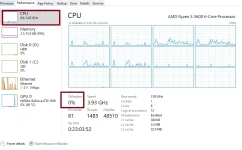
Ito naman yung Task Manager/Performance Tab ko:
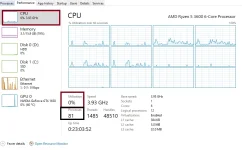
Finally ito na yung tutorial:
Method A: Debloating and Optimizing Windows, Need ng Internet(Reference link on bottom page)
- Go to Powershell then run as admin.
- Type this command:
and hit enter. Note: Kapag ayaw ma run baka auto-block ng web antivirus ng gamit nyong av yan, paki disable lang yung 'Web Antivirus'.Bash:
iwr -useb https://christitus.com/win | iex - Dapat lalabas itong windows app;
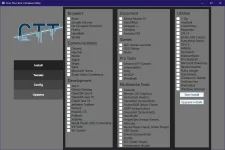 , sa panel na to malaking tulong to lalo sa mga may mga bagong desktop/laptop, pwede kang mag install ng mga apps na free ng sabay sabay, pero hindi dyan ang focus natin.
- Pumunta kayo sa 'Tweaks' panel sa may left side.
- Then may lalabas dyan na Desktop, Laptop, and Minimal:
- Dekstop: This is for Desktops DUH, but it will disable features like power throttling and many services will be set to not auto start. This will give your desktop the best performance without any downside (Recommended and ito rin yung ginamit ko).
- Laptop: This one is just like desktop but doesn’t mess with power settings as we don’t want to kill our laptops battery.
- Minimal: This one will just do the absolute basic privacy / security settings. Very minor optimizations will also be made.
- Mga preset yan kung gusto nyong automatic na, pero pwede nyong iset yan manually (Kung hindi nyo sure kung ano yung ichecheck nyo make sure na mag search muna). Note: WAG nyo lang i check lahat or wag din i check yung Remove All MS store kung kailngan nyo sya!
- Make sure naka check yung 'Create Restore' point then click run tweaks and wait nyong matapos at may lalabas na pane na 'Done'. Note: Kapag naging unresponsive yung App, paki rerun nalang nung code sa step2.
- Sa part naman na to pwedeng i disable yung windows update but not completely, makaka receive parin kayo ng update pero securities updates lang (ito yung ginamit ko).
- Go to 'Updates' panel sa may leftside ulit.
- Then click nyo yung Security (Recommended) Settings and wait for it to finish itself.
- May iba pang feature yung tool na to kaya pwede nyo pang i exlore.
Method B: Clean Boot (Sa method na to I'm sure na marami ng nakakaalam pero malay natin may mga individuals pa na hindi alam or walang idea kung pano ito gawin).
- Go to Run (Press Windows key + R).
- Type
.Code:
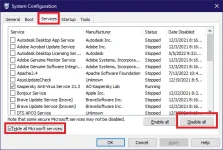
msconfig - Go to 'Services' and press 'Hide all Microsoft Services'.
- Click 'Disable All' and press ok, may mag popop-out dyan, piliin nyo lang yung 'Exit Without Restart'.
- Go to task manager, gamitin nyo lang yung search.
- Go to 'Startup' and idisable nyo yung mga apps na hindi naman kailangan mag open on after booting into windows (Mga common dito ay discörd and steam).
- Then ok na!'
Method C: Cleaning Temp and other temporary files (Again baka marami ng nakakaalam nito kaya bear with me nalang po hehe).
Effect nito ay yung biglang pagtaas ng storage usage nyo after nyo mag update ng windows and kung nagtataka kayo kung bakit ang taas ng storage usage nyo baka temp folder yung culprit, so lets goo.
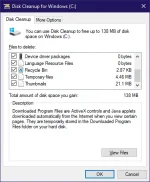
- Go to Search, and type 'Disk Cleanup' click it and run it as admin.
- May mag popop-out dyan, piliin nyo yung drive kung saan naka install yung windows (Most likely C:.
- Wait nyo lang mag loading, then check all. If gusto nyong ma retain yung data/files sa Recycle bin i uncheck nyo lang.
- Click Ok, and intayin lang ulit.
Method C-2: Deleting some windows Cache (Optional) para po sa mga may slower or old system units.
- Go to run (Windows key + R), type 'prefetch'.
- Delete All files (Don't worry, safe po syang i delete)
Finally, mag Reboot.
Method D: Pwede nyo ding ma achieve yan easily using custom windows 10 OS (Ghost Spectre Superlite) para sa mas magandang results.
Yun lamang po at salamat sa pagbabasa tutorial.
Kung may tanong pa kayo, gustong idagdag, or corrections, open naman po ako dyan.
Feedbacks are highly appreciated po!
Reference's: You do not have permission to view the full content of this post. Log in or register now.