 PH
PHHellosarms
Journeyman
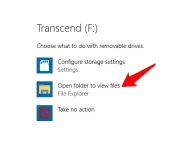
1. Plug in your USB drive into your Windows PC and let the computer recognize the drive. If you see the AutoPlay on your screen, click the “Open folder to view files” option.
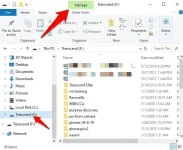
2. Choose the drive you’d like to encrypt and then click Manage tab
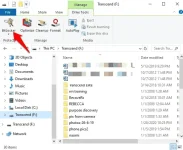
3. Click BitLocker.
4. Click “Turn on BitLocker”.
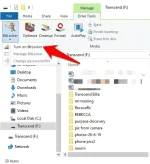
Note: You can also click This PC, right-click the USB drive you want to encrypt, and select “Turn on BitLocker”.
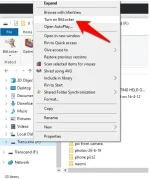
5. Wait a few seconds for BitLocker to setup.
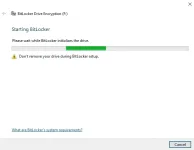
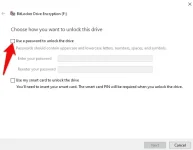
6. Next, check the “Use a password to unlock the drive” box.
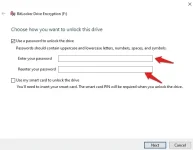
7. Type in a password you can remember in the “Enter your password” box, and do it again in the “Re-enter your password” box.
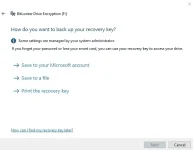
You’ll get a prompt to back up a recovery key. This key allows you to access the USB drive in the event that you lose the encryption password you entered in the previous step. You can save this key or print it out and store it someplace safe instead of storing it in the cloud.
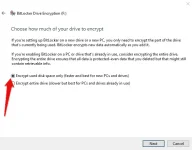
8. Next, select how much of your USB drive you’d like encrypted. Here, you have two options: select the entire drive or the used space only. Choose the method of encryption you’d like to use.

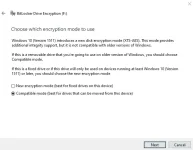
BitLocker has the new 256-bit XTS-AES encryption mode in Windows 10 version 1511, and with the improved algorithm, it also offers integrity support. Older Windows versions don’t have this new encryption mode though, which is why you need to pick an encryption method.
If you’re going to use the USB drive you’re encrypting on the same computer you’re encrypting it on, pick the new encryption mode. However, if you want to use it on other computers running old Windows versions, you can still do so by selecting “Compatible Mode”. This uses the previous 128-bit AES encryption standard though.
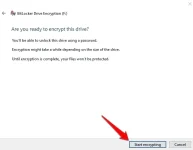
9. The next step is to encrypt the USB drive. The speed by which it encrypts you drive may move fast or slow depending on the size of your USB drive, the amount of data you have stored on it, and the system specs of your machine. Click Start Encrypting when ready.
Sana makatulong po toh.
2. Choose the drive you’d like to encrypt and then click Manage tab
3. Click BitLocker.
4. Click “Turn on BitLocker”.
Note: You can also click This PC, right-click the USB drive you want to encrypt, and select “Turn on BitLocker”.
5. Wait a few seconds for BitLocker to setup.
6. Next, check the “Use a password to unlock the drive” box.
7. Type in a password you can remember in the “Enter your password” box, and do it again in the “Re-enter your password” box.
You’ll get a prompt to back up a recovery key. This key allows you to access the USB drive in the event that you lose the encryption password you entered in the previous step. You can save this key or print it out and store it someplace safe instead of storing it in the cloud.
8. Next, select how much of your USB drive you’d like encrypted. Here, you have two options: select the entire drive or the used space only. Choose the method of encryption you’d like to use.
BitLocker has the new 256-bit XTS-AES encryption mode in Windows 10 version 1511, and with the improved algorithm, it also offers integrity support. Older Windows versions don’t have this new encryption mode though, which is why you need to pick an encryption method.
If you’re going to use the USB drive you’re encrypting on the same computer you’re encrypting it on, pick the new encryption mode. However, if you want to use it on other computers running old Windows versions, you can still do so by selecting “Compatible Mode”. This uses the previous 128-bit AES encryption standard though.
9. The next step is to encrypt the USB drive. The speed by which it encrypts you drive may move fast or slow depending on the size of your USB drive, the amount of data you have stored on it, and the system specs of your machine. Click Start Encrypting when ready.
Sana makatulong po toh.





