 PH
PHShadow Defender Ver 1.4.0.558
Turn your computer into a safe, virtual space
many malicious programs attack Windows OS. Shadow Defender is easy-to-use PC/laptop security and privacy protection tool. It provides an excellent way to prevent unwanted or malicious changes from being made to your PC/laptop. With Shadow Defender you can run system in a virtual environment, called Shadow Mode. And all the attacks will happen in the virtual environment, not in the real environment. If attacks happened, all you need to do is to reboot your system. After reboot, your system will be restored as if nothing happened. And you can save any selected files and folders to the real environment.
Besides protecting a whole partition, Shadow Defender can also protect individual folders.
While a partition is protected, the message "shadow mode" will be displayed on the screen
Operating System
Windows XP
Windows Vista
Windows 7
Windows 8
Installing Shadow Defender
Click the Setup.exe file. > click the NEXT > I Agree -> NEXT
Type name and organization > click NEXT > Reboot
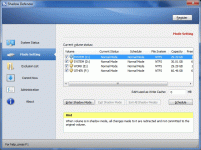
Open "Shadow Defender" interface under normal mode, switch to the "Mode Settings"page, select the volume which will enter Shadow Mode, then click "Enter Shadow Mode".
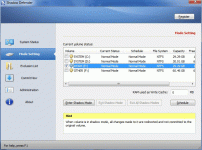
a message box will display
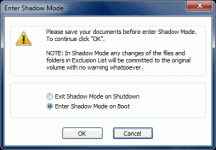
Select one option above and click "OK", then the volumes you selected will be in Shadow Mode.
If you select 'Exit Shadow Mode when shutdown'
the volume will exit Shadow Mode automatically when OS reboot or shutdown.
If you select 'Enter Shadow Mode on boot'
the volume will exit Shadow Mode automatically when OS reboot or shutdown.
BUT when you log into windows next time, the volume will enter Shadow Mode automatically.
Exit Shadow Mode
Open "Shadow Defender" interface under normal mode, switch to the "Volume Settings"page, select the volume which will exit Shadow Mode,
then click "Exit Shadow Mode".
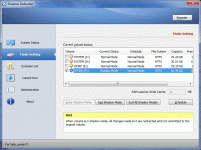
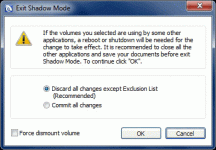
Select one option above and click "OK",
then the volumes you selected will be out of Shadow Mode.
File Exclusion List
Select the files and folders you wish to exclude.
When accessing these files and folders, the changes will automatically be saved to the original volume.
To add an excluded file do the following:
You do not have permission to view the full content of this post. Log in or register now.
newer
You do not have permission to view the full content of this post. Log in or register now.
after 30 days i will PM the serial key for those who will tried & give their feed back in this thread.
enjoy PHC!
Turn your computer into a safe, virtual space
many malicious programs attack Windows OS. Shadow Defender is easy-to-use PC/laptop security and privacy protection tool. It provides an excellent way to prevent unwanted or malicious changes from being made to your PC/laptop. With Shadow Defender you can run system in a virtual environment, called Shadow Mode. And all the attacks will happen in the virtual environment, not in the real environment. If attacks happened, all you need to do is to reboot your system. After reboot, your system will be restored as if nothing happened. And you can save any selected files and folders to the real environment.
Besides protecting a whole partition, Shadow Defender can also protect individual folders.
While a partition is protected, the message "shadow mode" will be displayed on the screen
Operating System
Windows XP
Windows Vista
Windows 7
Windows 8
Installing Shadow Defender
Click the Setup.exe file. > click the NEXT > I Agree -> NEXT
Type name and organization > click NEXT > Reboot
Open "Shadow Defender" interface under normal mode, switch to the "Mode Settings"page, select the volume which will enter Shadow Mode, then click "Enter Shadow Mode".
a message box will display
Select one option above and click "OK", then the volumes you selected will be in Shadow Mode.
If you select 'Exit Shadow Mode when shutdown'
the volume will exit Shadow Mode automatically when OS reboot or shutdown.
If you select 'Enter Shadow Mode on boot'
the volume will exit Shadow Mode automatically when OS reboot or shutdown.
BUT when you log into windows next time, the volume will enter Shadow Mode automatically.
Exit Shadow Mode
Open "Shadow Defender" interface under normal mode, switch to the "Volume Settings"page, select the volume which will exit Shadow Mode,
then click "Exit Shadow Mode".
Select one option above and click "OK",
then the volumes you selected will be out of Shadow Mode.
File Exclusion List
Select the files and folders you wish to exclude.
When accessing these files and folders, the changes will automatically be saved to the original volume.
To add an excluded file do the following:
- Select Add File/folder
- select the file/folder you wish to exclude.
- The selected file will be displayed in the Exclusion List.
- Just highlight the file or folder.
- click the Delete button.
- The file or folder will be removed from the Exclusion List.
You do not have permission to view the full content of this post. Log in or register now.
newer
You do not have permission to view the full content of this post. Log in or register now.
after 30 days i will PM the serial key for those who will tried & give their feed back in this thread.
enjoy PHC!

