 PH
PHPHC-SchizOphRenia
Elite
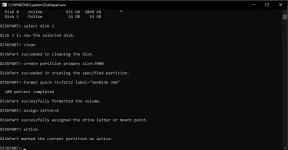
You can create several partitions on a USB flash drive using the DiskPart CLI tool using the following commands:
(In this example I will create two partition)
First press Windows key and type cmd, press ENTER and type diskpart
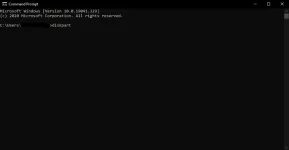
grant access and another window will open
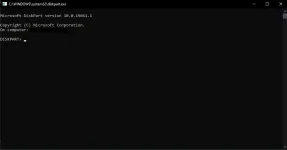
now type the following command for the creation of first partition:
1
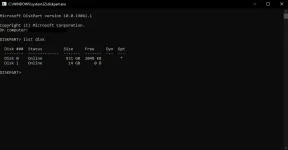
2
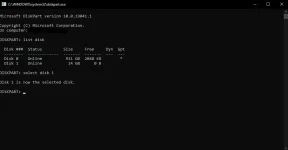
3
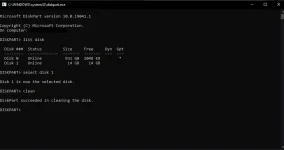
4
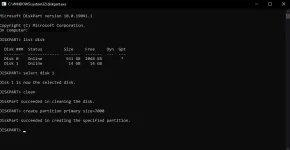
5
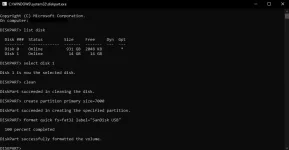
6
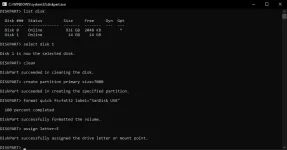
7
For the second partition:
8
9
10
11
12
Confirm if you correctly created partition in Windows File Explorer
Sana na-gets nyo hehe di ako magaling mag explain
(In this example I will create two partition)
First press Windows key and type cmd, press ENTER and type diskpart
grant access and another window will open
now type the following command for the creation of first partition:
1
list disk 2
select <here you must specify the disk number assigned to the USB drive in your system>3
clean 4
create partition primary size=[your desired size in mb] 5
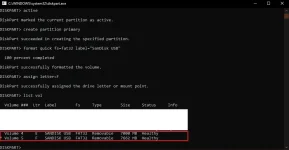
format quick fs=fat32 label="[Desired name of the partition]" 6
assign letter=[Desired letter of the drive] 7
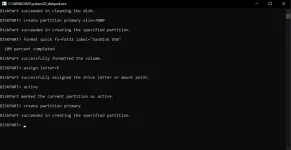
active For the second partition:
8
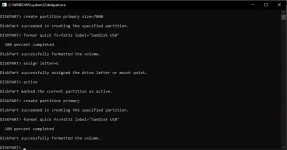
create partition primary 9
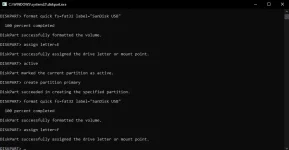
format fs=ntfs quick label="[Desired name of the partition]" 10
assign letter=[Desired letter of the drive] 11
list vol 12
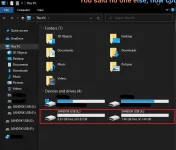
exit Confirm if you correctly created partition in Windows File Explorer
Sana na-gets nyo hehe di ako magaling mag explain