 PH
PH1. Maintain it like a PC to improve performance.
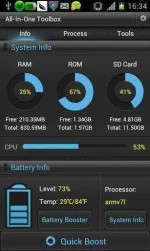
While Android can do much more than iOS, it requires more horsepower and user finagling to run smoothly. You can’t do much about upgrading your smartphone or tablet’s processor (barring a new purchase), but you can take the time to optimize what you have. Much like a PC, Android devices need to be tuned up now and again. There are several apps that can assist you in this, like All-In-One Toolbox. Even without that app though, you can do stuff like deleting old, unused apps, removing widgets you don’t use, and ending unnecessary processes on your own. To do that last one (the concept of which is much like ending processes through control + alt + delete on a PC), go to settings, apps, running, and manually end anything taking up too much RAM memory.
2. Take advantage Android’s customization potential.
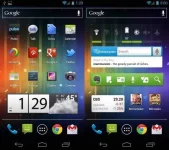
I can’t tell you how many times I’ve used someone’s Android phone, only to see that they’ve configured it so that their homescreen is full of app icons, much like an iPhone. That’s great and all, but if you want streamlined and simple, Apple’s products do it better. You might as well go crazy if you have an Android device! This means using your homescreen for cool widgets, search bars, etc. To find all the widgets you have, go to your apps page, then select widgets at the top. You might be surprised by how many interesting options are available to you…
3. Ensure your device gets back to you if you lose it.
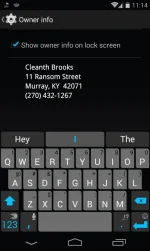
There’s no surefire way to guarantee you’ll ever see your phone or tablet again if you leave it out in public by accident. That being said, you can improve the chances of it being returned to you by editing your security settings. Go to settings, then security, then owner info. There you’ll see a little box where you can type in contact information that will show up on your lockscreen. This will make it easier for a good Samaritan to return a lost device to its rightful owner.
4. Carry around multiple batteries.
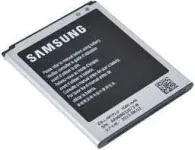
OK, so this tip isn’t quite as universal as it used to be since many Android manufacturers like HTC are taking a page out of Apple’s book and disallowing you from swapping batteries. Still, this will work if you own a Samsung device, which most Android users have. It’s pretty simple: if you buy multiple batteries, charge them up, and store them in your backpack or briefcase, you can ensure that your phone will never run out of power. All you’ll have to do is take out your battery when it’s dead and swap in a new one. This way, you won’t have to rely on wall sockets, which is useful if you travel a lot.
5. Make your phone harder to break into than Fort Knox.

Reader warning: don’t do this one unless you’re really afraid of your phone’s information being stolen. To permanently encrypt your Android device, go to settings, security, encryption, and tap “Encrypt phone.” You’ll then be required to create a pin, which you’ll enter every time you turn your phone on (in order to decrypt it). This is like the unlock code on an iPhone, except way more drastic. Usually it will take about an hour for your device to encrypt itself, and it can only be undone through a factory reset. Only do this if you have sensitive information, or want your phone to be as secure as humanly possible. Be aware that encrypting your information will slow down how fast you can access it.
6. Test out different launchers.
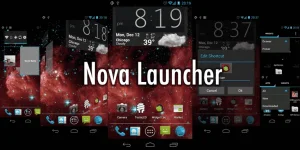
If you have an Android phone, you can use these things called “launchers,” which are essentially apps that allow you to make drastic edits to your device’s homescreen. The most popular one is probably You do not have permission to view the full content of this post. Log in or register now., which will allow you to change just about everything you can think of. There are several other launchers out there too, and you can play around with them until you find one you like. Often, they can make your phone perform faster than they would with the clunky interfaces that companies like Samsung and HTC give them.
7. Say “Ok, Google” to start a search from any screen.
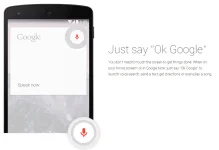
It’s the 21st century and we’re all busy 24/7. Cut down on the time it takes to manually search for things by doing it with your voice. To activate vocal control over Google searches, go to your apps page and find the Google app. Tap it (it should take you to Google Now), and scroll down until you see the settings icon on the bottom right. Hit that and select “Voice.” Then, tap on “Ok Google Detection” and activate the “From any screen” setting. Now you’ll be able to start a Google search from any screen on your phone simply by speaking the phrase, “Ok, Google.”
8. Access the hidden developer options.
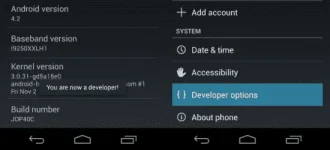
To really get a sense of how customizable Android is, activate the “secret” developer mode. Go to settings, about phone, and click on “build number” seven times. Your device should tell you something like “you’re now a developer!” It’s all very Easter Egg-esque. Once that’s done, return to system settings, and with luck you’ll now see something entitled “developer options.” One of the cool things you can do here is reduce the time it takes for animations to execute, thereby making your phone feel snappier. Do this by going to the “animation scale” options and turning them off (you can make them take longer too, but I don’t see why you would want that). There are plenty of other sweet customizations you can do on this page, but don’t go too crazy unless you know what you’re doing.
9. See useful information on your lock screen.
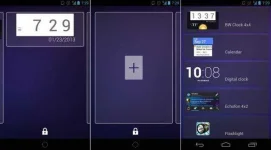
You probably know by now that you can put widgets on your homescreen, but did you know you can do the same for your lockscreen? This means that you won’t have to unlock your phone anymore if all you want is to see some basic information. To do this, go to settings, security, and tap “enable widgets.” Then, go to the lockscreen and swipe left. You should see a big “+” sign. Hit that and you’ll be taken to a screen where you can select widgets to place on your lockscreen. Put anything from your e-mail to Google Now there in order to see stuff like weather, new messages, etc.
10. You aren’t tied to the Google Play store.
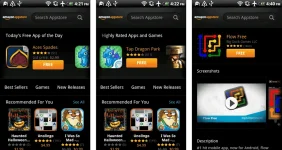
OK, well, you sort of are, but you can download other app stores like Amazon’s if you want to. Indeed, I highly suggest you do so because they are always offering insane deals to try and rip you away from Google’s warm embrace. One of these is their “App of the Day,” in which Amazon offers up a free app to entice you to spend more time in their store. If you’re lucky, you’ll be able to save lots of money using these promotions, as at times they’ll put up apps for free that cost several dollars on Google Play.
Do you know any Android tips and tricks? Of course you do! Comment below with some of the cooler ones you know!
While Android can do much more than iOS, it requires more horsepower and user finagling to run smoothly. You can’t do much about upgrading your smartphone or tablet’s processor (barring a new purchase), but you can take the time to optimize what you have. Much like a PC, Android devices need to be tuned up now and again. There are several apps that can assist you in this, like All-In-One Toolbox. Even without that app though, you can do stuff like deleting old, unused apps, removing widgets you don’t use, and ending unnecessary processes on your own. To do that last one (the concept of which is much like ending processes through control + alt + delete on a PC), go to settings, apps, running, and manually end anything taking up too much RAM memory.
2. Take advantage Android’s customization potential.
I can’t tell you how many times I’ve used someone’s Android phone, only to see that they’ve configured it so that their homescreen is full of app icons, much like an iPhone. That’s great and all, but if you want streamlined and simple, Apple’s products do it better. You might as well go crazy if you have an Android device! This means using your homescreen for cool widgets, search bars, etc. To find all the widgets you have, go to your apps page, then select widgets at the top. You might be surprised by how many interesting options are available to you…
3. Ensure your device gets back to you if you lose it.
There’s no surefire way to guarantee you’ll ever see your phone or tablet again if you leave it out in public by accident. That being said, you can improve the chances of it being returned to you by editing your security settings. Go to settings, then security, then owner info. There you’ll see a little box where you can type in contact information that will show up on your lockscreen. This will make it easier for a good Samaritan to return a lost device to its rightful owner.
4. Carry around multiple batteries.
OK, so this tip isn’t quite as universal as it used to be since many Android manufacturers like HTC are taking a page out of Apple’s book and disallowing you from swapping batteries. Still, this will work if you own a Samsung device, which most Android users have. It’s pretty simple: if you buy multiple batteries, charge them up, and store them in your backpack or briefcase, you can ensure that your phone will never run out of power. All you’ll have to do is take out your battery when it’s dead and swap in a new one. This way, you won’t have to rely on wall sockets, which is useful if you travel a lot.
5. Make your phone harder to break into than Fort Knox.
Reader warning: don’t do this one unless you’re really afraid of your phone’s information being stolen. To permanently encrypt your Android device, go to settings, security, encryption, and tap “Encrypt phone.” You’ll then be required to create a pin, which you’ll enter every time you turn your phone on (in order to decrypt it). This is like the unlock code on an iPhone, except way more drastic. Usually it will take about an hour for your device to encrypt itself, and it can only be undone through a factory reset. Only do this if you have sensitive information, or want your phone to be as secure as humanly possible. Be aware that encrypting your information will slow down how fast you can access it.
6. Test out different launchers.
If you have an Android phone, you can use these things called “launchers,” which are essentially apps that allow you to make drastic edits to your device’s homescreen. The most popular one is probably You do not have permission to view the full content of this post. Log in or register now., which will allow you to change just about everything you can think of. There are several other launchers out there too, and you can play around with them until you find one you like. Often, they can make your phone perform faster than they would with the clunky interfaces that companies like Samsung and HTC give them.
7. Say “Ok, Google” to start a search from any screen.
It’s the 21st century and we’re all busy 24/7. Cut down on the time it takes to manually search for things by doing it with your voice. To activate vocal control over Google searches, go to your apps page and find the Google app. Tap it (it should take you to Google Now), and scroll down until you see the settings icon on the bottom right. Hit that and select “Voice.” Then, tap on “Ok Google Detection” and activate the “From any screen” setting. Now you’ll be able to start a Google search from any screen on your phone simply by speaking the phrase, “Ok, Google.”
8. Access the hidden developer options.
To really get a sense of how customizable Android is, activate the “secret” developer mode. Go to settings, about phone, and click on “build number” seven times. Your device should tell you something like “you’re now a developer!” It’s all very Easter Egg-esque. Once that’s done, return to system settings, and with luck you’ll now see something entitled “developer options.” One of the cool things you can do here is reduce the time it takes for animations to execute, thereby making your phone feel snappier. Do this by going to the “animation scale” options and turning them off (you can make them take longer too, but I don’t see why you would want that). There are plenty of other sweet customizations you can do on this page, but don’t go too crazy unless you know what you’re doing.
9. See useful information on your lock screen.
You probably know by now that you can put widgets on your homescreen, but did you know you can do the same for your lockscreen? This means that you won’t have to unlock your phone anymore if all you want is to see some basic information. To do this, go to settings, security, and tap “enable widgets.” Then, go to the lockscreen and swipe left. You should see a big “+” sign. Hit that and you’ll be taken to a screen where you can select widgets to place on your lockscreen. Put anything from your e-mail to Google Now there in order to see stuff like weather, new messages, etc.
10. You aren’t tied to the Google Play store.
OK, well, you sort of are, but you can download other app stores like Amazon’s if you want to. Indeed, I highly suggest you do so because they are always offering insane deals to try and rip you away from Google’s warm embrace. One of these is their “App of the Day,” in which Amazon offers up a free app to entice you to spend more time in their store. If you’re lucky, you’ll be able to save lots of money using these promotions, as at times they’ll put up apps for free that cost several dollars on Google Play.
Do you know any Android tips and tricks? Of course you do! Comment below with some of the cooler ones you know!