 PH
PH
The majority of us store a lot of personal information on our computers and it makes sense to start protecting this data, whether we want to keep snooping family members out or build a layer of defense to fight off häçkers. And it’s simpler to do than you might think!
You can choose from several different methods, each offering their own level of protection. You can just hide the data from obviously appearing on your system, or you can go all the way and apply passwords or employ encryption techniques.
Once you’ve read our tips, be sure to head into the comment section and let us know what advice you have to hide and protect your data in Windows.
Hide the Data
Windows has an inbuilt method that will let you hide individual files or folders. Firstly, we need to make sure that files you’re going to mark as hidden appear as such. Launch Windows Explorer and go to Organize > Folder and search options and select the View tab. Then underneath Hidden files and folders you need to select Don’t show hidden files, folders, or drives and then press OK.
Now to hide your data. Right-click the folder or file in question, select Properties and then on the General tab tick Hidden. For extra protection select Advanced… and untick the archiving options. This will mean that your file won’t appear in the Windows search.
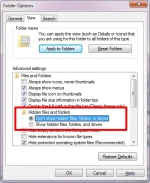
To show your hidden data, simply repeat the above steps but reverse the tick boxes. This obviously isn’t the most secure method around because someone could easily copy the process to uncover your files, but it will help discourage those less technology proficient from finding your hidden information.
Hide the Drive
This allows you to go one step further and hide the entire drive from being discoverable on your computer. To begin, perform a system search for disk management and select the relevant result. This will bring up a window that will show you all the drives, internal and external, connected to your system.
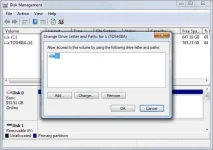
Right click the drive you wish to hide and select Change Drive Letter and Paths…. From the new window that opens, select the drive letter, click Remove and then click OK. You’ll now find that the drive has gone from Computer and it isn’t searchable on the system.
Again, these steps can be copied in order to rediscover the drive, so if you’re looking for something that offers true security then you’re better off checking out the password and encryption options below.
Password Protection
Windows doesn’t have an inbuilt method to password protect your data. There is a You do not have permission to view the full content of this post. Log in or register now., but it’s not secure at all and is at best just a neat trick. If you want proper password protection then you’ll have to turn to third-party software.
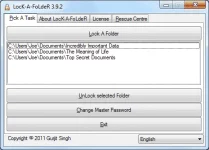
You’ll find that a lot of these programs cost, but there are free alternatives available like You do not have permission to view the full content of this post. Log in or register now. and You do not have permission to view the full content of this post. Log in or register now. (abandoned by the developer, but works up to Windows 7). Both of these lightweight programs offer incredibly simple user interfaces, allowing you to hide folders and apply passwords to them.
Encryption
If you’re after the most secure protection available then you’ll want to use encryption. All of the above methods will help you to an extent, but they have their flaws. Using the strongest method of encryption will ensure that only the people who known the decryption key can access the data.
Even if you’ve never encountered encryption on your own data, you will have when browsing the web. Have you ever noticed a site you’re on uses ‘https‘ at the beginning of the URL? Simply put, this means the site is placing a layer of encryption between the site and your browser for added security.
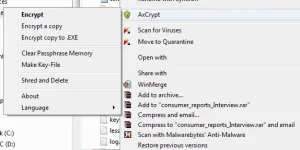
Handily, it’s quite easy to encrypt your own data. In a recent disk encryption roundup we included You do not have permission to view the full content of this post. Log in or register now., a TrueCrypt successor. In an earlier article on You do not have permission to view the full content of this post. Log in or register now., we featured tools that will encrypt your whole drive, but perhaps the best on that list is You do not have permission to view the full content of this post. Log in or register now.. This integrates directly into Windows and allows you to encrypt folders and files just by right-clicking on the data and selecting the relevant menu option.
Serve and Protect
Security is an important consideration and hopefully these tips have helped you to tighten your control over personal data. You wouldn’t leave compromising documents lying around the house, so don’t do it on your computer either because the wrong eyes could find it.
Remember, you can use a combination of the techniques above to achieve the protection that you want. If you just want to stop your kids finding a folder, consider using Windows’ hidden file facility. If you’re worried about external snooping, consider encryption.
