 PH
PH-
Welcome to PHCorner Forums! Sign up for free to unlock full access and exclusive privileges, including:
- Asking questions about computer and mobile issues
- Discovering internet tips for your mobile network and computer
You are using an out of date browser. It may not display this or other websites correctly.
You should upgrade or use an alternative browser.
You should upgrade or use an alternative browser.
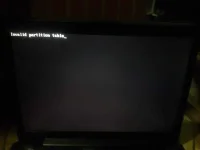
🔒 Closed Invalid partition table
- Thread starter lordstark
- Start date
- Status
- Not open for further replies.
Katipunero-
Honorary Poster
Hello lordstark. Pwede mo po ba ipost specs ng laptop mo?
Have you tried this?
1. Change the boot sequence
If your computer is connected with external hard drives beyond one, most of time, the error “Invalid Partition Table” occurs on account of mistaken boot order. In this circumstance, you can restart your computer. Then enter BIOS on startup and set the disk that contains operating system as the first option for booting. Finally, reboot computer to see whether the Windows system can boot normally.
2. Upgrade the BIOS version
When you install Windows 10 on an SSD and the BOIS is out-dated, it might lead to the error “Invalid Partition Table”. In this case, you need to upgrade the BIOS to the latest version. Download the latest BIOS from the manufacturer website on a working computer to a bootable device and install the BIOS from the bootable device. After upgrading, reboot your computer.
3. Inactive Partition using Diskpart in Windows 10
Well, it is possible that the error occurs as a result of excessive active partitions. Only one partition should be set as active to boot from; if number of active partitions over one, the system is unable to choose one to boot from. At this time, you should check and change partitions status. The steps to inactive partitions are as follows:
1. Insert the Windows install disc and start the computer from it.
2. Choose proper language, time and keyboard input; then, click “Repair your computer.
3. Select the drive that Windows 10 installed on, and click “Next”.
4. Choose Command Prompt in the “System Recovery Options” interface.
5. Type “list volume” and press “Enter”>Type “list volume” and press “Enter” to realize which partitions are active partition > Type “select volume n” and press “Enter”> Type “inactive” and press “Enter”.
PS: The active volume(s) will have a “*” next to its name; “n” means the drive letter that belong to the drive that you want to mark as inactive.
6. Reboot the system to see whether the problem is solved.
4. Rebuild MBR on Windows 10
If the error appears suddenly, it might be caused by corrupted MBR. At this time, you can rebuild MBR in Windows 10 to fix the “Invalid Partition Table” error. Then you can choose one between the following two ways to repair MBR in Windows 10.
Method 1: Rebuild MBR on Windows 10 using Command Prompt
If you can access the Recovery Console, you can fix MBR via Command Prompt and the operations are as follows:
1. Boot from Windows install disc and click “Repair your computer”
2. Select Command Prompt in the “System Recovery Options” window.
3. Type “bootrec.exe” and press “Enter”.
4. Type “/FixMbr” on Windows 10.
Have you tried this?
1. Change the boot sequence
If your computer is connected with external hard drives beyond one, most of time, the error “Invalid Partition Table” occurs on account of mistaken boot order. In this circumstance, you can restart your computer. Then enter BIOS on startup and set the disk that contains operating system as the first option for booting. Finally, reboot computer to see whether the Windows system can boot normally.
2. Upgrade the BIOS version
When you install Windows 10 on an SSD and the BOIS is out-dated, it might lead to the error “Invalid Partition Table”. In this case, you need to upgrade the BIOS to the latest version. Download the latest BIOS from the manufacturer website on a working computer to a bootable device and install the BIOS from the bootable device. After upgrading, reboot your computer.
3. Inactive Partition using Diskpart in Windows 10
Well, it is possible that the error occurs as a result of excessive active partitions. Only one partition should be set as active to boot from; if number of active partitions over one, the system is unable to choose one to boot from. At this time, you should check and change partitions status. The steps to inactive partitions are as follows:
1. Insert the Windows install disc and start the computer from it.
2. Choose proper language, time and keyboard input; then, click “Repair your computer.
3. Select the drive that Windows 10 installed on, and click “Next”.
4. Choose Command Prompt in the “System Recovery Options” interface.
5. Type “list volume” and press “Enter”>Type “list volume” and press “Enter” to realize which partitions are active partition > Type “select volume n” and press “Enter”> Type “inactive” and press “Enter”.
PS: The active volume(s) will have a “*” next to its name; “n” means the drive letter that belong to the drive that you want to mark as inactive.
6. Reboot the system to see whether the problem is solved.
4. Rebuild MBR on Windows 10
If the error appears suddenly, it might be caused by corrupted MBR. At this time, you can rebuild MBR in Windows 10 to fix the “Invalid Partition Table” error. Then you can choose one between the following two ways to repair MBR in Windows 10.
Method 1: Rebuild MBR on Windows 10 using Command Prompt
If you can access the Recovery Console, you can fix MBR via Command Prompt and the operations are as follows:
1. Boot from Windows install disc and click “Repair your computer”
2. Select Command Prompt in the “System Recovery Options” window.
3. Type “bootrec.exe” and press “Enter”.
4. Type “/FixMbr” on Windows 10.
- Status
- Not open for further replies.
Similar threads
About this Thread
-
1Replies
-
329Views
-
2Participants
Last reply from:
Katipunero-
Katipunero-
New Topics
-
Help po !!!! My account got häçked Facebook and steam
- Started by bujoy20
- Replies: 6
- ❓ Computer Discussion & Support
-
Replace laptop lcd
- Started by toki07
- Replies: 0
- ❓ Computer Discussion & Support
-
Mga bossing patulong po nahäçk account ko due to carelessness
- Started by Jeii
- Replies: 2
- ❓ Computer Discussion & Support
-
Computer parts na cheap
- Started by bjenjay1
- Replies: 1
- ❓ Computer Discussion & Support
-
PC APPS - remote or auto saved type and auto audio
- Started by babyzero
- Replies: 0
- ❓ Computer Discussion & Support
-
Data Recovery May Chance pa bato
- Started by tambay28
- Replies: 0
- ❓ Computer Discussion & Support
-
Capcut PC pasabit po
- Started by L A Z A
- Replies: 0
- ❓ Computer Discussion & Support
-
Download Youtube Video using CMD
- Started by BeerGin69
- Replies: 1
- ❓ Computer Discussion & Support
-
Taiwebs alternative websites
- Started by gigsta
- Replies: 0
- ❓ Computer Discussion & Support
-
Tropic Colour - Sino meron nito?
- Started by mikehacker182
- Replies: 0
- ❓ Computer Discussion & Support
Trending Topics
Online now
- Members online
- 489
- Guests online
- 3,046
- Total visitors
- 3,535