 PH
PH-
Welcome to PHCorner Forums! Sign up for free to unlock full access and exclusive privileges, including:
- Asking questions about computer and mobile issues
- Discovering internet tips for your mobile network and computer
You are using an out of date browser. It may not display this or other websites correctly.
You should upgrade or use an alternative browser.
You should upgrade or use an alternative browser.
🔒 Closed pa help po dito sa laptop ko hanggang logo nalang sya
- Thread starter Peachy_cyy
- Start date
- Status
- Not open for further replies.

Peachy_cyy
Honorary Poster
paano sir?Try mo ireset ram
arsenal1205
Rarely opens PHC
Galing asus website:
You do not have permission to view the full content of this post. Log in or register now.
Windows 10 - How to enter Safe Mode if I can't boot the system successfully and reset my notebook?
Safe mode is a troubleshooting option for Windows that starts your computer in a limited state. Only the basic files and drivers necessary to run Windows are started. Safe mode is useful for troubleshooting problems with programs and drivers that might not start correctly or that might prevent Windows from starting correctly.
If the system can't load the necessary configuration more than two times, the system will direct the display to Windows RE(Recovery environment).
However, if the system doesn't automatically lead you to Windows RE after several Safe Mode attempts, please restart the device then press and hold the [Power Button] to force shutdown the device 3 times when Windows doesn't enter into the Desktop. Then you can enter RE.
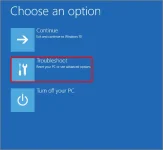
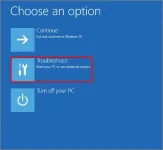
1. When you enter Windows RE(Recovery environment), please select [Troubleshoot].
Note: If there is no option of Troubleshoot after entering RE, it might be caused by corruption of OS file. We suggest you send the device to your local ASUS Service Center for further examinaiton.
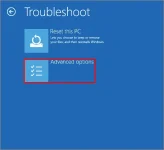
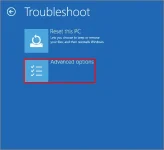
2.Select [Advanced options].
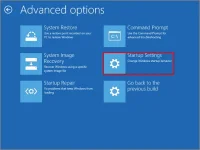
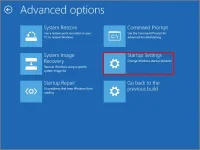
3. Select [Startup Settings]
4.Click [Restart].
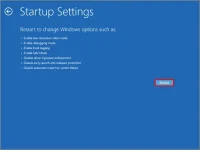
5. You can select [4)Enable Safe Mode] to enter Safe Mode.
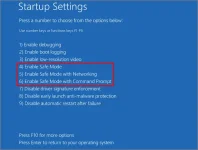
6. The words Safe Mode appear in the corners of your monitor to identify which Windows mode you're using.

Note: If your computer can't automatically be directed to Windows RE(Recovery Environment), please press and hold the Power button. When the ASUS logo appears on the screen, press and hold the Power button until your computer shuts down. After repeating this step 3 times, your computer will enter Windows RE.
You do not have permission to view the full content of this post. Log in or register now.
Windows 10 - How to enter Safe Mode if I can't boot the system successfully and reset my notebook?
Safe mode is a troubleshooting option for Windows that starts your computer in a limited state. Only the basic files and drivers necessary to run Windows are started. Safe mode is useful for troubleshooting problems with programs and drivers that might not start correctly or that might prevent Windows from starting correctly.
If the system can't load the necessary configuration more than two times, the system will direct the display to Windows RE(Recovery environment).
However, if the system doesn't automatically lead you to Windows RE after several Safe Mode attempts, please restart the device then press and hold the [Power Button] to force shutdown the device 3 times when Windows doesn't enter into the Desktop. Then you can enter RE.
1. When you enter Windows RE(Recovery environment), please select [Troubleshoot].
Note: If there is no option of Troubleshoot after entering RE, it might be caused by corruption of OS file. We suggest you send the device to your local ASUS Service Center for further examinaiton.
2.Select [Advanced options].
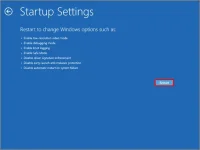
3. Select [Startup Settings]
4.Click [Restart].
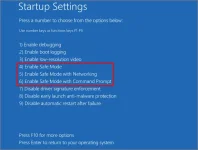
5. You can select [4)Enable Safe Mode] to enter Safe Mode.
6. The words Safe Mode appear in the corners of your monitor to identify which Windows mode you're using.
Note: If your computer can't automatically be directed to Windows RE(Recovery Environment), please press and hold the Power button. When the ASUS logo appears on the screen, press and hold the Power button until your computer shuts down. After repeating this step 3 times, your computer will enter Windows RE.
Peachy_cyy
Honorary Poster
kapag na sa safemode na ano gagawin boss?Galing asus website:
You do not have permission to view the full content of this post. Log in or register now.
Windows 10 - How to enter Safe Mode if I can't boot the system successfully and reset my notebook?
Safe mode is a troubleshooting option for Windows that starts your computer in a limited state. Only the basic files and drivers necessary to run Windows are started. Safe mode is useful for troubleshooting problems with programs and drivers that might not start correctly or that might prevent Windows from starting correctly.
If the system can't load the necessary configuration more than two times, the system will direct the display to Windows RE(Recovery environment).
However, if the system doesn't automatically lead you to Windows RE after several Safe Mode attempts, please restart the device then press and hold the [Power Button] to force shutdown the device 3 times when Windows doesn't enter into the Desktop. Then you can enter RE.
1. When you enter Windows RE(Recovery environment), please select [Troubleshoot].
Note: If there is no option of Troubleshoot after entering RE, it might be caused by corruption of OS file. We suggest you send the device to your local ASUS Service Center for further examinaiton.
2.Select [Advanced options].
3. Select [Startup Settings]
4.Click [Restart].
5. You can select [4)Enable Safe Mode] to enter Safe Mode.
6. The words Safe Mode appear in the corners of your monitor to identify which Windows mode you're using.
Note: If your computer can't automatically be directed to Windows RE(Recovery Environment), please press and hold the Power button. When the ASUS logo appears on the screen, press and hold the Power button until your computer shuts down. After repeating this step 3 times, your computer will enter Windows RE.

arsenal1205
Rarely opens PHC
mag system restorekapag na sa safemode na ano gagawin boss?
- Status
- Not open for further replies.
About this Thread
-
7Replies
-
416Views
-
4Participants
Last reply from:
arsenal1205
arsenal1205
New Topics
-
Suggest VA job websitrs na legit
- Started by mitchmp
- Replies: 0
- ❓ Computer Discussion & Support
-
Calculator Emulator (Canon F789SGA I or II)
- Started by DDankii
- Replies: 0
- ❓ Computer Discussion & Support
-
Laptop Price for 2027
- Started by sisig with egg
- Replies: 0
- ❓ Computer Discussion & Support
-
Is this graphic card issue?
- Started by markjson
- Replies: 2
- ❓ Computer Discussion & Support
-
SoungHub No Sound Encountered
- Started by pow_tah
- Replies: 2
- ❓ Computer Discussion & Support
-
Apk to ipk any idea how to make it?
- Started by a s a r k a n a b a
- Replies: 1
- ❓ Computer Discussion & Support
-
TEMPORARY EMAIL NA HINDI NADEDETECT AS TEMPORARY EMAIL
- Started by 21banana
- Replies: 2
- ❓ Computer Discussion & Support
-
Looking for CSI ETABS Ultimate 2026 v23.2 Acïvâør
- Started by talaotep
- Replies: 0
- ❓ Computer Discussion & Support
-
I need help about my pc
- Started by lex2133
- Replies: 7
- ❓ Computer Discussion & Support
Trending Topics
Online now
- Members online
- 988
- Guests online
- 10,577
- Total visitors
- 11,565