 PH
PH-
Welcome to PHCorner Forums! Sign up for free to unlock full access and exclusive privileges, including:
- Asking questions about computer and mobile issues
- Discovering internet tips for your mobile network and computer
You are using an out of date browser. It may not display this or other websites correctly.
You should upgrade or use an alternative browser.
You should upgrade or use an alternative browser.
❓ Help (PROBLEM SOLVED)
- Thread starter Legtamic
- Start date
-
- Tags
- general questions solved
- Status
- Not open for further replies.
Windows 10 yan ser?
Add the battery icon to the taskbar in Windows 10
Applies to: Windows 10
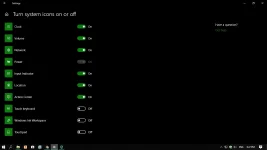
To check the status of your battery, select the battery icon in the taskbar. To add the battery icon to the taskbar:
Add the battery icon to the taskbar in Windows 10
Applies to: Windows 10
To check the status of your battery, select the battery icon in the taskbar. To add the battery icon to the taskbar:
- Select Start > Settings > Personalization > Taskbar, and then scroll down to the notification area. Choose Select which icons appear on the taskbar, and then turn on the Power toggle. (Note: The Power toggle is not visible on a system such as a desktop PC that doesn't use battery power.) If you still don't see the battery icon, select Show hidden icons on the taskbar, and then select the battery icon.
- On a device that uses battery power, if you select Start > Settings > Personalization > Taskbar and the Power toggle is greyed out or not visible, in the search box on the taskbar, type device manager, and then select Device Manager in the list of results. Under Batteries, right-click the battery for your device, select Disable, and select Yes. Wait a few seconds, and then right-click the battery and select Enable. Then restart your device.
- If you select Start > Settings > Personalization > Taskbar and turn on the Power toggle, but the battery icon does not appear on the taskbar, in the search box on the taskbar, type task manager, and then select Task Manager in the list of results. On the Processes tab under Name, right-click Explorer, and then select Restart.
na ayus ko na boss ... salamat haaaaaa... sir Draft paki close nalang nito ... problem solved nAWindows 10 yan ser?
Add the battery icon to the taskbar in Windows 10
Applies to: Windows 10
To check the status of your battery, select the battery icon in the taskbar. To add the battery icon to the taskbar:
You do not have permission to view the full content of this post. Log in or register now.
- Select Start > Settings > Personalization > Taskbar, and then scroll down to the notification area. Choose Select which icons appear on the taskbar, and then turn on the Power toggle. (Note: The Power toggle is not visible on a system such as a desktop PC that doesn't use battery power.) If you still don't see the battery icon, select Show hidden icons on the taskbar, and then select the battery icon.
- On a device that uses battery power, if you select Start > Settings > Personalization > Taskbar and the Power toggle is greyed out or not visible, in the search box on the taskbar, type device manager, and then select Device Manager in the list of results. Under Batteries, right-click the battery for your device, select Disable, and select Yes. Wait a few seconds, and then right-click the battery and select Enable. Then restart your device.
- If you select Start > Settings > Personalization > Taskbar and turn on the Power toggle, but the battery icon does not appear on the taskbar, in the search box on the taskbar, type task manager, and then select Task Manager in the list of results. On the Processes tab under Name, right-click Explorer, and then select Restart.
- Status
- Not open for further replies.
Similar threads
-
-
The Complete Diploma In Critical Thinking & Problem Solving
- Started by capacitynmw
- Replies: 0
-
Master Critical Thinking & Problem Solving As A Freelancer
- Started by rapidgator5
- Replies: 0
-
[UDEMY] Master your Problem Solving and Critical Thinking Skills
- Started by flex012
- Replies: 1
About this Thread
-
2Replies
-
279Views
-
2Participants
Last reply from:
Legtamic
Legtamic
New Topics
-
Fresh ip address
- Started by biscoff cheesecake
- Replies: 0
- 💬 Chitchat
-
Politikal pilipinas ano na
- Started by Maxreger1998
- Replies: 3
- 💬 Chitchat
-
How to be Established. I've been a member for so long
- Started by PHC - VictorVance
- Replies: 1
- 💬 Chitchat
-
Hulaan niyo Kaninong Last Words ito
- Started by GoatPhomator666
- Replies: 1
- 💬 Chitchat
-
VENDO AI INVESTMENT PLATFORM
- Started by REYNNEEEE
- Replies: 1
- 💬 Chitchat
-
CITATION POLICE CHECKPOINT
- Started by sarangje21
- Replies: 3
- 💬 Chitchat
-
Log system kaya ba ng ai
- Started by dbels
- Replies: 6
- 💬 Chitchat
-
Weather & Environment (Typhoon Rosal)
- Started by jiejiejiejie030303
- Replies: 0
- 💬 Chitchat
-
Hi guys balik loob lang kay phc
- Started by Infinity143
- Replies: 4
- 💬 Chitchat
-
TGT student 4 months free ( need help )
- Started by MrFuji
- Replies: 0
- 💬 Chitchat
Trending Topics
Online now
- Members online
- 588
- Guests online
- 7,127
- Total visitors
- 7,715