PH
PHCreate a Windows XP USB Edition Disk
Find out how to install Windows XP from USB here. Create a Windows XP USB stick edition - and install XP from USB - by using this guide!
If you wanted to You do not have permission to view the full content of this post. Log in or register now., follow the link. You can also learn how to install other versions of Microsoft Windows by clicking You do not have permission to view the full content of this post. Log in or register now..
Windows XP is only available on CD/DVD and not on USB disk. This is the same for Windows Vista; Windows 7 and Windows 8.
For most people, this is not a problem. But some computers (e.g. netbooks) do not come with CD/DVD drives. So it's great to be able to install Windows XP from USB stick. It's also faster to install from USB than from CD/DVD so this method could be useful to anyone, really.
To install Windows XP from USB stick, we must copy the setup files from a Windows CD/DVD (or from a Windows XP ISO file) onto a USB disk. You can then "boot" from the USB drive into the Windows setup program and install the system.
The easiest way to do this is to automate the process using a program called "WinToFlash".
Install Windows XP from USB: Step #1, Prepare the USB Disk
If you own a Microsoft Windows CD, follow the instructions below. Note that you will need to carry out this process (Step #1) on a computer that has a CD/DVD drive.
If you don't have a Windows install CD - but you DO have a Windows ISO file - learn how to burn a Windows XP You do not have permission to view the full content of this post. Log in or register now. disk by following the link.
1. *********** Windows disc into the CD/DVD drive.
2. Open the You do not have permission to view the full content of this post. Log in or register now. website (click and a new window will open) and click the "Last version via official download server" link, then save the file.
3. Right-click the WinToFlash file you just downloaded and select "Extract to Novicorp WinToFlash..." (or similar).

4. Open the "Novicorp WinToFlash" folder that was created when you performed Step #3 and double-click the WinToFlash icon.
If you're prompted with a security warning, click "Run" or otherwise accept the message.

5. Click "Next".

6. Tick "I accept EULA" (or similar) and then click the Next button.

7. Click "EXIT".

8. Click on the green tick button.

9. Click "Next".

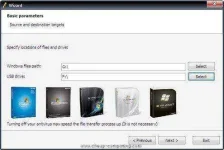
10. Under "Windows files path:", click the "Select" button. Then select the CD/DVD drive (which has the Windows disc in it).

11. Under "USB drive:" click the "Select" button. Then select the USB/removable disk.

12. Click "Next".

13. Select the "I accept..." option and click "Continue".

14. If your USB disk is not empty, you will be prompted to delete everything on it. Click "OK" if you are happy for everything on the disk to be wiped.

15. WinToFlash will now copy the setup files from the Windows disc to the USB disk.

16. When all files have copied onto the USB disk, click "Next".

17. Read the message, then click "Exit".

Install Windows XP from USB: Step #2, Boot from USB Drive
You should now have a Windows XP USB disk. All that's left is to boot from it and install Windows XP from USB.
You need to do TWO things to get your computer to boot from a USB disk:
1. Insert the USB stick into the computer that you want to install Windows XP onto.
2. Instruct your computer to You do not have permission to view the full content of this post. Log in or register now..
Step #3: Install Windows XP from USB
This guide assumes you've followed the advice on the You do not have permission to view the full content of this post. Log in or register now. guide.
With the BIOS correctly configured, and the Windows USB disk inserted into the computer, we're ready to install Windows XP from USB! All you need to do now is switch your computer on, and it should boot from the USB stick.
1. You should see the screen below. Select Option #1:

2. When you reach the "Welcome To Setup" page, press the enter key.

3. Press the F8 key to accept the license agreement.
4. Select "Partition 1" and press D to delete it.
5. Confirm that you want to delete the partition by pressing enter.
6. Confirm once more that want to delete the partition by pressing L.
7. Repeat steps #4-6 for all "Disk 0" partitions until the list of partitions under "Disk 0" shows only one option: "Unpartitioned space".
8. Select the option "Unpartitioned space".
9. Select "Format the partition using the NTFS file system (Quick)".
The following will happen...
10. Your computer will restart when the step "Setup is copying files..." is completed.
(a) Do NOT remove the USB disk from your PC
(b) SELECT OPTION #2

11. The Windows XP installation should take care of itself now. You just need to click Next or enter something occasionally...
If your computer reboots again, always select OPTION #2, until Windows XP has been fully installed (i.e. the desktop loads).
Eventually you should find yourself with a freshly installed copy of Windows.
At this point you can remove the Windows XP USB disk - it shouldn't be needed again.
Install Windows XP from USB: Step #4, Post-install
Your computer should now have been been wiped clean and a fresh install of Windows should be in place. There's just a few final things to do.
1. Device Drivers
Check that device drivers have been installed for all of your hardware:

Hopefully you won't see an "Other devices" category, which will mean that all of your hardware should be working properly. But if you find any devices are missing a driver (i.e. there are devices in the "Other devices" section) learn You do not have permission to view the full content of this post. Log in or register now. here.
2. Perfect Backup Image
Now is a great time to create a perfect backup "image" of your computer. This will enable you to very quickly restore your computer back to this 'perfect state' the next time it becomes slow and unpleasant to use.
This step saves you the hassle of ever having to back up device drivers, re-install Windows and re-install device drivers ever again.
To create a backup of your computer, install Macrium Reflect. Use this guide to learn You do not have permission to view the full content of this post. Log in or register now..
3. Restore Personal Files
If you created a backup using Macrium Reflect earlier, extract the files you want from the backup image. Use this guide to learn You do not have permission to view the full content of this post. Log in or register now..
Otherwise, drag-and-drop backed-up files from your backup device onto your computer.
4. Install Software
It's finally time to install your favourite programs! Be sure to save time installing your favourite applications by using You do not have permission to view the full content of this post. Log in or register now..
Find out how to install Windows XP from USB here. Create a Windows XP USB stick edition - and install XP from USB - by using this guide!
If you wanted to You do not have permission to view the full content of this post. Log in or register now., follow the link. You can also learn how to install other versions of Microsoft Windows by clicking You do not have permission to view the full content of this post. Log in or register now..
Windows XP is only available on CD/DVD and not on USB disk. This is the same for Windows Vista; Windows 7 and Windows 8.
For most people, this is not a problem. But some computers (e.g. netbooks) do not come with CD/DVD drives. So it's great to be able to install Windows XP from USB stick. It's also faster to install from USB than from CD/DVD so this method could be useful to anyone, really.
To install Windows XP from USB stick, we must copy the setup files from a Windows CD/DVD (or from a Windows XP ISO file) onto a USB disk. You can then "boot" from the USB drive into the Windows setup program and install the system.
The easiest way to do this is to automate the process using a program called "WinToFlash".
Install Windows XP from USB: Step #1, Prepare the USB Disk
If you own a Microsoft Windows CD, follow the instructions below. Note that you will need to carry out this process (Step #1) on a computer that has a CD/DVD drive.
If you don't have a Windows install CD - but you DO have a Windows ISO file - learn how to burn a Windows XP You do not have permission to view the full content of this post. Log in or register now. disk by following the link.
1. *********** Windows disc into the CD/DVD drive.
2. Open the You do not have permission to view the full content of this post. Log in or register now. website (click and a new window will open) and click the "Last version via official download server" link, then save the file.
3. Right-click the WinToFlash file you just downloaded and select "Extract to Novicorp WinToFlash..." (or similar).
4. Open the "Novicorp WinToFlash" folder that was created when you performed Step #3 and double-click the WinToFlash icon.
If you're prompted with a security warning, click "Run" or otherwise accept the message.
5. Click "Next".
6. Tick "I accept EULA" (or similar) and then click the Next button.
7. Click "EXIT".
8. Click on the green tick button.
9. Click "Next".
10. Under "Windows files path:", click the "Select" button. Then select the CD/DVD drive (which has the Windows disc in it).
11. Under "USB drive:" click the "Select" button. Then select the USB/removable disk.
12. Click "Next".
13. Select the "I accept..." option and click "Continue".
14. If your USB disk is not empty, you will be prompted to delete everything on it. Click "OK" if you are happy for everything on the disk to be wiped.
15. WinToFlash will now copy the setup files from the Windows disc to the USB disk.
16. When all files have copied onto the USB disk, click "Next".
17. Read the message, then click "Exit".
Install Windows XP from USB: Step #2, Boot from USB Drive
You should now have a Windows XP USB disk. All that's left is to boot from it and install Windows XP from USB.
You need to do TWO things to get your computer to boot from a USB disk:
1. Insert the USB stick into the computer that you want to install Windows XP onto.
2. Instruct your computer to You do not have permission to view the full content of this post. Log in or register now..
Step #3: Install Windows XP from USB
This guide assumes you've followed the advice on the You do not have permission to view the full content of this post. Log in or register now. guide.
With the BIOS correctly configured, and the Windows USB disk inserted into the computer, we're ready to install Windows XP from USB! All you need to do now is switch your computer on, and it should boot from the USB stick.
1. You should see the screen below. Select Option #1:
2. When you reach the "Welcome To Setup" page, press the enter key.
3. Press the F8 key to accept the license agreement.
4. Select "Partition 1" and press D to delete it.
5. Confirm that you want to delete the partition by pressing enter.
6. Confirm once more that want to delete the partition by pressing L.
7. Repeat steps #4-6 for all "Disk 0" partitions until the list of partitions under "Disk 0" shows only one option: "Unpartitioned space".
8. Select the option "Unpartitioned space".
9. Select "Format the partition using the NTFS file system (Quick)".
The following will happen...
10. Your computer will restart when the step "Setup is copying files..." is completed.
(a) Do NOT remove the USB disk from your PC
(b) SELECT OPTION #2
11. The Windows XP installation should take care of itself now. You just need to click Next or enter something occasionally...
If your computer reboots again, always select OPTION #2, until Windows XP has been fully installed (i.e. the desktop loads).
Eventually you should find yourself with a freshly installed copy of Windows.
At this point you can remove the Windows XP USB disk - it shouldn't be needed again.
Install Windows XP from USB: Step #4, Post-install
Your computer should now have been been wiped clean and a fresh install of Windows should be in place. There's just a few final things to do.
1. Device Drivers
Check that device drivers have been installed for all of your hardware:
- Click "Start"
- Right-click "My Computer"
- Select "Properties"
- Click "Hardware"
- Click "Device Manager"
- Look for hardware that has errors
Hopefully you won't see an "Other devices" category, which will mean that all of your hardware should be working properly. But if you find any devices are missing a driver (i.e. there are devices in the "Other devices" section) learn You do not have permission to view the full content of this post. Log in or register now. here.
2. Perfect Backup Image
Now is a great time to create a perfect backup "image" of your computer. This will enable you to very quickly restore your computer back to this 'perfect state' the next time it becomes slow and unpleasant to use.
This step saves you the hassle of ever having to back up device drivers, re-install Windows and re-install device drivers ever again.
To create a backup of your computer, install Macrium Reflect. Use this guide to learn You do not have permission to view the full content of this post. Log in or register now..
3. Restore Personal Files
If you created a backup using Macrium Reflect earlier, extract the files you want from the backup image. Use this guide to learn You do not have permission to view the full content of this post. Log in or register now..
Otherwise, drag-and-drop backed-up files from your backup device onto your computer.
4. Install Software
It's finally time to install your favourite programs! Be sure to save time installing your favourite applications by using You do not have permission to view the full content of this post. Log in or register now..