 PH
PHdarkslayer922
Eternal Poster
HC HandyCache
HandyCache (HC) - is a free program that saves bandwidth, faster loading pages, blocks ads and allows offline (not connected to the Internet) to view any previously visited sites.
HC HandyCache - a caching proxy server. It reduces traffic to 3-4 times due to cache once loaded pages (files) are written to the cache and the next request is taken from the cache rather than from the Internet - at the expense of the economy and traffic and loading time. HC can cache any files transmitted via HTTP protocol - even those browsers do not cache.
Any of the browsers installed on your computer (and other programs) can use the cache HC, and hence there is no need to load the same page several times to view in different browsers. Moreover, without an Internet connection, you can view previously visited pages and uploaded files.
How to use???
1. Download and install the Rev2
2. Make sure to Run As admin Both handy cache and ssl bypass Every time u open it..
3. Change your browser proxy to 127.0.0.1:8080
4. Happy Caching
CERTIFICATE IMPORT
Firefox>TOOLS>option>advance>certificate>view certificate>import>Find root-public.crt on handy cache folder...
OPERA>Setting>Privacy and Security>Manage Certificate>import>Find root-public.crt on handy cache folder...
About Youtube cache
In extension tab of handy Cache u can check and uncheck the youtube caching....
About Proxy for browser
1. You can use Proxifier
2. You can use proxy selector adson for firefox or manually set it yourself
3. You can use proxy switchy sharp adson for Chrome or manually set in on corntrol panel network connection
NOTES
1. Use the latest Revision... It has Updated rule set to avoid error
2. If u happen to have old handy cache ... Copy and Paste your old Cache to the new cache folder
3. Much better to place the cache folder on different partition or drive for faster response...
4. Remember to always run as admin
complete tut just follow the pics below
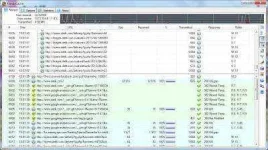
Monitor View
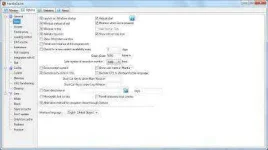
General setting
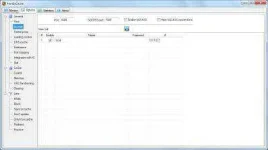
IP Local
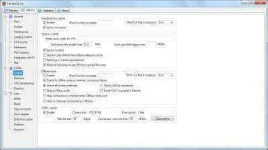
Control
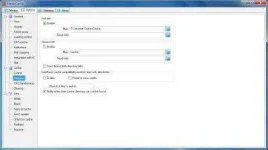
Directory
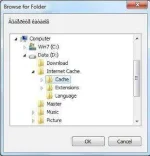
Directory
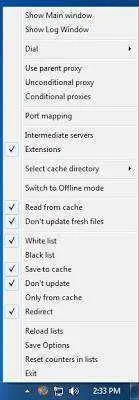
Right Click in Sistry icon
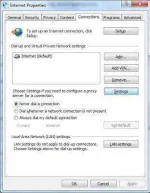
Browser Setting
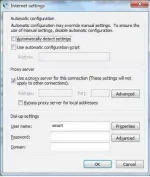
Browser Setting
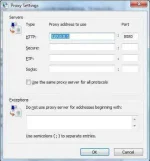
Browser Setting
download link: please see attached file below
HandyCache (HC) - is a free program that saves bandwidth, faster loading pages, blocks ads and allows offline (not connected to the Internet) to view any previously visited sites.
HC HandyCache - a caching proxy server. It reduces traffic to 3-4 times due to cache once loaded pages (files) are written to the cache and the next request is taken from the cache rather than from the Internet - at the expense of the economy and traffic and loading time. HC can cache any files transmitted via HTTP protocol - even those browsers do not cache.
Any of the browsers installed on your computer (and other programs) can use the cache HC, and hence there is no need to load the same page several times to view in different browsers. Moreover, without an Internet connection, you can view previously visited pages and uploaded files.
How to use???
1. Download and install the Rev2
2. Make sure to Run As admin Both handy cache and ssl bypass Every time u open it..
3. Change your browser proxy to 127.0.0.1:8080
4. Happy Caching
CERTIFICATE IMPORT
Firefox>TOOLS>option>advance>certificate>view certificate>import>Find root-public.crt on handy cache folder...
OPERA>Setting>Privacy and Security>Manage Certificate>import>Find root-public.crt on handy cache folder...
About Youtube cache
In extension tab of handy Cache u can check and uncheck the youtube caching....
About Proxy for browser
1. You can use Proxifier
2. You can use proxy selector adson for firefox or manually set it yourself
3. You can use proxy switchy sharp adson for Chrome or manually set in on corntrol panel network connection
NOTES
1. Use the latest Revision... It has Updated rule set to avoid error
2. If u happen to have old handy cache ... Copy and Paste your old Cache to the new cache folder
3. Much better to place the cache folder on different partition or drive for faster response...
4. Remember to always run as admin
complete tut just follow the pics below
Monitor View
General setting
IP Local
Control
Directory
Directory
Right Click in Sistry icon
Browser Setting
Browser Setting
Browser Setting
download link: please see attached file below

 may iba pbang link??salamat sa narin procedure