 PH
PHLaging mahalaga ang lakas ng signal eto mga tips para malaman kung gaano ba kalakas ang signal sa inyong area
Checking signal strength on You do not have permission to view the full content of this post. Log in or register now.
Method 1: Check via the phone status
Go to settings: Settings - About phone - Status - Signal strength. You will see two numbers, the first indicates phone signal strength (dBm), with 0 - 50dBm representing excellent signal strength.
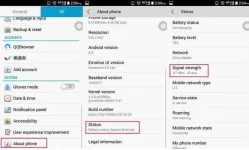
The following is a rough guide to signal strength (dBm):
• -50 to -40 means an excellent signal (your phone is close to the base station).
• -60 to -50 indicates very good signal.
• -70 to -60 shows good signal.
• -80 to -70 means less weak signal.
• -90 to -80 shows weak signal.
• Above -90 indicates basic communication is possible.
• Under -90 means your phone talking may be intermittent.
If your phone signal strength is above -90dBm, it will support phone communication; however, if call quality is intermittent, your phone may be faulty.
Method 2: Use a specialized app
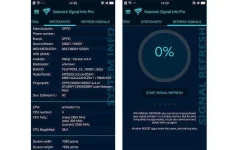
"Network Signal Info Pro" provides information on your current network (cellular or WiFi).
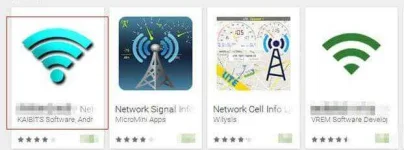
Step 1. Search for, download and install "You do not have permission to view the full content of this post. Log in or register now." from Google Play.
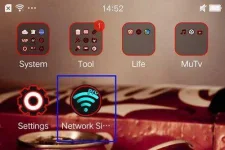
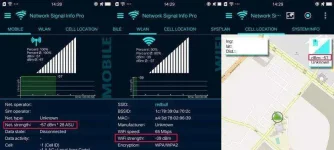
Step 2. Launch the app to view system information and network information, including WLAN, cell location, net type, net strength, data state, IP, phone type, etc. A chart displays the signal strength in real-time.
Checking signal strength on iPhones
It's much easier to test it on iOS, just try the following methods:
Method 1: Use the iOS Field Test
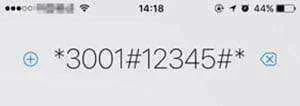
Step 1. Dial and call "3001#12345#" to enter iOS Field Test mode.
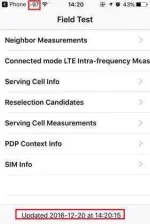
Step 2. The number on the upper left hand corner represents the signal strength indicator, the test time is on the bottom center. The closer the signal is to zero, the stronger the signal.
Step 3. Long press the Power button to view the power off interface, then release – do not power off. Long press the Home button until your phone returns to the home screen, the signal indicator will turn into a number.
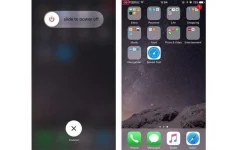
To revert the signal number to the standard indicator, simply dial "3001#12345#" again.
Note: The tested iPhone system version is iOS 10.0.1.
Method 2: Use a specialized app
Network speed and phone signal are not the same, however the network speed reflects the signal strength to some degree.
Step 1. Go to App Store, download and install the "Speed Test" app.

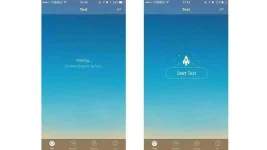
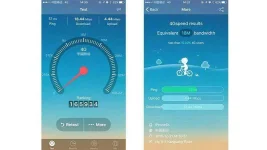
Step 2. Launch the app to automatically connect to the server. Click "Start Test" and wait. The app will display ping, download/upload speed test results, and ranking. Click on "More" for detailed results, including the phone model, test time, and location.
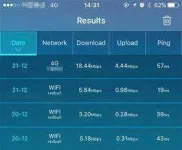
The results menu displays your full test history in detail.
Checking signal strength on You do not have permission to view the full content of this post. Log in or register now.
Method 1: Check via the phone status
Go to settings: Settings - About phone - Status - Signal strength. You will see two numbers, the first indicates phone signal strength (dBm), with 0 - 50dBm representing excellent signal strength.
The following is a rough guide to signal strength (dBm):
• -50 to -40 means an excellent signal (your phone is close to the base station).
• -60 to -50 indicates very good signal.
• -70 to -60 shows good signal.
• -80 to -70 means less weak signal.
• -90 to -80 shows weak signal.
• Above -90 indicates basic communication is possible.
• Under -90 means your phone talking may be intermittent.
If your phone signal strength is above -90dBm, it will support phone communication; however, if call quality is intermittent, your phone may be faulty.
Method 2: Use a specialized app
"Network Signal Info Pro" provides information on your current network (cellular or WiFi).
Step 1. Search for, download and install "You do not have permission to view the full content of this post. Log in or register now." from Google Play.
Step 2. Launch the app to view system information and network information, including WLAN, cell location, net type, net strength, data state, IP, phone type, etc. A chart displays the signal strength in real-time.
Checking signal strength on iPhones
It's much easier to test it on iOS, just try the following methods:
Method 1: Use the iOS Field Test
Step 1. Dial and call "3001#12345#" to enter iOS Field Test mode.
Step 2. The number on the upper left hand corner represents the signal strength indicator, the test time is on the bottom center. The closer the signal is to zero, the stronger the signal.
Step 3. Long press the Power button to view the power off interface, then release – do not power off. Long press the Home button until your phone returns to the home screen, the signal indicator will turn into a number.
To revert the signal number to the standard indicator, simply dial "3001#12345#" again.
Note: The tested iPhone system version is iOS 10.0.1.
Method 2: Use a specialized app
Network speed and phone signal are not the same, however the network speed reflects the signal strength to some degree.
Step 1. Go to App Store, download and install the "Speed Test" app.
Step 2. Launch the app to automatically connect to the server. Click "Start Test" and wait. The app will display ping, download/upload speed test results, and ranking. Click on "More" for detailed results, including the phone model, test time, and location.
The results menu displays your full test history in detail.

