 PH
PHPHC-Emersonbt
Forum Veteran
Nokia Asha 205 is a dual sim phone in 2G network only that means you only have a EDGE or GPRS connectivity on your network provider. It runs on S40 OS version and uses Nokia Xpress as a default browser in connecting to the internet. Pre loaded with applications and games like Asphalt, Green Farm, Midnight pool and many more. In this post, we are going to setup manual EDGE/GPRS/MMS configuration settings in connecting all your apps to the internet using your Nokia Asha 205.
para po ito sa mga nakabili ng asha 205 na di alam paano imanual set up.
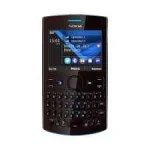
Nokia Asha 205 manual configurations
GPRS /EDGE configuration settings
Go to 'Menu'
Click 'Settings'
Go to 'Configuration'
Look for 'Personal Settings'
Click 'Add' ( to add and create new Access point)
Select 'Access point'
Click on 'Account Name' then type your desired Access point name
Click OK
On 'Access point settings'
Select 'Bearer settings'
On 'Mobile Data access pt.' type the network APN (Ex. internet, http.globe.com.ph, wap)
Leave Authentication, Username, and Password as is if not required on your network.
Click Back 3 times to go back to 'Personal accounts' then click options and select 'Activate'
Go Back to 'Configuration settings' you can now see you newly created Access point on 'Preferred access point' after activating.
On the screen scroll up and point to 'Default config. settings' to choose your network (Left scroll to see other options, ex. Postpaid or Prepaid)
Last is to activate our creating settings to all applications, select 'Default in all apps' to activate in all applications used (Browser, Messenger, Store, Mail and more)
MMS settings configuration steps
Go to 'Menu'
Click 'Settings'
Go to 'Configuration'
Look for 'Personal Settings'
Click 'Add' ( to add and create new Access point)
Select 'Multimedia msg.’
Click on 'Account Name' then type your desired Access point name
Click OK
On ‘Server Address’ put the server address provided by your network (ex. wap.suncellular.com.ph, You do not have permission to view the full content of this post. Log in or register now.)
On 'Use preferred ccess pt.' select ‘No’
Go to 'Access point settings'
Enable ‘Proxy’ then input proxy address (ex.192.040.100.020, 202.138.159.78)
On ‘Proxy port’ input port number (ex. 80, 8080)
Select 'Bearer settings'
On 'Mobile Data access pt.' type the network APN (Ex. mms, mms.globe.com.ph)
Leave Authentication, Username, and Password as is if not required on your network.
Click Back 3 times to go back to 'Personal accounts' then click options and select 'Activate'
Tips
To remove the ‘E’ or ‘G’ icon on your Nokia Asha 205 Home screen just set your ‘Mobile data connection’ to ‘When needed ‘instead of ‘Always online’. This will also save your battery power.
There is no edit option on your current and newly created access points, all you need to do is to create a new one instead of editing your existing access points.
para po ito sa mga nakabili ng asha 205 na di alam paano imanual set up.
Nokia Asha 205 manual configurations
GPRS /EDGE configuration settings
Go to 'Menu'
Click 'Settings'
Go to 'Configuration'
Look for 'Personal Settings'
Click 'Add' ( to add and create new Access point)
Select 'Access point'
Click on 'Account Name' then type your desired Access point name
Click OK
On 'Access point settings'
Select 'Bearer settings'
On 'Mobile Data access pt.' type the network APN (Ex. internet, http.globe.com.ph, wap)
Leave Authentication, Username, and Password as is if not required on your network.
Click Back 3 times to go back to 'Personal accounts' then click options and select 'Activate'
Go Back to 'Configuration settings' you can now see you newly created Access point on 'Preferred access point' after activating.
On the screen scroll up and point to 'Default config. settings' to choose your network (Left scroll to see other options, ex. Postpaid or Prepaid)
Last is to activate our creating settings to all applications, select 'Default in all apps' to activate in all applications used (Browser, Messenger, Store, Mail and more)
MMS settings configuration steps
Go to 'Menu'
Click 'Settings'
Go to 'Configuration'
Look for 'Personal Settings'
Click 'Add' ( to add and create new Access point)
Select 'Multimedia msg.’
Click on 'Account Name' then type your desired Access point name
Click OK
On ‘Server Address’ put the server address provided by your network (ex. wap.suncellular.com.ph, You do not have permission to view the full content of this post. Log in or register now.)
On 'Use preferred ccess pt.' select ‘No’
Go to 'Access point settings'
Enable ‘Proxy’ then input proxy address (ex.192.040.100.020, 202.138.159.78)
On ‘Proxy port’ input port number (ex. 80, 8080)
Select 'Bearer settings'
On 'Mobile Data access pt.' type the network APN (Ex. mms, mms.globe.com.ph)
Leave Authentication, Username, and Password as is if not required on your network.
Click Back 3 times to go back to 'Personal accounts' then click options and select 'Activate'
Tips
To remove the ‘E’ or ‘G’ icon on your Nokia Asha 205 Home screen just set your ‘Mobile data connection’ to ‘When needed ‘instead of ‘Always online’. This will also save your battery power.
There is no edit option on your current and newly created access points, all you need to do is to create a new one instead of editing your existing access points.