 PH
PHAndroid 4.4 KitKat is officially here. Well, it’s here if you’re a Nexus 5 owner. Nobody knows when the rest of the Android world will be getting the latest update, but let’s hope it’s sooner rather than later.
Today, we’re going to show you how to easily increase battery life on your Nexus 5 by implementing five easy tips today.
USE THE BATTERY SAVING GPS FEATURE
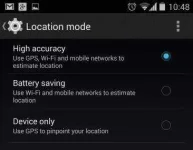
Android’s default GPS feature is useful if you use a lot of location tracking apps – like Google Maps or business finding apps. Thankfully, Google realized that GPS wasn’t very battery efficient, which is why they created a GPS mode that uses less battery life and implemented it into Android 4.4.
This battery saving GPS mode won’t completely take away your location-finding features, but it will use fewer reference points to find your location.
In all likelihood, your location will still be fairly accurate, just not as accurate or as quick-to-respond as the default GPS mode. To enable this mode in Android 4.4 KitKat, go to Settings > Location > Mode and then check the box beside Battery Saving.
If you’re in a situation where you need very precise map tracking, then you can easily disable this mode. Until then, enjoy your longer battery life.
TELL GOOGLE IT’S NOT OK
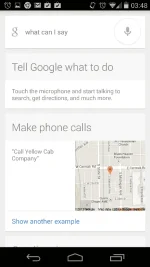
One of the biggest improvements in Android 4.4 is the feature where your phone listens for special hotwords like “OK Google”. This is useful if you’re in the car or hands-free mode, but many Android users will find it unnecessary.
Fortunately, you can easily disable this mode when you don’t need it. To do that, go to your Google Now app > Settings > Voice and then disable Hotword Detection.
DON’T SYNC EVERYTHING
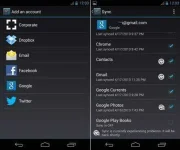
Android likes to keep you updated on everything that’s going on in the world. Unfortunately, keeping updated all the time burns battery life. By default, Android will sync all of the accounts you’ve added to your phone or tablet.
That’s useful for email and possibly Facebook. But most accounts are better off without being synchronized constantly – especially accounts you might barely use like Google Keep, Google Play, or your photo apps.
Photos can be particularly devastating to your battery life. Every time you take a photo, Google may try to sync that photo with the cloud or whatever other photo sharing/storage service you use.
The easiest way to change this is to go to your Settings menu and look for your email address under Accounts. Tap that account name to access sync settings for each service.
You can also remove photo syncing directly from the gallery app under the Settings menu.
TURN OFF NFC, BLUETOOTH, AND OTHER WIRELESS SERVICES YOU AREN’T USING
I can’t believe it’s 2013 and I still have to remind people of this, but such is life. I’m sick of friends complaining about poor smartphone battery life, only to constantly see the Bluetooth and NFC icons sitting in their notifications bar. All wireless services burn battery life, but NFC is a particularly lethal killer.
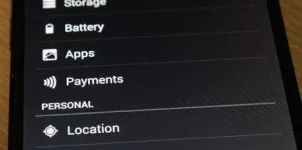
You can disable NFC and all other wireless connections from the Settings menu under (More) > Wireless and Networks
USE ANDROID’S BATTERY TOOL
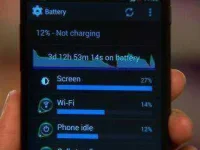
Android has had a battery life monitoring tool for quite some time now. This app shows you exactly what’s draining battery life and how much battery life your apps are draining.
To access this tool in Android 4.4 KitKat, go to the Quick Settings menu from the notifications shade and then tap the battery logo. This will reveal a complete list of active apps that are draining battery as well as the percentage of battery life they’re draining.
Obviously, some app usage is unavoidable. For example, your Android’s screen and wireless connections are an important part of your phone/tablet. However, it’s easy to find a few surprising apps under this menu as well, such as that random game you once downloaded and now constantly bothered you with notifications. Uninstall that app or prevent it from running to boost your battery life.
Today, we’re going to show you how to easily increase battery life on your Nexus 5 by implementing five easy tips today.
USE THE BATTERY SAVING GPS FEATURE
Android’s default GPS feature is useful if you use a lot of location tracking apps – like Google Maps or business finding apps. Thankfully, Google realized that GPS wasn’t very battery efficient, which is why they created a GPS mode that uses less battery life and implemented it into Android 4.4.
This battery saving GPS mode won’t completely take away your location-finding features, but it will use fewer reference points to find your location.
In all likelihood, your location will still be fairly accurate, just not as accurate or as quick-to-respond as the default GPS mode. To enable this mode in Android 4.4 KitKat, go to Settings > Location > Mode and then check the box beside Battery Saving.
If you’re in a situation where you need very precise map tracking, then you can easily disable this mode. Until then, enjoy your longer battery life.
TELL GOOGLE IT’S NOT OK
One of the biggest improvements in Android 4.4 is the feature where your phone listens for special hotwords like “OK Google”. This is useful if you’re in the car or hands-free mode, but many Android users will find it unnecessary.
Fortunately, you can easily disable this mode when you don’t need it. To do that, go to your Google Now app > Settings > Voice and then disable Hotword Detection.
DON’T SYNC EVERYTHING
Android likes to keep you updated on everything that’s going on in the world. Unfortunately, keeping updated all the time burns battery life. By default, Android will sync all of the accounts you’ve added to your phone or tablet.
That’s useful for email and possibly Facebook. But most accounts are better off without being synchronized constantly – especially accounts you might barely use like Google Keep, Google Play, or your photo apps.
Photos can be particularly devastating to your battery life. Every time you take a photo, Google may try to sync that photo with the cloud or whatever other photo sharing/storage service you use.
The easiest way to change this is to go to your Settings menu and look for your email address under Accounts. Tap that account name to access sync settings for each service.
You can also remove photo syncing directly from the gallery app under the Settings menu.
TURN OFF NFC, BLUETOOTH, AND OTHER WIRELESS SERVICES YOU AREN’T USING
I can’t believe it’s 2013 and I still have to remind people of this, but such is life. I’m sick of friends complaining about poor smartphone battery life, only to constantly see the Bluetooth and NFC icons sitting in their notifications bar. All wireless services burn battery life, but NFC is a particularly lethal killer.
You can disable NFC and all other wireless connections from the Settings menu under (More) > Wireless and Networks
USE ANDROID’S BATTERY TOOL
Android has had a battery life monitoring tool for quite some time now. This app shows you exactly what’s draining battery life and how much battery life your apps are draining.
To access this tool in Android 4.4 KitKat, go to the Quick Settings menu from the notifications shade and then tap the battery logo. This will reveal a complete list of active apps that are draining battery as well as the percentage of battery life they’re draining.
Obviously, some app usage is unavoidable. For example, your Android’s screen and wireless connections are an important part of your phone/tablet. However, it’s easy to find a few surprising apps under this menu as well, such as that random game you once downloaded and now constantly bothered you with notifications. Uninstall that app or prevent it from running to boost your battery life.