 PH
PHKhim Briones
Forum Expert
These are instructions on how to unlock the iPhone 4, iPhone 3GS, and iPhone 3G for use with any GSM cellphone carrier using UltraSn0w. This will work with the iOS 4.2.1 firmware if you are on the You do not have permission to view the full content of this post.
Log in or register now.baseband.
Before you can follow these instructions you must have a You do not have permission to view the full content of this post. Log in or register now. iPhone and you must be on the 04.26.08, 05.11.07, 05.12.01, 05.13.04, 06.15.00, or 01.59 baseband(modem firmware).
To find your firmware and modem firmware(baseband) versions you can follow You do not have permission to view the full content of this post. Log in or register now. tutorial.
If you are on T-Mobile remember to turn off 3G before starting...
Step One
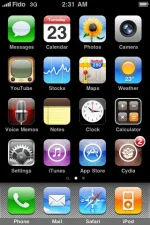
Press to launch Cydia Installer from your SpringBoard.
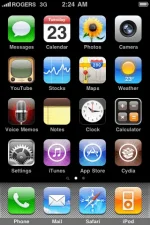
Step Two
Press to select the Manage tab at the bottom of the screen.
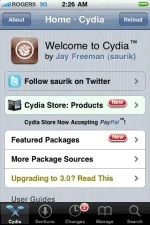
Step Three
Press to select the large Sources button
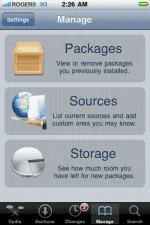
Step Four
If the ultrasn0w repo is not present press the Edit button at the top right of the screen. Otherwise, skip to Step Nine.
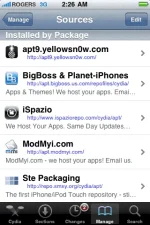
Step Five
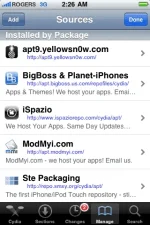
Press the Add button at the top left of the screen.
Step Six
Enter You do not have permission to view the full content of this post. Log in or register now. as the source url and press the Add Source button.

Step Seven
Once the source has been added press the large Return to Cydia button.

Step Eight
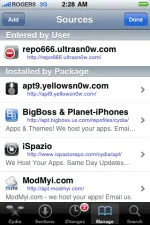
Press the Done button at the top right of the screen.
Step Nine
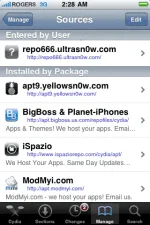
Press to select repo666.ultrasn0w.com from the list of user entered sources.
Step Ten
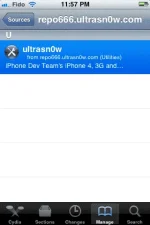
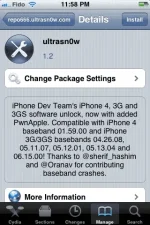
Press to select ultrasn0w from the list of packages
Step Eleven
Press the Install button at the top right of the screen.
Step Twelve
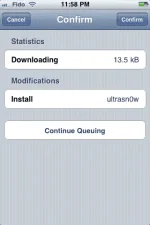
Press the Confirm button at the top right of the screen.
Step Thirteen
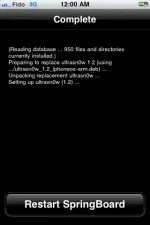
After installation completes successfully press the large Restart Springboard button.
Step Fourteen
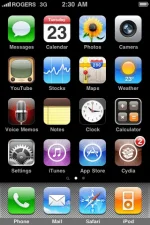
You should now be able to insert the SIM of your choice!
Before you can follow these instructions you must have a You do not have permission to view the full content of this post. Log in or register now. iPhone and you must be on the 04.26.08, 05.11.07, 05.12.01, 05.13.04, 06.15.00, or 01.59 baseband(modem firmware).
To find your firmware and modem firmware(baseband) versions you can follow You do not have permission to view the full content of this post. Log in or register now. tutorial.
If you are on T-Mobile remember to turn off 3G before starting...
Step One
Press to launch Cydia Installer from your SpringBoard.
Step Two
Press to select the Manage tab at the bottom of the screen.
Step Three
Press to select the large Sources button
Step Four
If the ultrasn0w repo is not present press the Edit button at the top right of the screen. Otherwise, skip to Step Nine.
Step Five
Press the Add button at the top left of the screen.
Step Six
Enter You do not have permission to view the full content of this post. Log in or register now. as the source url and press the Add Source button.
Step Seven
Once the source has been added press the large Return to Cydia button.
Step Eight
Press the Done button at the top right of the screen.
Step Nine
Press to select repo666.ultrasn0w.com from the list of user entered sources.
Step Ten
Press to select ultrasn0w from the list of packages
Step Eleven
Press the Install button at the top right of the screen.
Step Twelve
Press the Confirm button at the top right of the screen.
Step Thirteen
After installation completes successfully press the large Restart Springboard button.
Step Fourteen
You should now be able to insert the SIM of your choice!

