This method shows you how to Disable/Enable Task Manager from Registry Editor
Please perform the following steps:
Please go to Pearl button (Start) and click on the Search programs and files
For more information about the change from Start to Pearl button
You do not have permission to view the full content of this post.
Log in or register now.

Type regedit and press ok

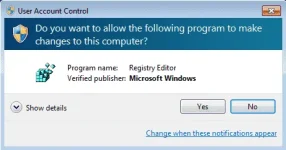
Please confirm UAC pop-ups in order to continue
Microsoft official disclaimer
Warning Serious problems might occur if you modify the registry incorrectly by using Registry Editor or by
using another method. These problems might require that you reinstall the operating system. Microsoft
cannot guarantee that these problems can be solved. Modify the registry at your own risk.
Please navigate to HKEY_CURRENT_USER\Software\Microsoft\Windows\CurrentVersion\Policies
\System and locate DisableTaskMgr registrykey
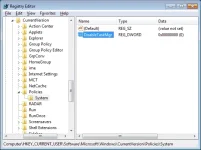
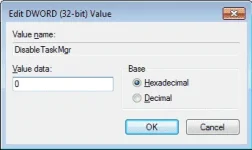
Double click on DisableTaskMgr and edit the value:
To Disable Task Manager:
Change the data value with 1
To Enable Task Manager:
Change the data value with 0
To finish press ok button and close Registry Editor window
credits from
You do not have permission to view the full content of this post.
Log in or register now. PH
PH