 PH
PH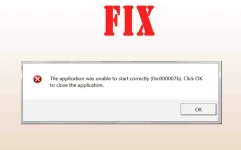
5 Methods to fix 0xc00007b error..
Method 1 : Re-install The Application This method is simply but it is helpful for allot of people who had this problem. All you got to do is to re-install the application in which you are having this problem. Firstly, Uninstall the application. Restart the Computer. Re-install the Application in which you had this issue. Re-install other application which are sometimes the cause of this error like You do not have permission to view the full content of this post. Log in or register now., You do not have permission to view the full content of this post. Log in or register now. and You do not have permission to view the full content of this post. Log in or register now.. Re-install the latest version of all these apps. This will be helpful for your System too.
Method 2 : Running The Application as an Administrator Sometimes this error occurs due to the application running process. This error code 0xc000007b in windows 7, 8, 8.1 is sometime fixed by using this method. Right Click on the Application .exe File. Click on the option Run as administrator.
Method 3 : Check Your Hard Disk Most of these causes are due to hard disk issue and can be resolved by checking your hard disk. To fix error code 0xc000007b in windows 7, 8, 8.1 you have to check your disk. All you need to do is to follow some certain steps explained below.
- Search For the cmd.exe in the search bar.
- For Windows 7 – Click on the Start Button in the left bottom corner and type cmd.exe in the search bar.
- For Windows 8 – Press the .Search key and type cmd.exe. Right Click on the cmd.exe and click on Run as administrator.
- Run Command Prompt as administrator in your System.
- After running the command prompt as administrator. Type chkdsk c: /f /r and press enter. If your windows is installed in C drive then it will ask you to schedule this volume to be checked the next time the system restarts? (Y/N). Type Y and press enter.
Method 4 : Fix Compatibility Issue Between System and Application Sometime the application you are using is not compatible with your system due to some file or any other issue. To fix this kinda issue all you got to do is to follow the steps explained below.
This is basically effective for the Games which requires high system configuration like Fifa, Far Cry, Assassins Creed, Call of Duty and many other games.
- Run Application in Compatibility Mode : Right click on Application icon, Click on Properties. Click on Compatibility tab.
- Check-up the box named “Run this program in compatibility mode for“. In the drop-down menu that enables, select an earlier version of Windows. Click Apply, and then OK.
Method 5 Check Application Permission : Open Application installation folder. Open C:\Program Files\Application Folder Right click Application folder, Click on Properties. Click Security tab. Check-up Full control. Check the checkbox inside the Allow column. Click Apply, and then OK.
Now you are done...

Download File:
You do not have permission to view the full content of this post. Log in or register now.
You do not have permission to view the full content of this post. Log in or register now.
You do not have permission to view the full content of this post. Log in or register now.