PH
PHStrawberrry
Forum Veteran
Contents
you to understand the process and the basics, then if you want to get better at making thread designs you should look into pure Photoshop
and After Effects tutorials that do not have a soul purpose of thread design making. (2): All format codes that are in code-tags
written below is not of the proper layout. I only wrote it like that to make it easier to read and understand.

Personally I use You do not have permission to view the full content of this post. Log in or register now. and You do not have permission to view the full content of this post. Log in or register now., which makes the perfect combination when making thread designs. When making a flat thread design, you will not use Adobe After Effects, you only use Adobe After Effects when doing animated thread designs. When making animated thread designs, you make everything in After Effects and you only use Photoshop at one point which is when you make the frames into a gif format.
To make it more clear, when making animated thread designs in After Effects, you render your animation as a PNG sequence (which is frames) and in Photoshop you make the frames into a very high quality gif. You do this for every section you have, and then combine the sections (as gifs) into a fully animated thread designs. I will talk more about this in the "How animated thread designs works" which will be far down in this thread.
You need to have somewhat of basic knowledges in any Adobe program to get a good start with this. If you know basics of Photoshop you will know how to use After Effects and vice versa. I would suggest you to watch some tutorials on YouTube but it is better if I go through what you will be needing more precise from here.

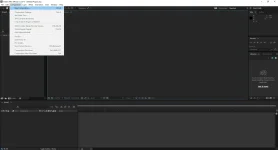
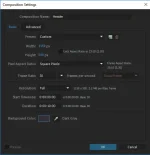
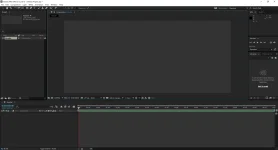
I am gonna go ahead and skip the very basics of basics such as how to make a new file in Photoshop, however I will not skip it in After Effects because you get a little bit confused there and it is not as common used as Photoshop. But I will go through some simple tools that you will be needing when making thread designs, I will not explain tools that you won't need.
Shape tool: When making flat thread designs this is the golden tool to use for the background. Simple click on the "Rectangle tool", select a color and use the mouse to click from where you want it to begin and from where you want it to end. You can change the color of the shape by clicking the current color from the top left bar. You cannot change the color of it by clicking on the right color tool.
Text tool: It is pretty self-explanatory but there are some hidden things one does not think about most of the times. Basics? Just like with the shape tool, click and drag to set the height and width of it and then type your text. On the top left-ish you are able to set some options for the text such as, font, color, size, align and more.
When it comes to fonts, you cannot use any font for your header and same with your paragraphs and more. The most common font used is "Arial", it is mostly used on the web since it is a standard font but why use it for thread designs when you are able to use so much more? Simple use a search engine and type in "header fonts" or "paragraph fonts" and you will be able to find tons of ρáíd and free fonts. One that I personally recommend using is named You do not have permission to view the full content of this post. Log in or register now., click on the name to download it. This font works for headers and paragraphs, personally I use it for my entire thread designs.
Those two tools are the most common ones you will be using, the possibilities with these two tools are endless, you can use them in so many different ways to make your thread design look top notch.

As in any Adobe program, or many of them, the tools are mostly the same. Common tools such as the rectangle-tool or text-tool are the same. The explanation as I did above for Photoshop would be pretty much the same if I did it for After Effects aswell. If there's something I would need to explain it is how animated thread designs works. I have made an entire section for that which will be a few posts below, just use the table of contents to be directed there.


This part is the actual thing. In this section I will explain how to make a flat thread design, I will explain in text what I am doing aswell as show screenshots of what have been done. When making a flat thread design, it is done in one-piece. Meaning that it is done in the same file.
You need to have a layout in mind, when I get orders from customers they most of the times present a text file with the content of their thread design. No layout is like the other, they are all unique. But let us say that we are making a thread design for an ebook sales thread.
You most likely want your layout to look something like this:
Header
Features
Price package(s)
Contact information
You will not want to include your terms of service in the thread design, looks messy and you wanna keep it simple. Instead include it in (spoiler)-tags below the thread. You can do it by using this code:
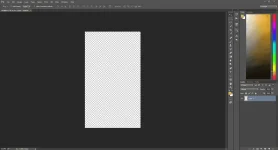
Now when we got a layout in mind, make your file in Photoshop and use 1150 px as width and set a random height such as 2000 px. You will need to adjust the height later on because we do not know the exact height yet, it will depend on our content. Set your background color as transparent. This is how my new file looks like:
New file
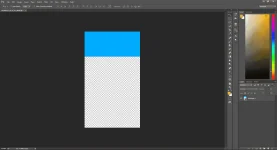
The base is all set, now we can start making the flat thread design. Start by using the shape tool and select the "Rectangle tool", this flat thread design that we will be making will be very basic on a newbie level. So set a color you like, personally I will use #00AAFF which is a light-blue color and also the color of häçkForums UB3R userbar. Drag the rectangle to get a nice height to fit the header title, a slogan and maybe a button to say something like "Learn more". This is how it looks like after I draged the rectangle for my header:
Header
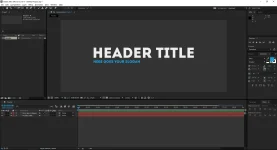
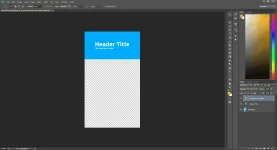
Now use the text tool, click once and type in your header title, I will set mine to be "Header title", just to keep it simple and clear for you whos following this tutorial. The header title will have the font "You do not have permission to view the full content of this post. Log in or register now." and I will set it as bold since it is the header title. The font size will be quite large, it should show the header title clear. Then below the header title I will set a slogan or undertitle, I will simple type "Here goes your slogan" and it should not be as large as the header title.
This is how the header now looks like:
Header
All simple and clean so far, keep that up. Let's scroll up again and have a look at the layout, what's next? Features.
What am I exactly thinking about? Well this is for an ebook sales thread, or if it would be, your potential customers would want to know things like, does this involve any blackhat activities? does this involve scamming, CPA and such. So you can make a simple list, doesn't need to be advanced at all. First of all use the rectangle tool to make a background for this part, show that this is a new section. I will use the hexadecimal color code #121212. We can use You do not have permission to view the full content of this post. Log in or register now. icon to mark each features. Simple download it and drag it in your thread design then scale it. You can always use Ctrl + T to scale. This is how the second section now looks like.
Features
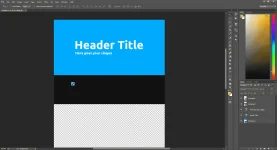
Let us say that we have 6 features, try to make it as symmetric as possible. Use 2 on each row then and use the text tool to add your features.
Do I have to add a new icon and do it manually for all? No, right click at the layer and select
"Duplicate layer..."
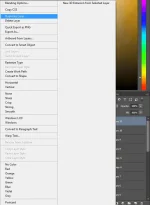
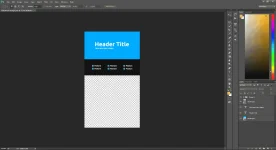
If you are a beginner keep in mind that you should use the same size of the icon for all, same goes with the text and use the same font aswell. Basic knowledges to complete this step, this is how it looks like now:
Features
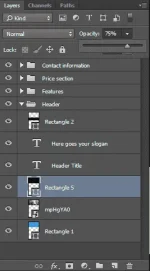
Does your layer section look
messy?
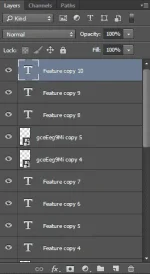
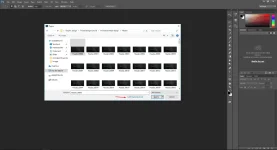
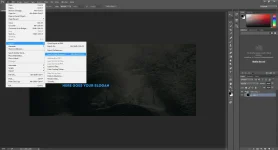
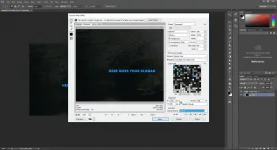
Clean it up by selecting the layers you want and click this
button
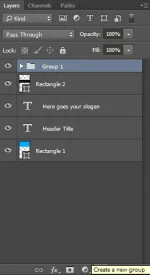
It is starting to look like something now. We got a header and a second section which is features. Now comes a little bit more advanced part, the price section. Often people have multiple price packages, one with support and one without, or one with bonus methods and one without. You could make the price section simple by using the text tool, but it would not look too appealing. I could walk you through how to make your own price package section but it is not too easy.
So I decided to make a few ones that you are free to use, they are made by me and anyone have permission to use them. But first of all, show that this is a new section by using the rectangle tool and I will go with the hexadecimal color code #00AAFF, like the header. Now to the price packages, they will be linked under "Thread design resources", find one you like and download it. Then open up the .psd file for it you downloaded and click the entire group from "layers" and drag into your thread design.
Price section
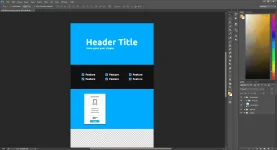
The layers are very organized for you to easily be able to edit and use it on your own. If you wanna change a text use the text tool and click on the text you wanna edit, not much more difficult than that. If you wanna change color of the button simple click the layer, then click on the shape tool and on your top left you will be able to select any color you want.
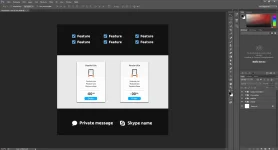
But for now I will duplicate the price group and add one to the right side aswell, that package could include things such as support, bonus method, free setup and such. This is how it looks like at the moment:
Price section
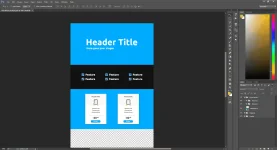
Alright, that was a little bit more complicated section (for beginners), but we managed to make it a bit easier to make when using pre-made price packages. Scroll up, whats next? Contact information. This is the easiest section of all four in this thread design. Often my customers want to offer support over private message on the forum, and support over Skype. You can use You do not have permission to view the full content of this post. Log in or register now. icons for this section.
We'll be making the new section by using the rectangle tool again, i'll use the hexadecimal color code #121212. Of course you can use images instead of the rectangles, but this tutorial is made for beginners, so we'll keep it simple.
Contact information
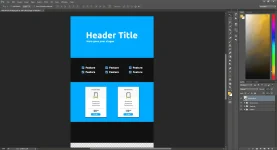
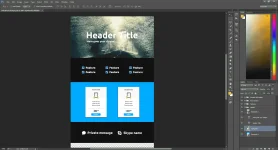
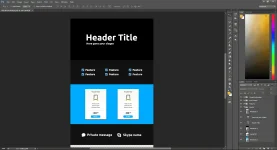
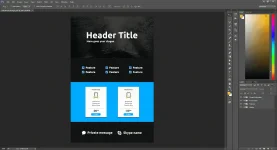
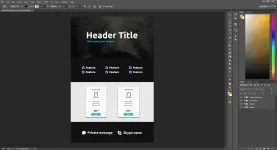
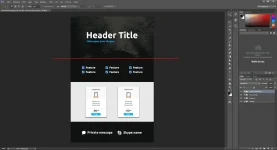
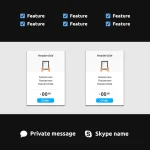
Now we're starting to get things done, the last part is to add the icons and add two lines of text. Drag in the icons and behind the chatbubble add something like "Private message" and behind the Skype icon "Skype username". It is a really simple section, very basic but still looks good. This is how it looks like now! (remember to use Ctrl + T to scale things)
Contact information
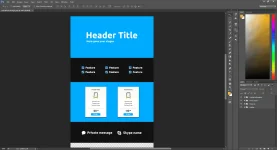
Part 2 of this section is below.
- Post 1
- Introduction
- Contents
- Post 2
- Programs to be used
- Post 3
- Flat Thread Design [Part 1]
- Post 4
- Flat Thread Design [Part 2]
- Post 5
- How Animated Thread Designs Works
- Post 6
- Making An Animated Thread Design [Part 1]
- Post 7
- Making An Animated Thread Design [Part 2]
you to understand the process and the basics, then if you want to get better at making thread designs you should look into pure Photoshop
and After Effects tutorials that do not have a soul purpose of thread design making. (2): All format codes that are in code-tags
written below is not of the proper layout. I only wrote it like that to make it easier to read and understand.
Personally I use You do not have permission to view the full content of this post. Log in or register now. and You do not have permission to view the full content of this post. Log in or register now., which makes the perfect combination when making thread designs. When making a flat thread design, you will not use Adobe After Effects, you only use Adobe After Effects when doing animated thread designs. When making animated thread designs, you make everything in After Effects and you only use Photoshop at one point which is when you make the frames into a gif format.
To make it more clear, when making animated thread designs in After Effects, you render your animation as a PNG sequence (which is frames) and in Photoshop you make the frames into a very high quality gif. You do this for every section you have, and then combine the sections (as gifs) into a fully animated thread designs. I will talk more about this in the "How animated thread designs works" which will be far down in this thread.
You need to have somewhat of basic knowledges in any Adobe program to get a good start with this. If you know basics of Photoshop you will know how to use After Effects and vice versa. I would suggest you to watch some tutorials on YouTube but it is better if I go through what you will be needing more precise from here.
I am gonna go ahead and skip the very basics of basics such as how to make a new file in Photoshop, however I will not skip it in After Effects because you get a little bit confused there and it is not as common used as Photoshop. But I will go through some simple tools that you will be needing when making thread designs, I will not explain tools that you won't need.
Shape tool: When making flat thread designs this is the golden tool to use for the background. Simple click on the "Rectangle tool", select a color and use the mouse to click from where you want it to begin and from where you want it to end. You can change the color of the shape by clicking the current color from the top left bar. You cannot change the color of it by clicking on the right color tool.
Text tool: It is pretty self-explanatory but there are some hidden things one does not think about most of the times. Basics? Just like with the shape tool, click and drag to set the height and width of it and then type your text. On the top left-ish you are able to set some options for the text such as, font, color, size, align and more.
When it comes to fonts, you cannot use any font for your header and same with your paragraphs and more. The most common font used is "Arial", it is mostly used on the web since it is a standard font but why use it for thread designs when you are able to use so much more? Simple use a search engine and type in "header fonts" or "paragraph fonts" and you will be able to find tons of ρáíd and free fonts. One that I personally recommend using is named You do not have permission to view the full content of this post. Log in or register now., click on the name to download it. This font works for headers and paragraphs, personally I use it for my entire thread designs.
Those two tools are the most common ones you will be using, the possibilities with these two tools are endless, you can use them in so many different ways to make your thread design look top notch.
As in any Adobe program, or many of them, the tools are mostly the same. Common tools such as the rectangle-tool or text-tool are the same. The explanation as I did above for Photoshop would be pretty much the same if I did it for After Effects aswell. If there's something I would need to explain it is how animated thread designs works. I have made an entire section for that which will be a few posts below, just use the table of contents to be directed there.
This part is the actual thing. In this section I will explain how to make a flat thread design, I will explain in text what I am doing aswell as show screenshots of what have been done. When making a flat thread design, it is done in one-piece. Meaning that it is done in the same file.
You need to have a layout in mind, when I get orders from customers they most of the times present a text file with the content of their thread design. No layout is like the other, they are all unique. But let us say that we are making a thread design for an ebook sales thread.
You most likely want your layout to look something like this:
Header
Features
Price package(s)
Contact information
You will not want to include your terms of service in the thread design, looks messy and you wanna keep it simple. Instead include it in (spoiler)-tags below the thread. You can do it by using this code:
Code:
[spoiler=Terms of service]
(Your terms of service goes here)
[/spoiler]
Now when we got a layout in mind, make your file in Photoshop and use 1150 px as width and set a random height such as 2000 px. You will need to adjust the height later on because we do not know the exact height yet, it will depend on our content. Set your background color as transparent. This is how my new file looks like:
New file
The base is all set, now we can start making the flat thread design. Start by using the shape tool and select the "Rectangle tool", this flat thread design that we will be making will be very basic on a newbie level. So set a color you like, personally I will use #00AAFF which is a light-blue color and also the color of häçkForums UB3R userbar. Drag the rectangle to get a nice height to fit the header title, a slogan and maybe a button to say something like "Learn more". This is how it looks like after I draged the rectangle for my header:
Header
Now use the text tool, click once and type in your header title, I will set mine to be "Header title", just to keep it simple and clear for you whos following this tutorial. The header title will have the font "You do not have permission to view the full content of this post. Log in or register now." and I will set it as bold since it is the header title. The font size will be quite large, it should show the header title clear. Then below the header title I will set a slogan or undertitle, I will simple type "Here goes your slogan" and it should not be as large as the header title.
This is how the header now looks like:
Header
All simple and clean so far, keep that up. Let's scroll up again and have a look at the layout, what's next? Features.
What am I exactly thinking about? Well this is for an ebook sales thread, or if it would be, your potential customers would want to know things like, does this involve any blackhat activities? does this involve scamming, CPA and such. So you can make a simple list, doesn't need to be advanced at all. First of all use the rectangle tool to make a background for this part, show that this is a new section. I will use the hexadecimal color code #121212. We can use You do not have permission to view the full content of this post. Log in or register now. icon to mark each features. Simple download it and drag it in your thread design then scale it. You can always use Ctrl + T to scale. This is how the second section now looks like.
Features
Let us say that we have 6 features, try to make it as symmetric as possible. Use 2 on each row then and use the text tool to add your features.
Do I have to add a new icon and do it manually for all? No, right click at the layer and select
"Duplicate layer..."
If you are a beginner keep in mind that you should use the same size of the icon for all, same goes with the text and use the same font aswell. Basic knowledges to complete this step, this is how it looks like now:
Features
Does your layer section look
messy?
Clean it up by selecting the layers you want and click this
button
It is starting to look like something now. We got a header and a second section which is features. Now comes a little bit more advanced part, the price section. Often people have multiple price packages, one with support and one without, or one with bonus methods and one without. You could make the price section simple by using the text tool, but it would not look too appealing. I could walk you through how to make your own price package section but it is not too easy.
So I decided to make a few ones that you are free to use, they are made by me and anyone have permission to use them. But first of all, show that this is a new section by using the rectangle tool and I will go with the hexadecimal color code #00AAFF, like the header. Now to the price packages, they will be linked under "Thread design resources", find one you like and download it. Then open up the .psd file for it you downloaded and click the entire group from "layers" and drag into your thread design.
Price section
The layers are very organized for you to easily be able to edit and use it on your own. If you wanna change a text use the text tool and click on the text you wanna edit, not much more difficult than that. If you wanna change color of the button simple click the layer, then click on the shape tool and on your top left you will be able to select any color you want.
But for now I will duplicate the price group and add one to the right side aswell, that package could include things such as support, bonus method, free setup and such. This is how it looks like at the moment:
Price section
Alright, that was a little bit more complicated section (for beginners), but we managed to make it a bit easier to make when using pre-made price packages. Scroll up, whats next? Contact information. This is the easiest section of all four in this thread design. Often my customers want to offer support over private message on the forum, and support over Skype. You can use You do not have permission to view the full content of this post. Log in or register now. icons for this section.
We'll be making the new section by using the rectangle tool again, i'll use the hexadecimal color code #121212. Of course you can use images instead of the rectangles, but this tutorial is made for beginners, so we'll keep it simple.
Contact information
Now we're starting to get things done, the last part is to add the icons and add two lines of text. Drag in the icons and behind the chatbubble add something like "Private message" and behind the Skype icon "Skype username". It is a really simple section, very basic but still looks good. This is how it looks like now! (remember to use Ctrl + T to scale things)
Contact information
Part 2 of this section is below.