PH
PHStrawberrry
Forum Veteran

Getting started with Android Development
Introduction:
The world of mobile computing and apps is a huge area of growth. Android app development is a huge component of this market, and it isn't hard to get started. An Android developer license is all you need to load your apps on the Google Play store, and that only costs a once off payment of $25, which is a lot cheaper than the $99 per year cost of having an app on the apple app store. In this tutorial I will go over the setup required for android development and an introduction into android app development itself.

How are android apps coded?
By far the most popular language for coding android apps is Java, because the android app system is actually a variant of the Java Virtual Machine called the Dalvik Virtual Machine. Android apps come in APK files, which are analgous to Java JAR archives. It is therefore important that if you want to start android app development that you have a working knowledge of Java syntax. Android app structure is different to how desktop computer programs are coded in Java, so knowledge of many aspects of Java isn't required, but it certainly helps to be familiar with the language.

Setting up for development
First up, you will need to download and install these things:
- You do not have permission to view the full content of this post.
Log in or register now.
- Android SDK
- An IDE
- You do not have permission to view the full content of this post.
Log in or register now.
- You do not have permission to view the full content of this post.
Log in or register now.
- You do not have permission to view the full content of this post.
Log in or register now.
- You do not have permission to view the full content of this post. Log in or register now.
The first 2 are supported by Google. Personally I use Eclipse, but the Android Developer Studio comes with everything set up in advance and Google is pushing for it to replace the eclipse plugin entirely, so you may prefer to download that instead. I will cover setting up Eclipse on Windows in this tutorial.

Setting up Eclipse
First, make sure you have downloaded and installed the Java Development Kit (and that it is set up correctly in your system path). The JDK is required for any Java development.
Next, download the latest version of the Eclipse IDE for Java Developers. At the time of this writing, the latest version was Mars. This can be downloaded here: You do not have permission to view the full content of this post. Log in or register now.
Once you have installed Eclipse, you will need to set it up for android development. We do this by installing the Android Developer Tools (ADT) plugin in Eclipse, and downloading the Android Software Development Kit (SDK).
Head to the download page for the android SDK tools here: You do not have permission to view the full content of this post. Log in or register now.
Download the zip archive for windows. Once it has finished downloading, extract it and run SDK Manager.exe. Once the software is loaded, go through the list and select the SDK platforms for each version of android you will use for compilation. At minimum, make sure you have:
- Android SDK Tools
- Android SDK Platform-tools
- Android SDK Build-tools (highest version)
- The latest android version SDK platform
- A system image for the emulator, such as ARM EABI v7a System Image
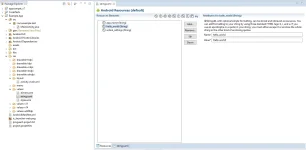
To install the ADT plugin, start Eclipse, open the Help menu and choose "Install New Software". It will look like this:
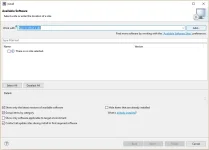
Click on "Add", and a box will pop up. Enter "ADT Plugin" for the name, and for the location, copy and paste this URL:
You do not have permission to view the full content of this post. Log in or register now.
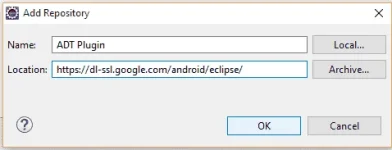
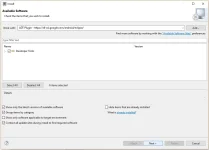
Click OK. The "Developer Tools" should appear in the list of available software, just tick the box and click next, next again, agree to the license and then click finish. Eclipse will install the software and when it is done you will need to restart.
Once you have the ADT plugin and the Android SDK, all you need to do is link them up. Open Eclipse and head to Window > Preferences. Click on Android in the side menu, and browse for the location of your SDK. Then click Apply, and the SDK platforms you downloaded should appear in the list.
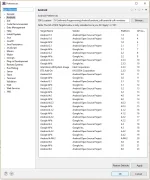
This process is very similar in Android Studio, so you should be able to work it out. Now you are ready to start coding


Making your first Android application project
In eclipse, click File > New > Android Application Project. If that is not an option, just choose "Other" and a box will pop up. Android Application Project should be in the Android folder.
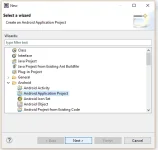
You will then need to enter an Application Name, Project Name and Package Name. The Application Name is the name of the app everyone will see when they download it. Project name is just the name of the project in eclipse and only you will see it. Package name is a unique identifier for your app. It is common to use a domain you own in reverse, to ensure it is unique to you. An example package name looks like this:
com.example.androidapp
You don't have to own the domain, it just helps keep things unique. You could make one up that you like.
Minimum SDK required should be set to API 8: Android 2.2 (Froyo), unless your app can only run on later versions. "Compile with" should be set to the latest SDK platform you downloaded.
Next you will need to choose an icon for you app. You can change it later if you want to. Just select an icon and eclipse will automatically generate all the different sizes you need. It is also easiest if you let eclipse automatically create a black activity for you to start with. Once you have set everything up, click finish and you will have a new android application project

Android app development basics
Let's take a look at the project.
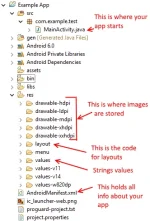
All your java source code goes in the source folder, and you can see the MainActivity.java file that eclipse automatically generated for you. This is where your app starts, when someone runs it on their device. I have pointed out the important parts of the project, most of the rest you don't need to touch. The drawable-XXXX folders hold images, there is a folder for different screen densities, and your app will automatically use the correct one based on what device it is being run on. The icon you chose at the start will be in these folders. The values folders hold string values, this is designed to allow multilanguage apps because you can create folders for different languages and android will choose the right language accordingly. The AndroidMainfest.xml file is one of the most important files in the project. It controls pretty much everything, including app permissions, what activity launches on startup, etc. On Android, all apps have permissions to allow them to access different things like storage, internet, etc. so if your app needs to access one of these, just add that as a permission in the android manifest.
Let's now have a more detailed look at 2 things: Activities and Layouts.