 PH
PHronnieverse
Fanatic
Download Vivo Y55S stock ROM from here, flash it in your device and enjoy the native Android experience again. The download file contains the USB driver, flash tool, and the firmware file.

Download Vivo Y55S Firmware
Stock ROM File Name: Vivo_Y55S_PD1613BF_EX_A_1.11.3_QFIL.zip
Stock ROM File Size: 3 GB
Android OS Version: 6.0
You do not have permission to view the full content of this post. Log in or register now.
Stock ROM File Name: Vivo_Y55S_PD1613BF_EX_A_1.13.1_MSM8937_QFIL.zip
Stock ROM File Size: 2 GB
Android OS Version: 6.0
You do not have permission to view the full content of this post. Log in or register now.
How To Flash Stock ROM Firmware On Vivo Y55S
Step 1: To get started, You do not have permission to view the full content of this post. Log in or register now. and the firmware file for your device and extract both of them to a folder on your computer. Once done, You do not have permission to view the full content of this post. Log in or register now.and install it on your computer.
Step 2: Now switch off your smartphone and connect it to your PC or Laptop computer using the original USB data cable.

Step 3: Next, go to the folder where you have extracted the QComDLoader flash tool and click “QComDloader.exe” to launch the flash tool.

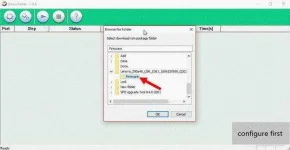
Step 4: In the QComDLoader tool window, click on the “Load” button and select the extracted firmware folder.
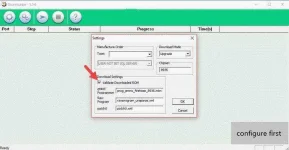
Step 5: Next, click on the “Settings” button to open up QComDLoader settings panel. Here, choose “Upgrade” as Download Mode. Once done, tick the box next to “Validate Download ROM“. Now enter the Chipset number of your device in the “Chipset” box (you can get this number from the eMMC file name). For example, if the eMMC file name for your device is prog_emmc_firehose_8916.mbn, the chipset number will be 8916. Once done, leave the remaining settings (eMMC Programmer, Patch0 and RAW Program) as it is and click “Ok“.
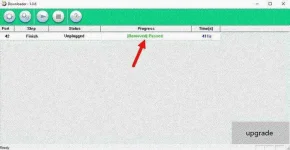
Step 6: Now click on the “Start” button to launch the flashing process and once it is finished, you will get the Passed message as shown in the screenshot below.
That’s it. Now you have successfully finished flashing firmware on your Vivo Y55S Android device.

Download Vivo Y55S Firmware
Stock ROM File Name: Vivo_Y55S_PD1613BF_EX_A_1.11.3_QFIL.zip
Stock ROM File Size: 3 GB
Android OS Version: 6.0
You do not have permission to view the full content of this post. Log in or register now.
Stock ROM File Name: Vivo_Y55S_PD1613BF_EX_A_1.13.1_MSM8937_QFIL.zip
Stock ROM File Size: 2 GB
Android OS Version: 6.0
You do not have permission to view the full content of this post. Log in or register now.
How To Flash Stock ROM Firmware On Vivo Y55S
Step 1: To get started, You do not have permission to view the full content of this post. Log in or register now. and the firmware file for your device and extract both of them to a folder on your computer. Once done, You do not have permission to view the full content of this post. Log in or register now.and install it on your computer.
Step 2: Now switch off your smartphone and connect it to your PC or Laptop computer using the original USB data cable.
Step 3: Next, go to the folder where you have extracted the QComDLoader flash tool and click “QComDloader.exe” to launch the flash tool.
Step 4: In the QComDLoader tool window, click on the “Load” button and select the extracted firmware folder.
Step 5: Next, click on the “Settings” button to open up QComDLoader settings panel. Here, choose “Upgrade” as Download Mode. Once done, tick the box next to “Validate Download ROM“. Now enter the Chipset number of your device in the “Chipset” box (you can get this number from the eMMC file name). For example, if the eMMC file name for your device is prog_emmc_firehose_8916.mbn, the chipset number will be 8916. Once done, leave the remaining settings (eMMC Programmer, Patch0 and RAW Program) as it is and click “Ok“.
Step 6: Now click on the “Start” button to launch the flashing process and once it is finished, you will get the Passed message as shown in the screenshot below.
That’s it. Now you have successfully finished flashing firmware on your Vivo Y55S Android device.