 PH
PH-
Welcome to PHCorner Forums! Sign up for free to unlock full access and exclusive privileges, including:
- Asking questions about computer and mobile issues
- Discovering internet tips for your mobile network and computer
You are using an out of date browser. It may not display this or other websites correctly.
You should upgrade or use an alternative browser.
You should upgrade or use an alternative browser.
🔒 Closed Usb device over current status detected!
- Thread starter FlyBye
- Start date
-
- Tags
- @imikimi101
- Status
- Not open for further replies.
Method 1: Try connecting USB devices one at a time
This is one of the easiest way for you to do. Here is how you can do it:
1) Turn your computer off.
2) Unplug all the USB devices from your computer.
3) Wait for at least 1 minute and turn your computer back on again.
4) Try to plug your USB devices in, one at a time. You need to restart your computer after plugging in one USB device.
5) You might be able to find the culprit device in this way. If you manage to find the culprit device or the culprit USB port, try to avoid using it.
Method 2: Disconnect front USB ports
One of the possible causes of this problem is your USB devices plugged in. So to see if your USB devices are at fault, here is what you can do:
1) Turn your computer off. And unplug your computer from the wall as well.
2) Make sure you have disconnect all your USB devices from your computer, especially the ones on the front USB ports on your system unit.
3) Remove the case of your system unit.
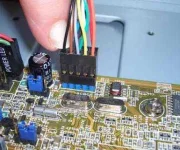
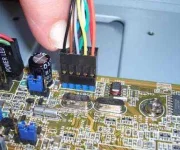
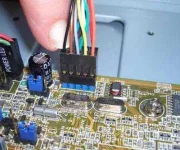
4) Detach the front USB plug from your motherboard.
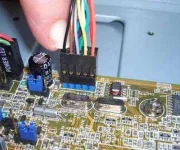
5) There! Your problem should be gone. Try to restart your computer and see if it happens again.
6) To avoid similar problems from happening again, you should try to avoid using the front USB ports. Instead, you should use the back ones more often, and they provide stronger electricity support to your USB devices as well.
If the problem remains, try next method below.
Method 3: Check if you have a missing jumper
In many cases, missing jumpers can be the reason why you have the USB Device Over Current Status Detected!! problem. Here is how you can deal with it:
1) Shut down your computer and remove all plugs from the wall.
2) Remove the case of your system unit and check your USB internal port.
3) Check if you can see a missing jumper in the USB internal ports. If you see a spot a missing jumper, put a jumper to short 1 and 2.
4) Restart your computer and see if the problem is fixed.
Last but not least
If you have tried all the above methods but still no avail, you should contact your PC technical support and see if you need a new motherboard or if the problem is with your faulty BIOS. You might need to pay them for that if your computer is no longer within the term of service.
This is one of the easiest way for you to do. Here is how you can do it:
1) Turn your computer off.
2) Unplug all the USB devices from your computer.
3) Wait for at least 1 minute and turn your computer back on again.
4) Try to plug your USB devices in, one at a time. You need to restart your computer after plugging in one USB device.
5) You might be able to find the culprit device in this way. If you manage to find the culprit device or the culprit USB port, try to avoid using it.
Method 2: Disconnect front USB ports
One of the possible causes of this problem is your USB devices plugged in. So to see if your USB devices are at fault, here is what you can do:
1) Turn your computer off. And unplug your computer from the wall as well.
2) Make sure you have disconnect all your USB devices from your computer, especially the ones on the front USB ports on your system unit.
3) Remove the case of your system unit.
4) Detach the front USB plug from your motherboard.
5) There! Your problem should be gone. Try to restart your computer and see if it happens again.
6) To avoid similar problems from happening again, you should try to avoid using the front USB ports. Instead, you should use the back ones more often, and they provide stronger electricity support to your USB devices as well.
If the problem remains, try next method below.
Method 3: Check if you have a missing jumper
In many cases, missing jumpers can be the reason why you have the USB Device Over Current Status Detected!! problem. Here is how you can deal with it:
1) Shut down your computer and remove all plugs from the wall.
2) Remove the case of your system unit and check your USB internal port.
3) Check if you can see a missing jumper in the USB internal ports. If you see a spot a missing jumper, put a jumper to short 1 and 2.
4) Restart your computer and see if the problem is fixed.
Last but not least
If you have tried all the above methods but still no avail, you should contact your PC technical support and see if you need a new motherboard or if the problem is with your faulty BIOS. You might need to pay them for that if your computer is no longer within the term of service.
salamat masterMethod 1: Try connecting USB devices one at a time
This is one of the easiest way for you to do. Here is how you can do it:
1) Turn your computer off.
2) Unplug all the USB devices from your computer.
3) Wait for at least 1 minute and turn your computer back on again.
4) Try to plug your USB devices in, one at a time. You need to restart your computer after plugging in one USB device.
5) You might be able to find the culprit device in this way. If you manage to find the culprit device or the culprit USB port, try to avoid using it.
Method 2: Disconnect front USB ports
One of the possible causes of this problem is your USB devices plugged in. So to see if your USB devices are at fault, here is what you can do:
1) Turn your computer off. And unplug your computer from the wall as well.
2) Make sure you have disconnect all your USB devices from your computer, especially the ones on the front USB ports on your system unit.
3) Remove the case of your system unit.
4) Detach the front USB plug from your motherboard.
5) There! Your problem should be gone. Try to restart your computer and see if it happens again.
6) To avoid similar problems from happening again, you should try to avoid using the front USB ports. Instead, you should use the back ones more often, and they provide stronger electricity support to your USB devices as well.
If the problem remains, try next method below.
Method 3: Check if you have a missing jumper
In many cases, missing jumpers can be the reason why you have the USB Device Over Current Status Detected!! problem. Here is how you can deal with it:
1) Shut down your computer and remove all plugs from the wall.
2) Remove the case of your system unit and check your USB internal port.
3) Check if you can see a missing jumper in the USB internal ports. If you see a spot a missing jumper, put a jumper to short 1 and 2.
4) Restart your computer and see if the problem is fixed.
Last but not least
If you have tried all the above methods but still no avail, you should contact your PC technical support and see if you need a new motherboard or if the problem is with your faulty BIOS. You might need to pay them for that if your computer is no longer within the term of service.
paps yung method 1 at method 2 di gumagana sa pc ko eh at yung method 3 naman ay hindi ata kasi walang jumper sa pc koMethod 1: Try connecting USB devices one at a time
This is one of the easiest way for you to do. Here is how you can do it:
1) Turn your computer off.
2) Unplug all the USB devices from your computer.
3) Wait for at least 1 minute and turn your computer back on again.
4) Try to plug your USB devices in, one at a time. You need to restart your computer after plugging in one USB device.
5) You might be able to find the culprit device in this way. If you manage to find the culprit device or the culprit USB port, try to avoid using it.
Method 2: Disconnect front USB ports
One of the possible causes of this problem is your USB devices plugged in. So to see if your USB devices are at fault, here is what you can do:
1) Turn your computer off. And unplug your computer from the wall as well.
2) Make sure you have disconnect all your USB devices from your computer, especially the ones on the front USB ports on your system unit.
3) Remove the case of your system unit.
4) Detach the front USB plug from your motherboard.
5) There! Your problem should be gone. Try to restart your computer and see if it happens again.
6) To avoid similar problems from happening again, you should try to avoid using the front USB ports. Instead, you should use the back ones more often, and they provide stronger electricity support to your USB devices as well.
If the problem remains, try next method below.
Method 3: Check if you have a missing jumper
In many cases, missing jumpers can be the reason why you have the USB Device Over Current Status Detected!! problem. Here is how you can deal with it:
1) Shut down your computer and remove all plugs from the wall.
2) Remove the case of your system unit and check your USB internal port.
3) Check if you can see a missing jumper in the USB internal ports. If you see a spot a missing jumper, put a jumper to short 1 and 2.
4) Restart your computer and see if the problem is fixed.
Last but not least
If you have tried all the above methods but still no avail, you should contact your PC technical support and see if you need a new motherboard or if the problem is with your faulty BIOS. You might need to pay them for that if your computer is no longer within the term of service.

kung di gagana tung method nato paps papa technitian nalng ako Pero satingin mo paps magkano kaya repair nito?Method 1: Try connecting USB devices one at a time
This is one of the easiest way for you to do. Here is how you can do it:
1) Turn your computer off.
2) Unplug all the USB devices from your computer.
3) Wait for at least 1 minute and turn your computer back on again.
4) Try to plug your USB devices in, one at a time. You need to restart your computer after plugging in one USB device.
5) You might be able to find the culprit device in this way. If you manage to find the culprit device or the culprit USB port, try to avoid using it.
Method 2: Disconnect front USB ports
One of the possible causes of this problem is your USB devices plugged in. So to see if your USB devices are at fault, here is what you can do:
1) Turn your computer off. And unplug your computer from the wall as well.
2) Make sure you have disconnect all your USB devices from your computer, especially the ones on the front USB ports on your system unit.
3) Remove the case of your system unit.
4) Detach the front USB plug from your motherboard.
5) There! Your problem should be gone. Try to restart your computer and see if it happens again.
6) To avoid similar problems from happening again, you should try to avoid using the front USB ports. Instead, you should use the back ones more often, and they provide stronger electricity support to your USB devices as well.
If the problem remains, try next method below.
Method 3: Check if you have a missing jumper
In many cases, missing jumpers can be the reason why you have the USB Device Over Current Status Detected!! problem. Here is how you can deal with it:
1) Shut down your computer and remove all plugs from the wall.
2) Remove the case of your system unit and check your USB internal port.
3) Check if you can see a missing jumper in the USB internal ports. If you see a spot a missing jumper, put a jumper to short 1 and 2.
4) Restart your computer and see if the problem is fixed.
Last but not least
If you have tried all the above methods but still no avail, you should contact your PC technical support and see if you need a new motherboard or if the problem is with your faulty BIOS. You might need to pay them for that if your computer is no longer within the term of service.
Method 1: Try connecting USB devices one at a time
This is one of the easiest way for you to do. Here is how you can do it:
1) Turn your computer off.
2) Unplug all the USB devices from your computer.
3) Wait for at least 1 minute and turn your computer back on again.
4) Try to plug your USB devices in, one at a time. You need to restart your computer after plugging in one USB device.
5) You might be able to find the culprit device in this way. If you manage to find the culprit device or the culprit USB port, try to avoid using it.
Method 2: Disconnect front USB ports
One of the possible causes of this problem is your USB devices plugged in. So to see if your USB devices are at fault, here is what you can do:
1) Turn your computer off. And unplug your computer from the wall as well.
2) Make sure you have disconnect all your USB devices from your computer, especially the ones on the front USB ports on your system unit.
3) Remove the case of your system unit.
4) Detach the front USB plug from your motherboard.
5) There! Your problem should be gone. Try to restart your computer and see if it happens again.
6) To avoid similar problems from happening again, you should try to avoid using the front USB ports. Instead, you should use the back ones more often, and they provide stronger electricity support to your USB devices as well.
If the problem remains, try next method below.
Method 3: Check if you have a missing jumper
In many cases, missing jumpers can be the reason why you have the USB Device Over Current Status Detected!! problem. Here is how you can deal with it:
1) Shut down your computer and remove all plugs from the wall.
2) Remove the case of your system unit and check your USB internal port.
3) Check if you can see a missing jumper in the USB internal ports. If you see a spot a missing jumper, put a jumper to short 1 and 2.
4) Restart your computer and see if the problem is fixed.
Last but not least
If you have tried all the above methods but still no avail, you should contact your PC technical support and see if you need a new motherboard or if the problem is with your faulty BIOS. You might need to pay them for that if your computer is no longer within the term of service.
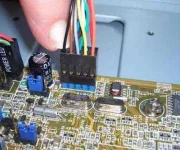
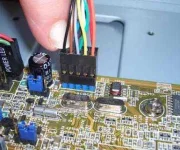
Mejo matrabaho. Pero ito ang tamang troubles
hooting.Method 1: Try connecting USB devices one at a time
This is one of the easiest way for you to do. Here is how you can do it:
1) Turn your computer off.
2) Unplug all the USB devices from your computer.
3) Wait for at least 1 minute and turn your computer back on again.
4) Try to plug your USB devices in, one at a time. You need to restart your computer after plugging in one USB device.
5) You might be able to find the culprit device in this way. If you manage to find the culprit device or the culprit USB port, try to avoid using it.
Method 2: Disconnect front USB ports
One of the possible causes of this problem is your USB devices plugged in. So to see if your USB devices are at fault, here is what you can do:
1) Turn your computer off. And unplug your computer from the wall as well.
2) Make sure you have disconnect all your USB devices from your computer, especially the ones on the front USB ports on your system unit.
3) Remove the case of your system unit.
4) Detach the front USB plug from your motherboard.
5) There! Your problem should be gone. Try to restart your computer and see if it happens again.
6) To avoid similar problems from happening again, you should try to avoid using the front USB ports. Instead, you should use the back ones more often, and they provide stronger electricity support to your USB devices as well.
If the problem remains, try next method below.
Method 3: Check if you have a missing jumper
In many cases, missing jumpers can be the reason why you have the USB Device Over Current Status Detected!! problem. Here is how you can deal with it:
1) Shut down your computer and remove all plugs from the wall.
2) Remove the case of your system unit and check your USB internal port.
3) Check if you can see a missing jumper in the USB internal ports. If you see a spot a missing jumper, put a jumper to short 1 and 2.
4) Restart your computer and see if the problem is fixed.
Last but not least
If you have tried all the above methods but still no avail, you should contact your PC technical support and see if you need a new motherboard or if the problem is with your faulty BIOS. You might need to pay them for that if your computer is no longer within the term of service.
- Status
- Not open for further replies.
About this Thread
-
5Replies
-
389Views
-
3Participants
Last reply from:
eljey
eljey
New Topics
-
Is this graphic card issue?
- Started by markjson
- Replies: 2
- ❓ Computer Discussion & Support
-
SoungHub No Sound Encountered
- Started by pow_tah
- Replies: 2
- ❓ Computer Discussion & Support
-
Apk to ipk any idea how to make it?
- Started by a s a r k a n a b a
- Replies: 1
- ❓ Computer Discussion & Support
-
TEMPORARY EMAIL NA HINDI NADEDETECT AS TEMPORARY EMAIL
- Started by 21banana
- Replies: 1
- ❓ Computer Discussion & Support
-
Looking for CSI ETABS Ultimate 2026 v23.2 Acïvâør
- Started by talaotep
- Replies: 0
- ❓ Computer Discussion & Support
-
I need help about my pc
- Started by lex2133
- Replies: 6
- ❓ Computer Discussion & Support
-
Start up boot so slow?
- Started by babyoriokiko
- Replies: 22
- ❓ Computer Discussion & Support
-
Patulong po about sa reset sa pc
- Started by toledo095
- Replies: 2
- ❓ Computer Discussion & Support
Trending Topics
Online now
- Members online
- 1,098
- Guests online
- 8,815
- Total visitors
- 9,913