 PH
PH
Unified Remote Full v2.9.1 Apk | 995 KB| Mediafire
Requires Android:1.6 and up
Turns your Android device into a WiFi or Bluetooth universal remote control for your Windows PC!!
App Review:
Easily the most feature-filled Android-PC remote. Control your favorite programs, mouse, and keyboard.
FEATURES
- NFC actions (new!)
- Custom Remotes
- WiFi (TCP/UDP)
- Bluetooth
- Easy server and app setup
- Comprehensive server manager
- Automatic server detection
- Clear connection troubleshooting
- Custom/Android keyboard support
- Single/Multi touch mouse
- Hardware volume control
- Quick Switch using swipe gestures
- Quickly change servers
- Auto-pause media for phone calls
- Homescreen shortcuts to remotes
- Wake On Lan
- Server password protection
- 256-bit AES encryption
- Voice commands
REMOTES IN FREE AND FULL VERSION
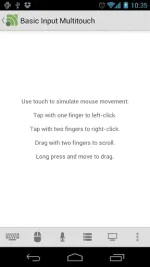
- Basic Input
- File Manager
- Keyboard
- Media
- Power
- Slide Show
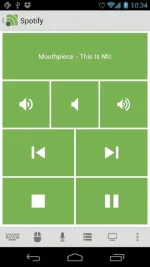
- Spotify
- Start
- Task Manager
- Windows Media Center
- Windows Media Player
- VLC (Keyboard)
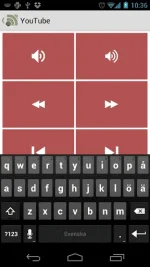
- YouTube
REMOTES IN FULL VERSION ONLY
- Custom Remotes
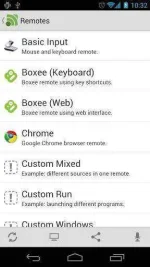
- Boxee (Keyboard)
- Boxee (Web)
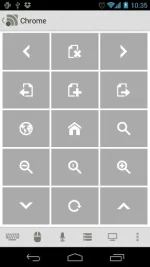
- Chrome
- Firefox
- foobar2000
- Hulu Desktop
- Hulu Web
- Internet Explorer
- iTunes
- J River Media Center
- Monitor
- Media Portal
- MediaMonkey
- MPC HC
- Netflix
- Opera
- Pandora
- Picasa
- PowerPoint Advanced
- PowerPoint Basic
- Send Text
- Spotify Advanced
- Tellstick
- Tellstick Live (new!)
- USB-UIRT Helper
- Winamp
- Windows Photo Viewer
- VLC (Web)
- XBMC (Keyboard)
- XBMC (Web)
- XBMC Media
- XBMC Advanced (new!)
INSTRUCTION
1. First install Unified Remote Server on your computer. This will allow your device to connect and communicate with your PC on your home network. Requires Windows and .NET Framework 4.
2. Get the Unified Remote client app for your device. Connect to your PC and control Media Playback, Mouse, Keyboard, PowerPoint, and much more. See features comparison for more details.
OR
First Start
The first time you start the android client you will be prompted with a welcome screen. At this point, ensure that you have downloaded and installed Unified Remote Server on your computer. If not, do so now. Once the server is installed press I have installed the new server!
Dashboard
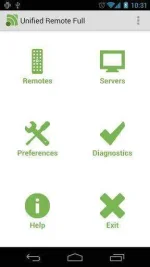
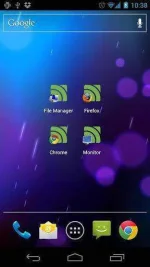
Once the app is running you will be presented with the dashboard. This is the starting screen for the app and will let you access all parts of the app.
Remotes
Servers
Preferences
Diagnostics
Help
Exit
Servers
To add, edit, or remove servers, press the Servers icon from the dashboard. This will take you to the server manager.
Add Server (Automatic)
Press the Add button
Select Automatic
Wait until the server shows up on the screen
Press the server you want to add
You will be prompted for a password if the server is password protected
Add Server (Manual - WiFi/3G)
Press the Add button.
Select Manual.
Select WiFi/3G for type.
Enter the name that will be displayed for this server.
Enter the host IP / address for the server.
Optionally enter a new TCP port (if changed in server).
Optionally enter a new UDP port (if changed in server).
Optionally enter a MAC address for Wake on LAN.
Optionally enter a password (if server is password protected).
Press Save.
Add Server (Manual - Bluetooth)
Ensure that Bluetooth is enabled on your device.
Ensure that you have paired your device and computer.
Press the Add button.
Select Manual.
Select Bluetooth for type.
Select the Bluetooth device.
Optionally enter a password (if server is password protected).
Press Save.
Edit Server
Long-press the server you want to edit
Change as desired.
Press Save.
Remove Server
Press Remove
Select the server that you want to remove.
Press OK
Preferences
To access the app preferences, press the Preferences icon from the dashboard.
Connection
Server
Keep Alive
Errors
General
Dashboard
Theme
Layout
Visible Remotes
Quick Switch
Orientation Lock
Haptic Feedback
Fullscreen
Phone Integration
Override Volume
System Keyboard
Mouse Settings
Phone Events
Other
Dump Enabled
Mouse Settings
Fast Connection
Multi-touch
Switch Buttons
Easy double click
Pointer Sensitivity
Scroll Sensitivity
Trim
Test Settings
NOTE:
IF WALA KAYONG WIFI PWDE RIN BLUETOOTH GAMITIN NYO
VIDEO DEMO
You do not have permission to view the full content of this post. Log in or register now.
 You do not have permission to view the full content of this post.
Log in or register now.You do not have permission to view the full content of this post.
Log in or register now.
You do not have permission to view the full content of this post.
Log in or register now.You do not have permission to view the full content of this post.
Log in or register now.Attached Files
 Cellphone apk.rar (137 Bytes, 1195 views)
 For Laptop or PC.rar (156 Bytes, 1220 views)
http://www.phc.onl/#forbidden#.com/signaturepics/sigpic123786_1.gif


 try ko to