 PH
PHDownloads:
Step 1: Install Droid Hardware Info App
This app will give you complete information of your Android phone’s CPU architecture.
Step 2: Find CPU Architecture & Instruction Sets
Once the app is downloaded, launch it.
It’ll show you complete Device details as given below.
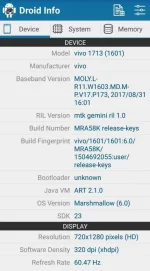
Then click on the System tab present there.
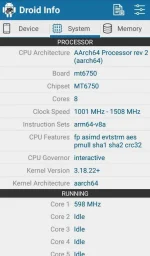
The System tab will show you all the processor details of your Android phone including CPU architecture, Chipset, Clock speed, Instruction sets, running processes and much more.
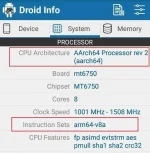
But out of these, just two of them will be of your concern – CPU Architecture and Instruction Sets. Note down which Architecture and Instruction Sets your phone has and then you can move on to next step.
Step 3: Match that Info with the Table
Now what you need to do is simply match the information you noted earlier with the table we have provided below. This will exactly inform you which processor your Android phones has.

So as shown in the above image the CPU Architecture shows AArch64. And when matched with the table we can confirm that the device has ARM64 processor.
© droidthunder
- You do not have permission to view the full content of this post. Log in or register now.
Step 1: Install Droid Hardware Info App
This app will give you complete information of your Android phone’s CPU architecture.
Step 2: Find CPU Architecture & Instruction Sets
Once the app is downloaded, launch it.
It’ll show you complete Device details as given below.
Then click on the System tab present there.
The System tab will show you all the processor details of your Android phone including CPU architecture, Chipset, Clock speed, Instruction sets, running processes and much more.
But out of these, just two of them will be of your concern – CPU Architecture and Instruction Sets. Note down which Architecture and Instruction Sets your phone has and then you can move on to next step.
Step 3: Match that Info with the Table
Now what you need to do is simply match the information you noted earlier with the table we have provided below. This will exactly inform you which processor your Android phones has.
So as shown in the above image the CPU Architecture shows AArch64. And when matched with the table we can confirm that the device has ARM64 processor.
© droidthunder
