 PH
PHEasy steps to connect SkyVPN on Mac
- Step 1
Open SkyVPN on your mobile phone, tap the button on the upper left(figure1) to unfold the sidebar and tap “Use SkyVPN on PC” (figure2), you will get a 5-digit code (figure3)

- Step 2
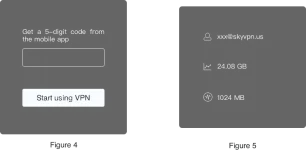
Enter the code on the website above (figure3) and click on “Start using VPN”, available locations will show up. If you want to check your account information(figure5), simply scroll the page up.
- Step 3
Choose a location you want to connect and click on “Choose” to download relevant profile.

- Step 4
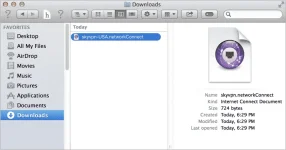
Double click on file "skyvpn-USA.networkConnect" to start the connection.
- Step 5
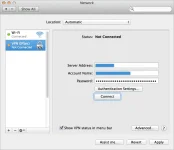
Click "Connect" button to connect VPN service.
- Step 6
Click "apply" to save the settings for connecting VPN, while you see this window.

- Step 7
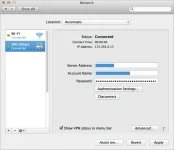
You are connected to VPN service once you see this window.
- Step 8
Click here to easily connect SkyVPN service next time.