 PH
PHSa mga hindi rooted katulad ko pero may laptop, ito yung tutorial para magkaroon ka din ng internet ang iyong android phone by sharing the internet connection of your Softether VPN connection via WIFI/Hotspot.
OppoF1F pala phone ko and ang hirap iroot hahahah kaya ito ang gamit ko para ma-share ko ang VPN connection via Hotspot.
simple thanks lang masaya na ako!
if alam nyo na please respect nalang
remove mo ung '[.]' then replace mo ng '.'
1. You do not have permission to view the full content of this post. Log in or register now.
2. You do not have permission to view the full content of this post. Log in or register now.
if repost na ito pa-comment nalang
OppoF1F pala phone ko and ang hirap iroot hahahah kaya ito ang gamit ko para ma-share ko ang VPN connection via Hotspot.
simple thanks lang masaya na ako!
if alam nyo na please respect nalang
- Step 1
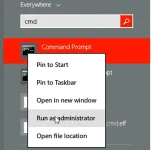
First we need to make sure your computer can support broadcasting a wireless hotspot. To do this open up an administrator command prompt by searching for "CMD" in windows, right clicking and selecting "run as administrator" as shown below:
Copy and paste the following command into your open command prompt:
netsh wlan show drivers
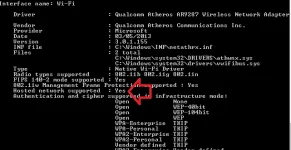
If next to "Hosted Network Support" you see a "No" then this guide will not be possible. Please follow our guide from sharing your connection using a You do not have permission to view the full content of this post. Log in or register now..
- Step 2
Copy and paste the following into your open command prompt:
netsh wlan set hostednetwork mode=allow ssid=RaavaHotspot key=FireFerrets
change the SSID value to choose a different name if you want, and use “key” to set a password.
- Step 3
Start the wireless hotspot by copy and pasting the following command into your open command prompt:
netsh wlan start hostednetwork
This should create a new virtual network adapater. The name of which might vary, mine was called "Local Area Connection* 12".
- Step 4
Your wireless network should successfully be created, you should now see the network on your console/ phone/ wireless device. We aren't quite done as we need to share our VPN connection with our new wireless hotspot.
- Step 5
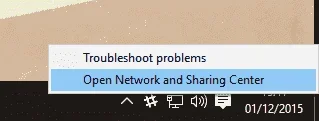
Go to "Network and Sharing Center" in Windows by going to start and typing "Network and Sharing Center".
Alternatively right click on the Network Connections icon in your Taskbar (looks like or ), This should show the option for "Network and Sharing Center".
- Step 6
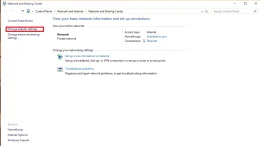
Click "Change adapter settings" found on the left hand side.
- Step 7
Right click the VPN network adapter, typically this is called "VPN Client Adapter" or something similar and select "properties".
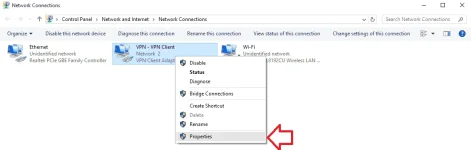
- Step 8
Click on the "sharing" tab listed across the top of the new window that just popped up.
- Step 9
Check the box that says "Allow other network users to connect through this computers Internet connection" if a dropdown appears for which adapter you wish to share this connection with select "Local Area Connection* 12" this might also be called "Local Area Connection".
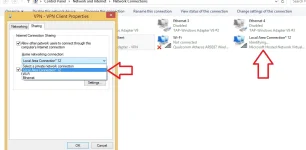
- Step 10
Press "ok" followed by "close" and your new wireless hotspot should be up and running using no 3rd party software that in some cases costs money.
- To deactivate wifi hotspot execute the command netsh wlan stop hostednetwork
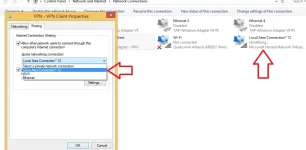
The network will be stopped.
remove mo ung '[.]' then replace mo ng '.'
1. You do not have permission to view the full content of this post. Log in or register now.
2. You do not have permission to view the full content of this post. Log in or register now.
if repost na ito pa-comment nalang