🔒 Closed 0 free space and 0 used space

Status
Not open for further replies.
Restore SD card partition from unallocated space

Step 1. Launch EaseUS Partition Master, select unallocated SD card and choose "Partition Recovery".

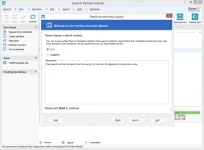
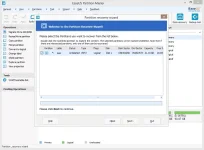
Step 2. Choose a search method "Fast" or "Complete" to let the program search deleted or lost partitions and then click "Next".
The fast method is usually recommended.

automatic-partition-recovery-1.webp

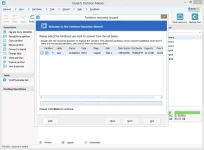
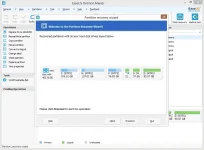
Step 3. After the search process, select found partition and click "Next".

automatic-partition-recovery-2.webp

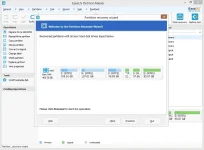
Step 4. Click "Proceed" to apply all changes and get your lost partitions back.

automatic-partition-recovery-4.webp

If EaseUS Partition Master fails to restore partitions on your unallocated SD card with the “Fast” method, you can choose “Complete” method and try again.

Source : Easeus
 
Create partitions on unallocated SD card

Step 1. Launch EaseUS Partition Master and right-click SD card unallocated partition, choose “Create partition”.

Step 2. Specify partition size in SD card and choose file system(FAT or NTFS).

Step 3. Click "Apply".
This secure and effective partition manager software from EaseUS software should be your second-to-none choice for fixing USB or SD unallocated troubles.

Solution 2. Free partition unallocated SD card with Disk Management

If you don’t feel like to use any software to fix SD card unallocated trouble, Windows Disk Management should help. But the precondition is that you should be familiar with Windows management jobs and be careful while partitioning unallocated SD card.

Step 1. Connect SD card to the computer. Right-click Computer and choose Manage.

Step 2. Click Disk Management, right-click SD card unallocated space and choose New Simple Volume.

Step 3. Enter New Simple Volume and click Next. Specify Volume Size and then click Next.

Step 4. Assign drive letter or path, click Next. Then Format Partition, choose partition file system, size, label and click Next.

Step 5. Click Finish to accomplish the whole process.

Do be careful while using Windows Disk Management to partition unallocated SD card.
 
Restore SD card partition from unallocated space

Step 1. Launch EaseUS Partition Master, select unallocated SD card and choose "Partition Recovery".

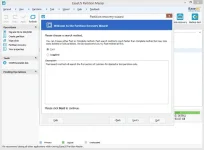
Step 2. Choose a search method "Fast" or "Complete" to let the program search deleted or lost partitions and then click "Next".
The fast method is usually recommended.

automatic-partition-recovery-1.webp

Step 3. After the search process, select found partition and click "Next".

automatic-partition-recovery-2.webp

Step 4. Click "Proceed" to apply all changes and get your lost partitions back.

automatic-partition-recovery-4.webp

If EaseUS Partition Master fails to restore partitions on your unallocated SD card with the “Fast” method, you can choose “Complete” method and try again.

Source : Easeus
kung d pa gumana yan ts baka corrupted na flash drive, yare kung ganun
 
Status
Not open for further replies.

About this Thread

  • 5
    Replies
  • 400
    Views
  • 3
    Participants
Last reply from:
1 Shot 1 Kill

Trending Topics

Online now

Members online
965
Guests online
894
Total visitors
1,859

Forum statistics

Threads
2,275,139
Posts
28,960,940
Members
1,232,637
Latest member
hsuliman2026
Back
Top