 PH
PH
karamihan ng mga phone naten ngayon magaganda na.. ofcourse malalaki nadin masyado.
kaya mahira na sya gamitin. kaya eto share ko nakita kong app sa XDA... babawasan nya yung size ng Screen mo para magagamit mo sya in One hand.. Basic but useful idea kaya try nyo na mga papi hahaha..

Set up One-Handed Mode Tutorial
- Open the Settings application on your device.
- Scroll down and tap on About phone.

- Look for Build number.

- Tap on build number 7 times until you see a message stating “you are now a developer.”
- Go back to Settings and now look for Developer options.

- Enter Developer options, then scroll down and find USB debugging.
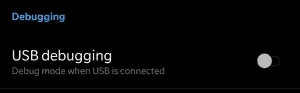
- Enable USB Debugging.
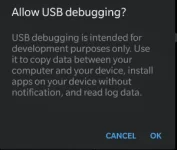
- Connect your phone to your computer using your manufacturer provided USB cable.
- Pull down your notifications and look for the “USB charging this device” notification.
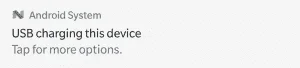
- Tap on it and change your USB connection mode to Transfer files.
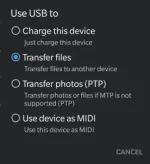
- Follow the next steps based on your computer’s Operating System.
- Windows
- Download the You do not have permission to view the full content of this post. Log in or register now. which contain the ADB files.
- Extract the zip file onto your computer.
- Open the platform-tools folder.
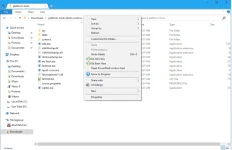
- Hold shift and right-click in this folder to open up the context menu. Select “Open PowerShell window here” or “Open command window here.”
- Continue to step 13.
- Mac/Linux
- We strongly recommend using this You do not have permission to view the full content of this post. Log in or register now. to install ADB onto your Mac or Linux machine.
- Open the Terminal application.
- Enter the following command: adb devices
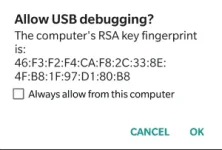
- On your phone, you should see an Allow USB debugging? prompt. Tap on OK.
- Now re-enter adb devices. This time you should see authorized next to the partial string of your device’s serial number.

- Now, enter this command: adb shell pm grant com.xda.onehandedmode android.permission.WRITE_SECURE_SETTINGS

- If you do not see an error, then it worked. If you receive an error message, double check that you spelled everything correctly if you typed it in.
- Tap the checkmark button in the One-Handed Mode app!

- Enjoy One-Handed Mode by XDA-Developers!
Features
- Toggle One-Handed Mode through a Launcher Shortcut
- Toggle One-Handed Mode through a Quick Settings Tile
- Toggle One-Handed Mode through an intent
- Integration with Custom Navigation Bar app to add a navigation bar button to toggle One-Handed Mode
- Emergency reset button to safeguard your device
- Start service on boot
- Automatically adjust DPI to better fit screen contents
- Customize One-Handed Mode window, support for left-handed window
- Drag to dismiss bubble
- Disables One-Handed Mode on lock screen, when pressing home button, or when in landscape mode
Download
You do not have permission to view the full content of this post. Log in or register now.
You do not have permission to view the full content of this post. Log in or register now.
You do not have permission to view the full content of this post. Log in or register now.