 PH
PH-
Welcome to PHCorner Forums! Sign up for free to unlock full access and exclusive privileges, including:
- Asking questions about computer and mobile issues
- Discovering internet tips for your mobile network and computer
You are using an out of date browser. It may not display this or other websites correctly.
You should upgrade or use an alternative browser.
You should upgrade or use an alternative browser.
🔒 Closed Paano po magamit yung usb port sa pldt fibr modem/router? help po
- Status
- Not open for further replies.
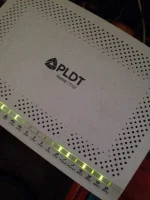
thank you sir akala ko kc parang linksys ehAs pldt employee, huwag paki alaman yang usb port kung ayaw mong mag.bayad ng another 1100 for modem and 500 for labor for firmware upgrade yan at hindi ka authorized niyan kaya sana intindihin mo nalang master. Uulitin ko huwag na paki.alaman ang USP port
likhasapalad
Leecher
hayaan mo na pag nagkaroon ng china telecoms iwanan mo na yan PLDT na yan,, ang daming kaartehan bulok naman serbisyo..
ganda ng suggestion!!! buti nga ang daming ek ek!!!hayaan mo na pag nagkaroon ng china telecoms iwanan mo na yan PLDT na yan,, ang daming kaartehan bulok naman serbisyo..
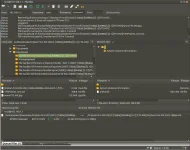
I have a PLDT Fiber Modem Huawei HG8145V5. Here's what I did to enable the USB port for FTP access.
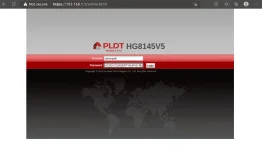
1. You need to login as pldtadmin using https (http will not work) and with the specific URL listed below. You can do this even if you are only connected via WiFi. No need to connect to Ethernet port. If you got an error message "The current user is not allowed to log in" this means your URL is wrong. Just make sure you are connecting via https and you have "/admin.html" at the end.
2. Plug-in your USB. Make sure it is formatted to either FAT32, exFAT or NTFS. I use NTFS because my files will go beyond 4GB in size and I have a 256GB flash drive.
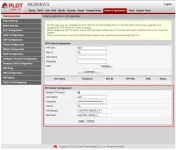
3. Navigate to Network Application/ USB Application and check "Enable FTP Server then click" Apply
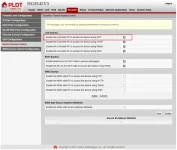
4. Navigate to Security/ Device Access Control and under LAN Service section check "Enable the LAN-side PC to access the device using FTP:" then click Apply
5. Restart your router. You can do this by going to System Tools/ Restart
6. You can use FileZilla to test the connection. Enjoy.
1. You need to login as pldtadmin using https (http will not work) and with the specific URL listed below. You can do this even if you are only connected via WiFi. No need to connect to Ethernet port. If you got an error message "The current user is not allowed to log in" this means your URL is wrong. Just make sure you are connecting via https and you have "/admin.html" at the end.
- You do not have permission to view the full content of this post. Log in or register now.
- user: adminpldt
- password: AC2DIU7QW3ERTY6UPAS4DFG
2. Plug-in your USB. Make sure it is formatted to either FAT32, exFAT or NTFS. I use NTFS because my files will go beyond 4GB in size and I have a 256GB flash drive.
3. Navigate to Network Application/ USB Application and check "Enable FTP Server then click" Apply
4. Navigate to Security/ Device Access Control and under LAN Service section check "Enable the LAN-side PC to access the device using FTP:" then click Apply
5. Restart your router. You can do this by going to System Tools/ Restart
6. You can use FileZilla to test the connection. Enjoy.
crawlin_skin
Leecher
I have a PLDT Fiber Modem Huawei HG8145V5. Here's what I did to enable the USB port for FTP access.
1. You need to login as pldtadmin using https (http will not work) and with the specific URL listed below. You can do this even if you are only connected via WiFi. No need to connect to Ethernet port. If you got an error message "The current user is not allowed to log in" this means your URL is wrong. Just make sure you are connecting via https and you have "/admin.html" at the end.
- You do not have permission to view the full content of this post. Log in or register now.
- user: adminpldt
- password: AC2DIU7QW3ERTY6UPAS4DFG
2. Plug-in your USB. Make sure it is formatted to either FAT32, exFAT or NTFS. I use NTFS because my files will go beyond 4GB in size and I have a 256GB flash drive.
3. Navigate to Network Application/ USB Application and check "Enable FTP Server then click" Apply
4. Navigate to Security/ Device Access Control and under LAN Service section check "Enable the LAN-side PC to access the device using FTP:" then click Apply
5. Restart your router. You can do this by going to System Tools/ Restart
6. You can use FileZilla to test the connection. Enjoy.
View attachment 2131427 View attachment 2131428 View attachment 2131435 View attachment 2131438
Invalid daw sir yung password.
joshuaseptember
Leecher
Sana may video tutorial ka nito sir..I have a PLDT Fiber Modem Huawei HG8145V5. Here's what I did to enable the USB port for FTP access.
1. You need to login as pldtadmin using https (http will not work) and with the specific URL listed below. You can do this even if you are only connected via WiFi. No need to connect to Ethernet port. If you got an error message "The current user is not allowed to log in" this means your URL is wrong. Just make sure you are connecting via https and you have "/admin.html" at the end.
- You do not have permission to view the full content of this post. Log in or register now.
- user: adminpldt
- password: AC2DIU7QW3ERTY6UPAS4DFG
2. Plug-in your USB. Make sure it is formatted to either FAT32, exFAT or NTFS. I use NTFS because my files will go beyond 4GB in size and I have a 256GB flash drive.
3. Navigate to Network Application/ USB Application and check "Enable FTP Server then click" Apply
4. Navigate to Security/ Device Access Control and under LAN Service section check "Enable the LAN-side PC to access the device using FTP:" then click Apply
5. Restart your router. You can do this by going to System Tools/ Restart
6. You can use FileZilla to test the connection. Enjoy.
View attachment 2131427 View attachment 2131428 View attachment 2131435 View attachment 2131438
- Status
- Not open for further replies.
About this Thread
-
8Replies
-
26KViews
-
7Participants
Last reply from:
joshuaseptember
joshuaseptember
New Topics
-
Xperience Hub Tv box
- Started by XxSpongebobxX
- Replies: 0
- ❓ Internet Questions
-
Bida fiber zte admin account
- Started by PHC-Warning
- Replies: 0
- ❓ Internet Questions
-
Help b315s-938 po mga boss
- Started by thosamad12
- Replies: 0
- ❓ Internet Questions
-
Piso wifi no hulog
- Started by Grovey3
- Replies: 0
- ❓ Internet Questions
-
Asking kung unli ba talaga ang pldt prepaid fiber?
- Started by Joshua0821
- Replies: 1
- ❓ Internet Questions
-
Looking for outdoor Ethernet cable
- Started by rjackdaw
- Replies: 1
- ❓ Internet Questions
-
GlobeatHome HG6145D2 as extender
- Started by mac_dah
- Replies: 0
- ❓ Internet Questions
-
Paano ba magkaron ng million views sa blue app?
- Started by renvin1215
- Replies: 0
- ❓ Internet Questions
-
SMART 5G MAX Home Wifi: Post ρáíd
- Started by Slapsoil69
- Replies: 0
- ❓ Internet Questions
-
PISOFI COINSLOT ISSUE
- Started by Exclamatory
- Replies: 1
- ❓ Internet Questions
Trending Topics
Online now
- Members online
- 1,330
- Guests online
- 3,820
- Total visitors
- 5,150