 PH
PHJanna_Delfin
Forum Veteran
Rooting Android using Kingo Root PC App:
Step 1: Enable USB Debugging Mode on your Android smartphone. (To enable USB debugging, Go to Settings > About phone > Built Number ( Tap on it 7 times until it shows you are now a Developer.) Return to settings & Go to Developer options > USB Debugging)
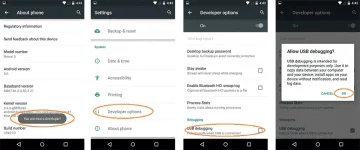
Enable USB Debugging in Android
Step 2: Download Kingo Root Windows Application and install it normally in your Windows PC.
Download Kingo Root : You do not have permission to view the full content of this post. Log in or register now.
ito po yung link ng PC app: You do not have permission to view the full content of this post. Log in or register now.
Step 3: Once you have Installed Kingo Root App in your Windows PC, you will see a windows similar to this.
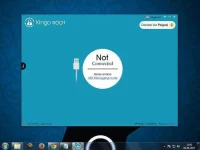
Kingo Root (ROOT Any Android Device)
Step 4: After connecting your Android smartphone, If your device driver is not installed on your Computer, Kingo Root will install it for you automatically.
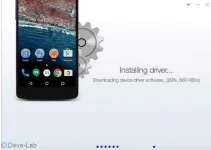
Kingo Root installing drivers for rooting
Step 5: Now, Click on ‘Root’ Button to begin the rooting process.
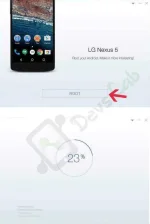
Rooting any Android with Kingo Root
Step 6: Now Kingo Root will Automatically Root your phone and install SuperSU.
Now your Android Device is rooted, To confirm Check for an App named ‘SuperSU’ on your phone. Congratulations, you have successfully Rooted your Android Smartphone.
Sana po makatulong mga Ka PHc feedback nalang po OK na
Step 1: Enable USB Debugging Mode on your Android smartphone. (To enable USB debugging, Go to Settings > About phone > Built Number ( Tap on it 7 times until it shows you are now a Developer.) Return to settings & Go to Developer options > USB Debugging)
Enable USB Debugging in Android
Step 2: Download Kingo Root Windows Application and install it normally in your Windows PC.
Download Kingo Root : You do not have permission to view the full content of this post. Log in or register now.
ito po yung link ng PC app: You do not have permission to view the full content of this post. Log in or register now.
Step 3: Once you have Installed Kingo Root App in your Windows PC, you will see a windows similar to this.
Kingo Root (ROOT Any Android Device)
Step 4: After connecting your Android smartphone, If your device driver is not installed on your Computer, Kingo Root will install it for you automatically.
Kingo Root installing drivers for rooting
Step 5: Now, Click on ‘Root’ Button to begin the rooting process.
Rooting any Android with Kingo Root
Step 6: Now Kingo Root will Automatically Root your phone and install SuperSU.
Now your Android Device is rooted, To confirm Check for an App named ‘SuperSU’ on your phone. Congratulations, you have successfully Rooted your Android Smartphone.
Sana po makatulong mga Ka PHc feedback nalang po OK na