 PH
PHPHC-lagablab201801
Forum Guru
Welcome to my simplified modified tutorial on how to create configuration using KPN Tunnel Ultimate.
Please bear on the procedures as cited below.
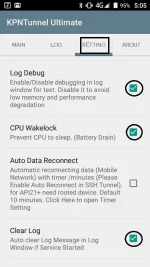
First, Download KPN Tunnel Ultimate 1.4.2 (Build 1421) apk. Available in Playstore. Go to Setting then check
the following check boxes: Log Debug (Optional), CPU Wakelock (Optional), Auto Data Reconnect [rooted device only] & Clear Log. Please see as provided in the SS:
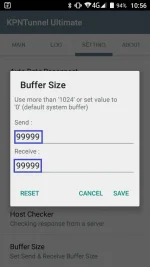
Second, go to "Buffer Size". Set to 99999 both [send] & [received] then save. Please see as provided in the SS:
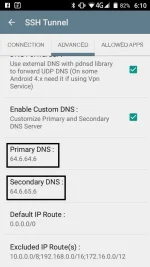
Third, go to "SSH Tunnel". You have notice four (4) features as follows: Profile, Connection, Advance
& Allowed Apps. Go to "Advance", check "Enable Custom DNS" then input one of these DNS:
[ps: use can still use the default DNS if you want]. Please see as provided in the SS:
Open DNS 208.67.220.220/208.67.222.222
Norton ConnectSafe 199.85.126.10/199.85.127.10
Comodo Secure DNS 8.26.56.26/8.20.247.20
DNS.Watch 84.200.69.80/84.200.70.40
VeriSign Public DNS 64.6.64.6/64.6.65.6
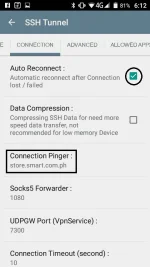
Go to "Connection". check "Auto Reconnect" then input in the "Connection Pinger" based on your network.
Please see as provided in the SS:
Globe/TM/TNT: m.google.com/You do not have permission to view the full content of this post. Log in or register now.
Smart Kickstart/LTE/Bro: store.smart.com.ph
Sun: suncellular.com.ph
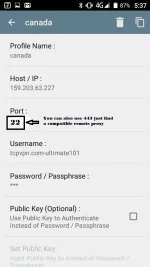
Fourt, visit your favorite SSH site then create an account. Go to "Profile" then input the details of your
SSH Account. "Profile Name" [its up to you]. Check the SSH Tunnel check box. Please see as provided in the SS:
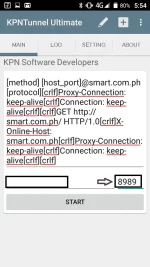
Fifth, go to "Main". Click the "pencil-like" in the upper right portion. You are now in the payload settings:
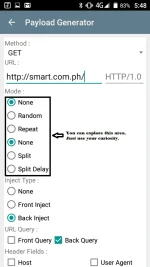
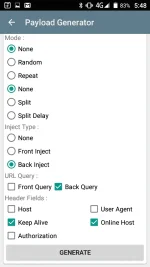
Please see as provided in the SS [I'm using smart network as example]. *In this phase, you can explore
and experiment your own payload settings.
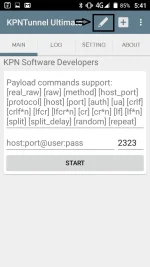
Sixth, input your working & compatible remote proxy. Also, you can change the listening port from 2323 [default] to 8888 or 8989. Please see as provided in the SS:
To those who have not yet to know how to hunt working proxies, please feel free to visit my thread:
https://phcorner.org/t/method-in-hunting-best-proxies-to-be-use-as-remote-proxy.263455/
Seventh, hit "start" then go to log for the log information. Example:
Please bear on the procedures as cited below.
First, Download KPN Tunnel Ultimate 1.4.2 (Build 1421) apk. Available in Playstore. Go to Setting then check
the following check boxes: Log Debug (Optional), CPU Wakelock (Optional), Auto Data Reconnect [rooted device only] & Clear Log. Please see as provided in the SS:
Second, go to "Buffer Size". Set to 99999 both [send] & [received] then save. Please see as provided in the SS:
Third, go to "SSH Tunnel". You have notice four (4) features as follows: Profile, Connection, Advance
& Allowed Apps. Go to "Advance", check "Enable Custom DNS" then input one of these DNS:
[ps: use can still use the default DNS if you want]. Please see as provided in the SS:
Open DNS 208.67.220.220/208.67.222.222
Norton ConnectSafe 199.85.126.10/199.85.127.10
Comodo Secure DNS 8.26.56.26/8.20.247.20
DNS.Watch 84.200.69.80/84.200.70.40
VeriSign Public DNS 64.6.64.6/64.6.65.6
Go to "Connection". check "Auto Reconnect" then input in the "Connection Pinger" based on your network.
Please see as provided in the SS:
Globe/TM/TNT: m.google.com/You do not have permission to view the full content of this post. Log in or register now.
Smart Kickstart/LTE/Bro: store.smart.com.ph
Sun: suncellular.com.ph
Fourt, visit your favorite SSH site then create an account. Go to "Profile" then input the details of your
SSH Account. "Profile Name" [its up to you]. Check the SSH Tunnel check box. Please see as provided in the SS:
Fifth, go to "Main". Click the "pencil-like" in the upper right portion. You are now in the payload settings:
Please see as provided in the SS [I'm using smart network as example]. *In this phase, you can explore
and experiment your own payload settings.
Sixth, input your working & compatible remote proxy. Also, you can change the listening port from 2323 [default] to 8888 or 8989. Please see as provided in the SS:
To those who have not yet to know how to hunt working proxies, please feel free to visit my thread:
https://phcorner.org/t/method-in-hunting-best-proxies-to-be-use-as-remote-proxy.263455/
Seventh, hit "start" then go to log for the log information. Example: