 PH
PH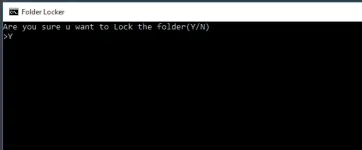
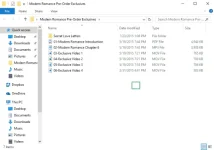
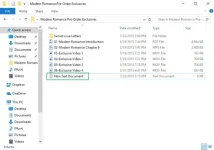
1. Right-click inside the folder where the files you want to protect are located. The folder you want to hide can even be on your desktop.
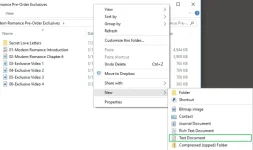
2. Select "New" from the contextual menu.
3. Click on "Text Document."
4. Hit Enter. It doesn't matter what the file will be named. You can delete this text file once the lockable folder has been made.
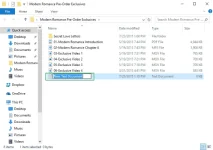
5. Double-click the text file to open it.
6. Paste the below text or code into the new document:
Code:
cls
@ECHO OFF
title Folder Locker
if EXIST "Control Panel.{21EC2020-3AEA-1069-A2DD-08002B30309D}" goto UNLOCK
if NOT EXIST Locker goto MDLOCKER
:CONFIRM
echo Are you sure u want to Lock the folder(Y/N)
set/p "cho=>"
if %cho%==Y goto LOCK
if %cho%==y goto LOCK
if %cho%==n goto END
if %cho%==N goto END
echo Invalid choice.
goto CONFIRM
:LOCK
ren Locker "Control Panel.{21EC2020-3AEA-1069-A2DD-08002B30309D}"
attrib +h +s "Control Panel.{21EC2020-3AEA-1069-A2DD-08002B30309D}"
echo Folder locked
goto End
:UNLOCK
echo Enter password to Unlock folder
set/p "pass=>"
if NOT %pass%==Your-Password-Here goto FAIL
attrib -h -s "Control Panel.{21EC2020-3AEA-1069-A2DD-08002B30309D}"
ren "Control Panel.{21EC2020-3AEA-1069-A2DD-08002B30309D}" Locker
echo Folder Unlocked successfully
goto End
:FAIL
echo Invalid password
goto end
:MDLOCKER
md Locker
echo Locker created successfully
goto End
:End
7. Find where it says "Your-Password-Here" in the document.
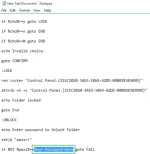
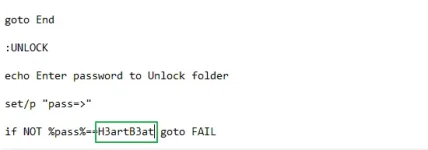
8. Replace "Your-Password-Here" with the password you want to lock the folder with.
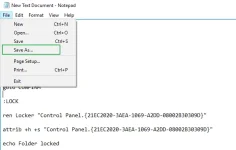
9. Click File.
10. "Select Save As..."
11. Click on the "Text Documents (*.txt)" menu bar that's next to "Save as type:"
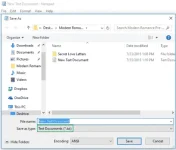
12. Select "All Files"
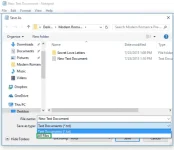
13. Change the file name to "FolderLocker.bat"
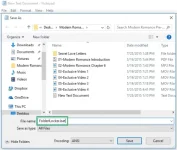
14. Click "Save."
15. Double-click FolderLocker.
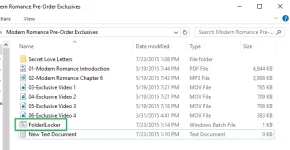
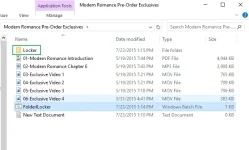
The Locker folder has been generated!
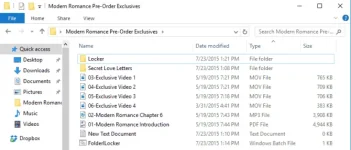
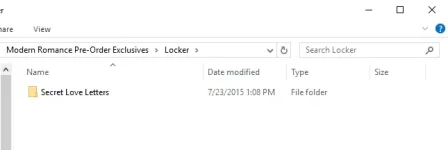
16. Fill the Locker folder with the items you want to protect.
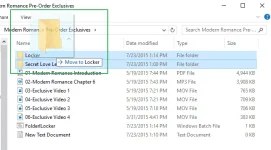
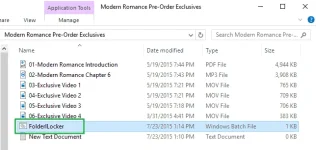
17. Open the FolderLocker file, because it's time to lock that folder up.
18. Type "Y" into the screen. Click Enter, and the Folder Locker window will disappear, along with the Locker folder itself! Your secrets are safe.

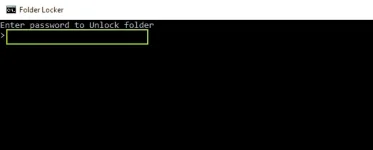
To unlock the folder, double-click "FolderLocker" to open it.
Enter the password you entered in Step 8, and click Enter.
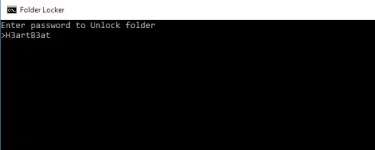
The Locker folder is back. You can open it to find your hidden files. Repeat Steps 17, 18 and 19 to lock the folder again.
Note: If you forgot ur Password , want to change ur password , or you cannot open it then just open the batch file with windows text editor and repeat step number 8.